Documents
Upload, attach, and manage documents
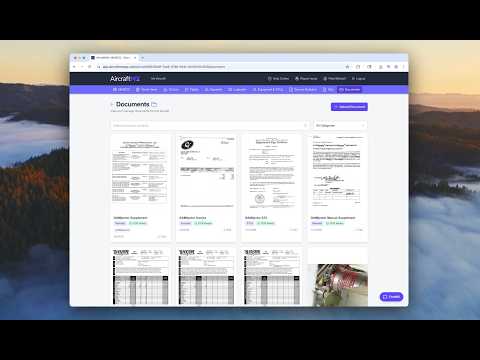
AircraftMX gives you one library for all your aircraft's paperwork: invoices, receipts, 337s, 8130s, manuals, and anything else that usually lives in a filing cabinet. Every upload is transcribed by AI, so you can search inside documents, not just by file name.
Open the Documents library
From the aircraft, click Documents in the navigation bar (the row under the top header). On a phone, scroll that bar sideways to Documents. It is not in the account menu.
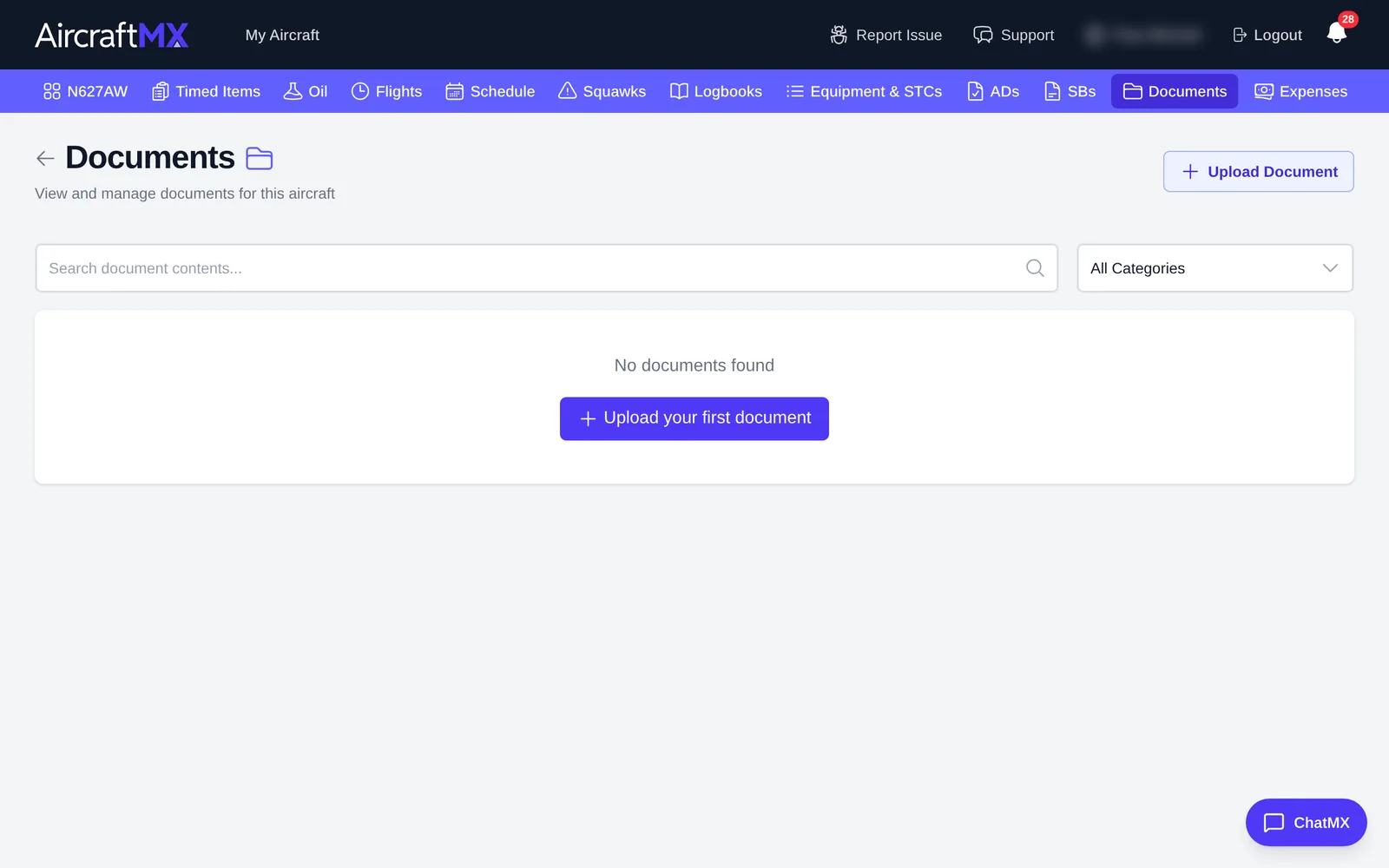
The library shows every document for the aircraft. Logbook entries are kept separately, in Logbooks.
Search documents
Type a keyword in the search field. Because documents are transcribed, search finds text inside them. For example, searching "Blackstone" finds all your Blackstone oil analysis reports, even if "Blackstone" isn't in the file name.
Upload documents
You can upload straight to the library, or attach a document to a specific record.
Straight to the library
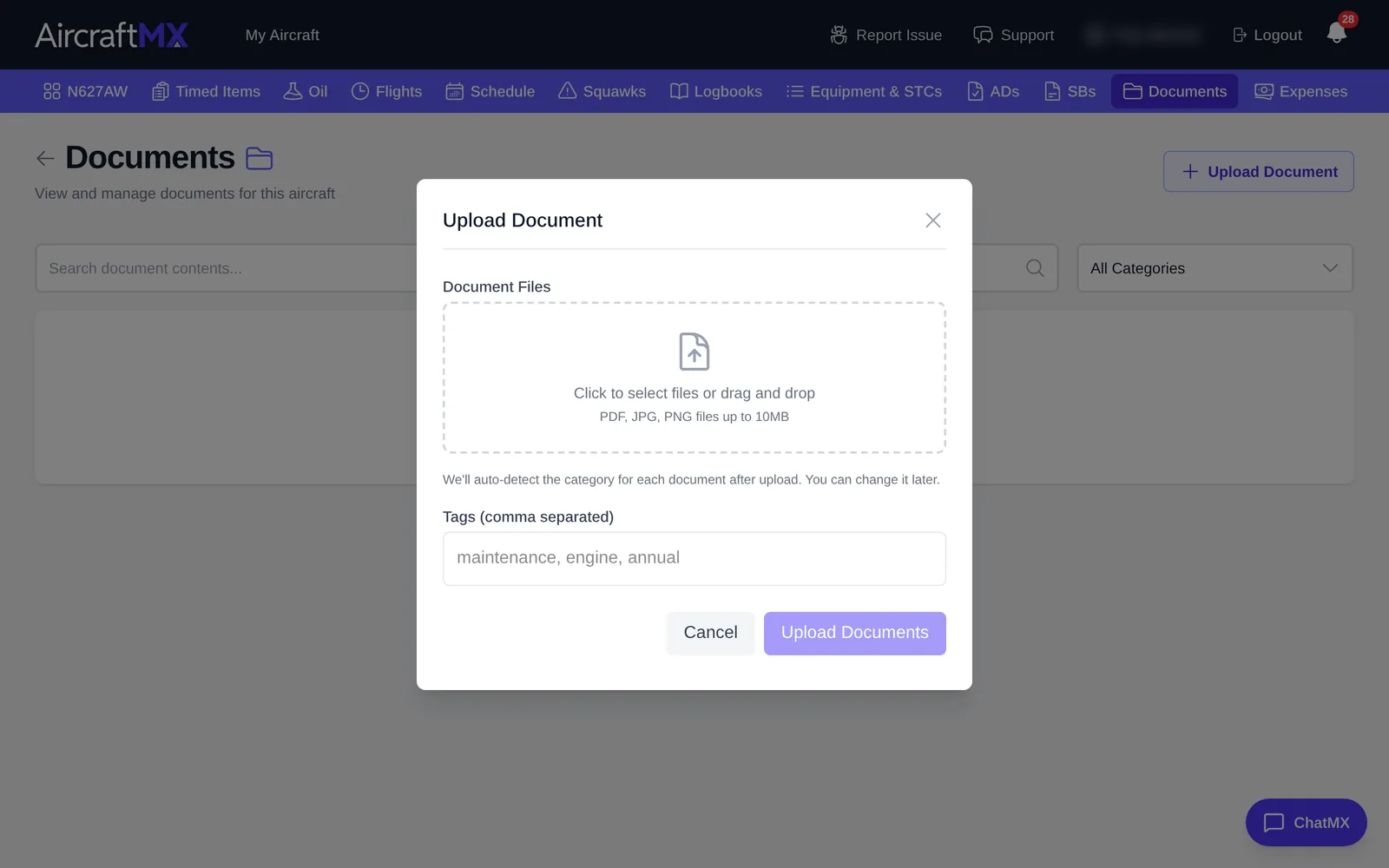
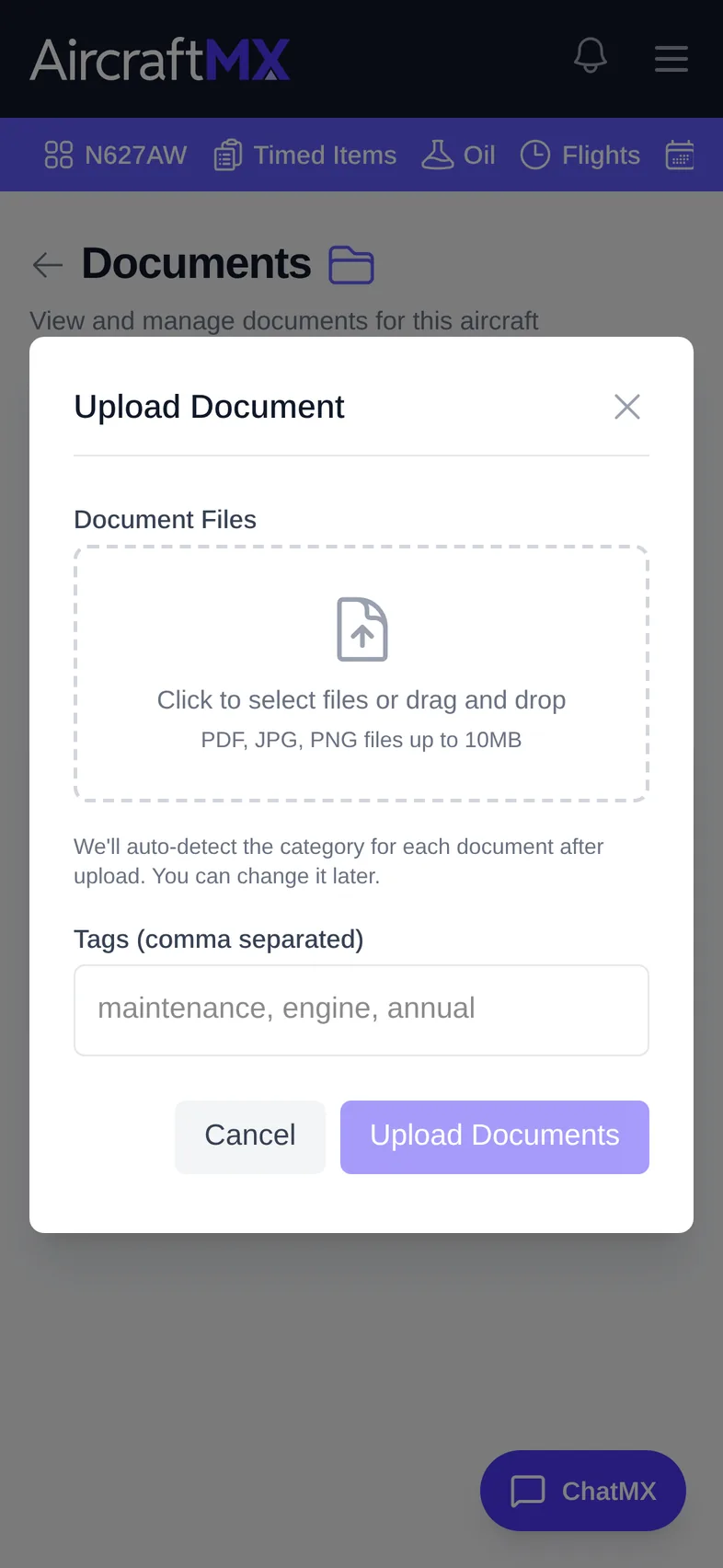
- In Documents, click Upload Document.
- Choose the file (PDF, JPG, JPEG, PNG, or GIF).
- Enter a title and choose a category.
- Add tags if you like.
- Click Upload {n} Document.
From a record
On a logbook entry, equipment item, timed item, or flight log, open Related Documents and click Upload New. To attach a file already in the library, click Link Existing.
Link a document you already uploaded
- Open the record (logbook entry, equipment item, timed item, or flight log).
- Open Related Documents and click Link Existing.
- Browse or search for the document.
- Select it to link it.
Records you can attach documents to
- logbook entries
- equipment
- timed items
- flight logs
Processing
After upload, documents go through OCR and AI transcription. That's what makes full-text search across your whole library work.
On a phone
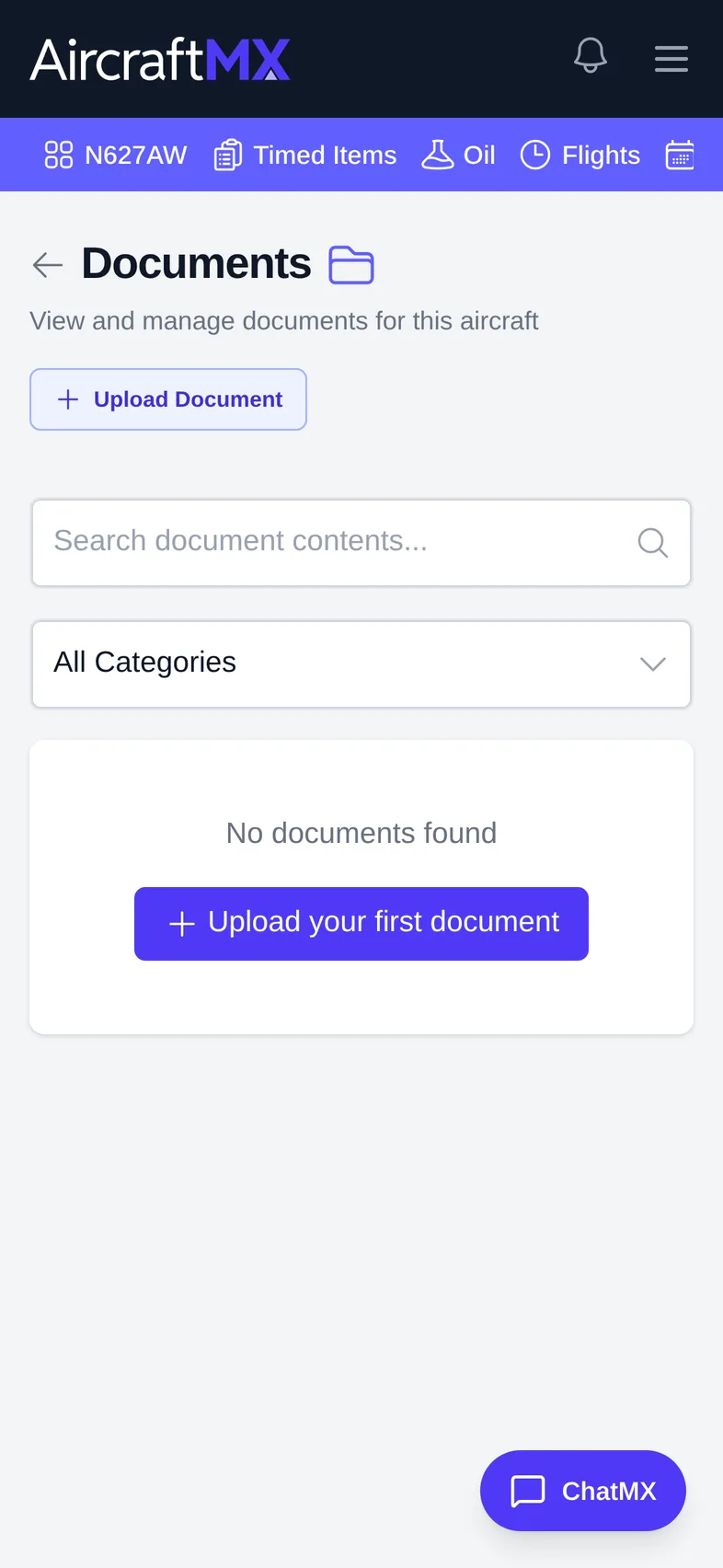
On a phone, scroll the aircraft navigation bar sideways to reach Documents. The document list stacks into cards, and Upload Document is at the top.
Still stuck?
Contact us, or use Report Issue in the app. To send files, attach them from Report Issue.