Notifications
Notifications: center, push, and email digest
AircraftMX lets you know when something needs attention, such as items coming due, new flights imported, or an export ready to download.
Notification center
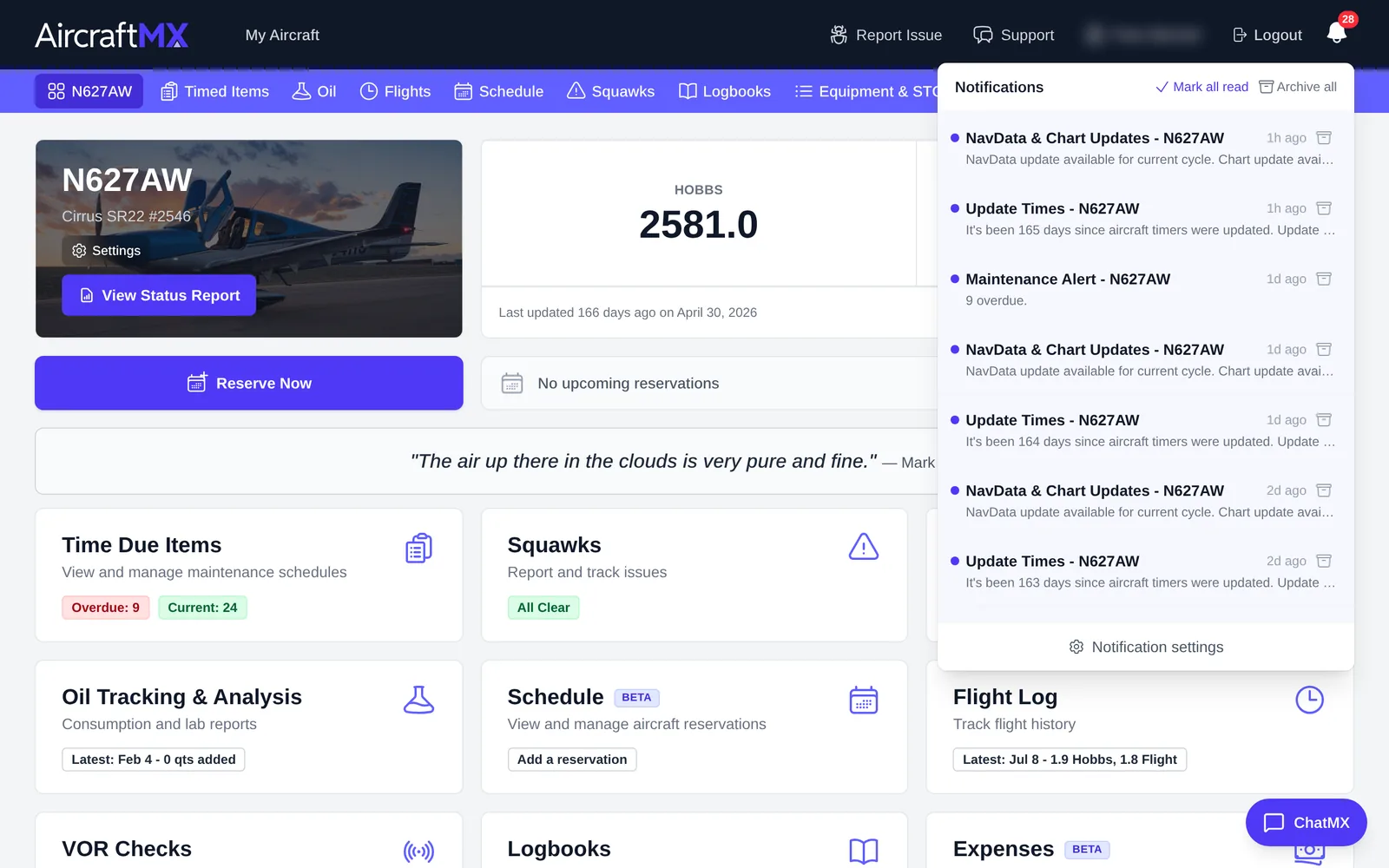
Click the bell in the top bar to open your notifications. From the panel you can:
- Click a notification to go to the item.
- Mark all read.
- Archive all.
- Open Notification settings.
Email status digest
Get a regular email summarizing each aircraft's status.
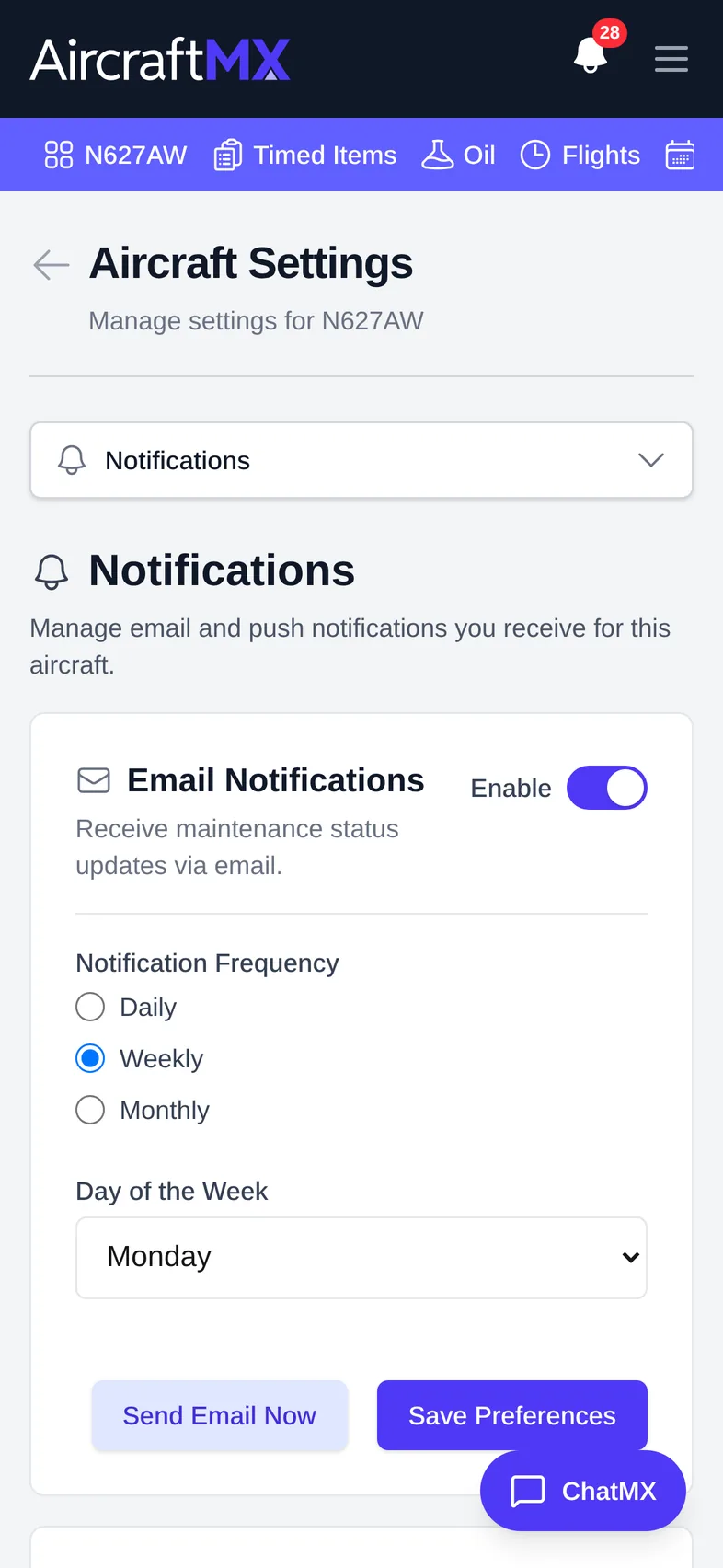
- On the aircraft dashboard, click Settings, then Notifications.
- Turn on Email Notifications.
- Choose the Notification Frequency: Daily, Weekly, or Monthly, and the Day of the Week (or month).
- Click Save Preferences. Click Send Email Now to get a sample straight away.
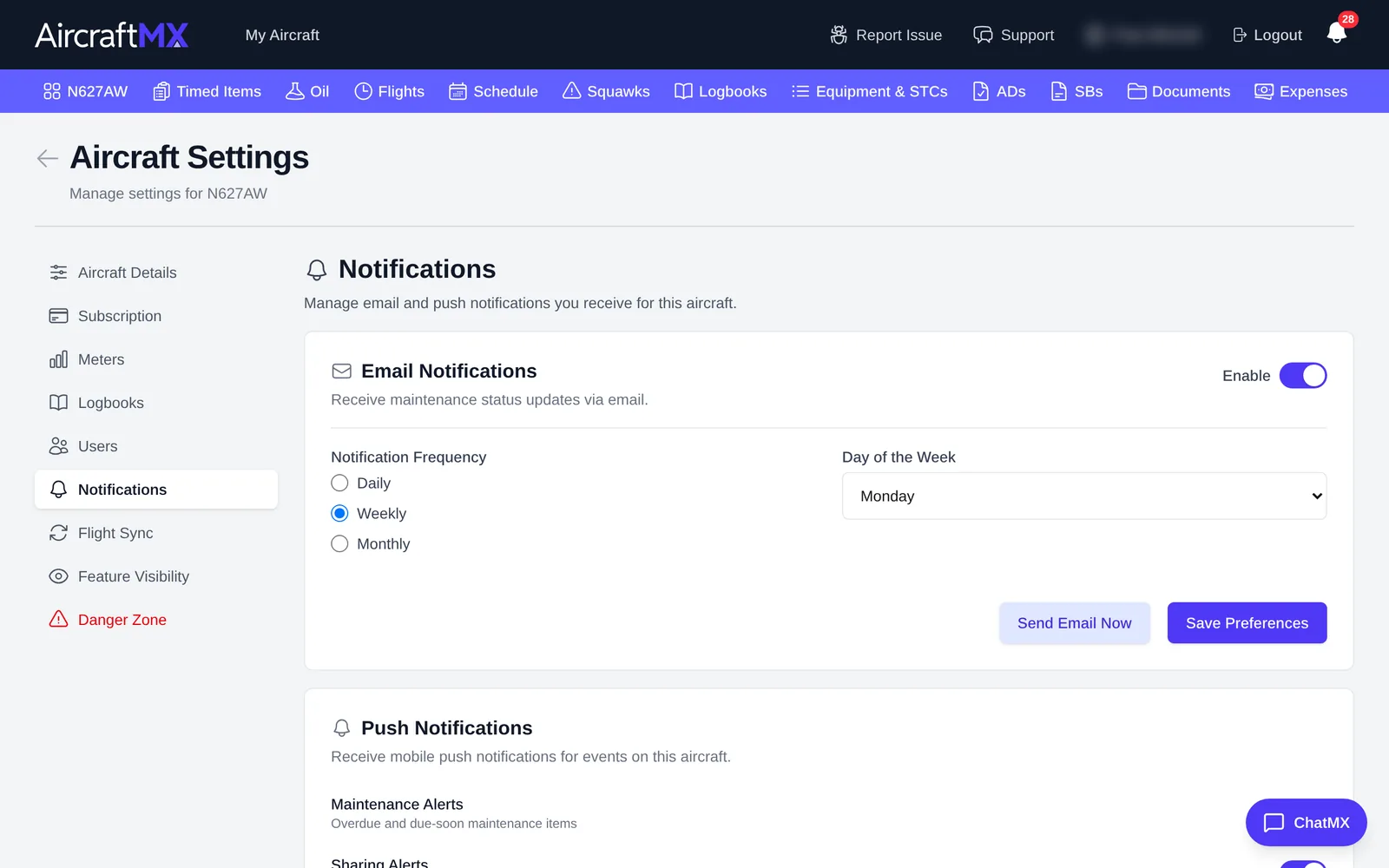
Email settings are per aircraft.
Push notifications (iOS app)
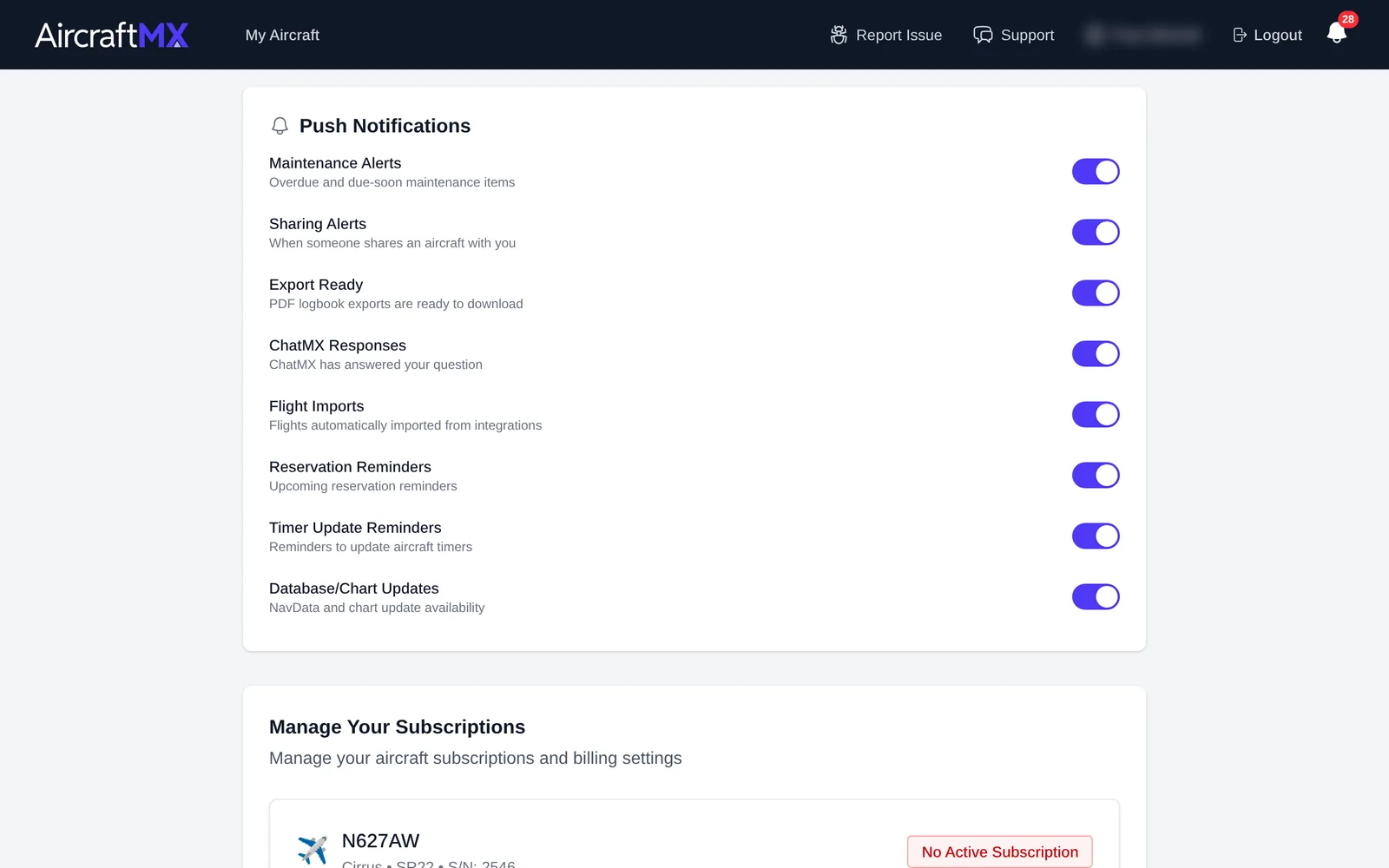
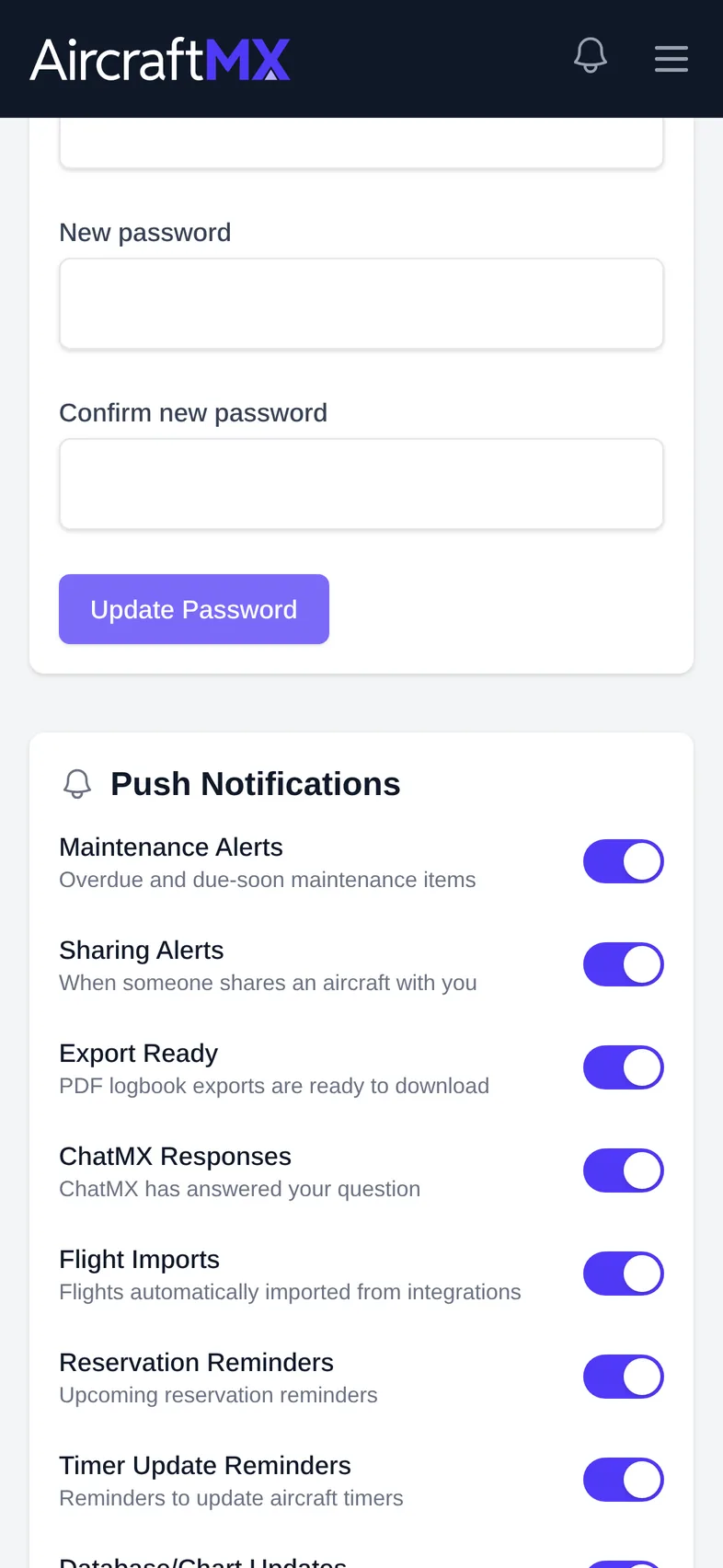
The iOS app is coming soon. When it is out, choose which alerts are sent to your phone. On your profile, under Push Notifications, turn each type on or off:
- Maintenance Alerts
- Sharing Alerts
- Export Ready
- ChatMX Responses
- Flight Imports
- Reservation Reminders
- Timer Update Reminders
- Database/Chart Updates
When the iOS app is out, the first time you open it, iOS asks whether AircraftMX can send notifications. If you said no, turn them on in your iPhone's Settings > Notifications > AircraftMX.
Push preferences are per aircraft. On the profile page you pick the aircraft; in that aircraft's Settings they are locked to it. The test-send button is Send Email Now. The bell's Notification settings link goes to the profile page at #notifications.
On a phone
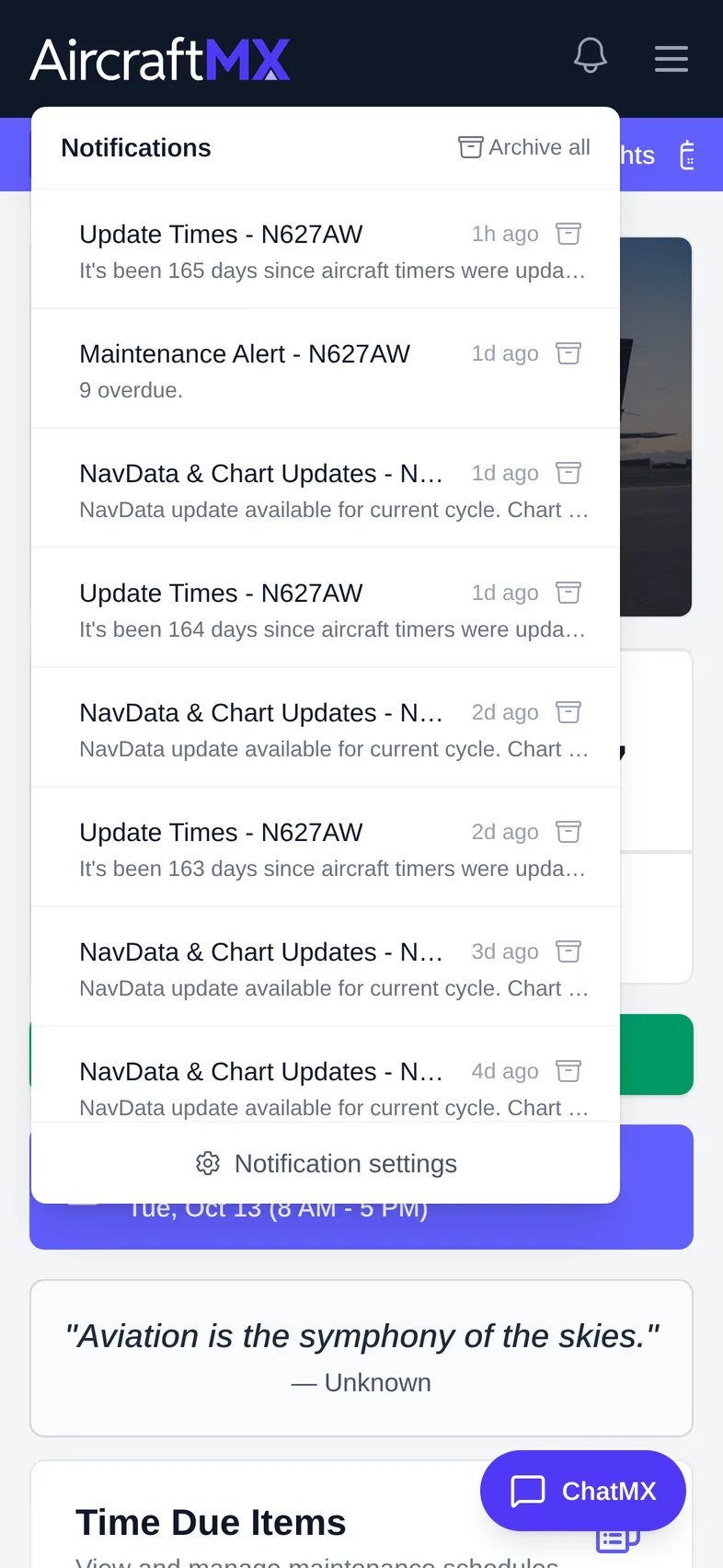
On a phone, the notification panel fills the width of the screen.
Still stuck?
Contact us, or use Report Issue in the top bar of the app.