Service Requests
Send a service request to your mechanic
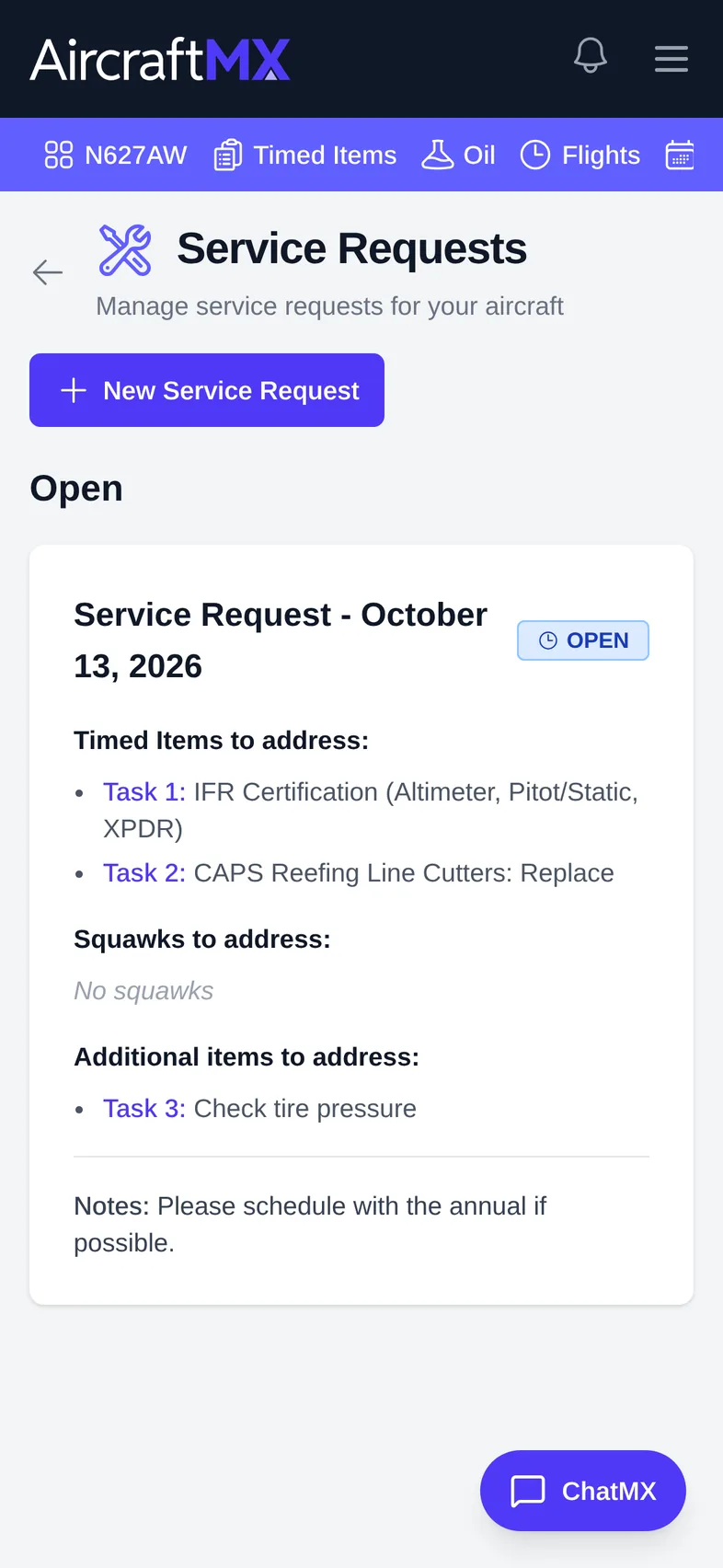
A service request gathers what you want the shop to do, such as overdue or upcoming timed items, open squawks, and your own notes, into one list you can share.
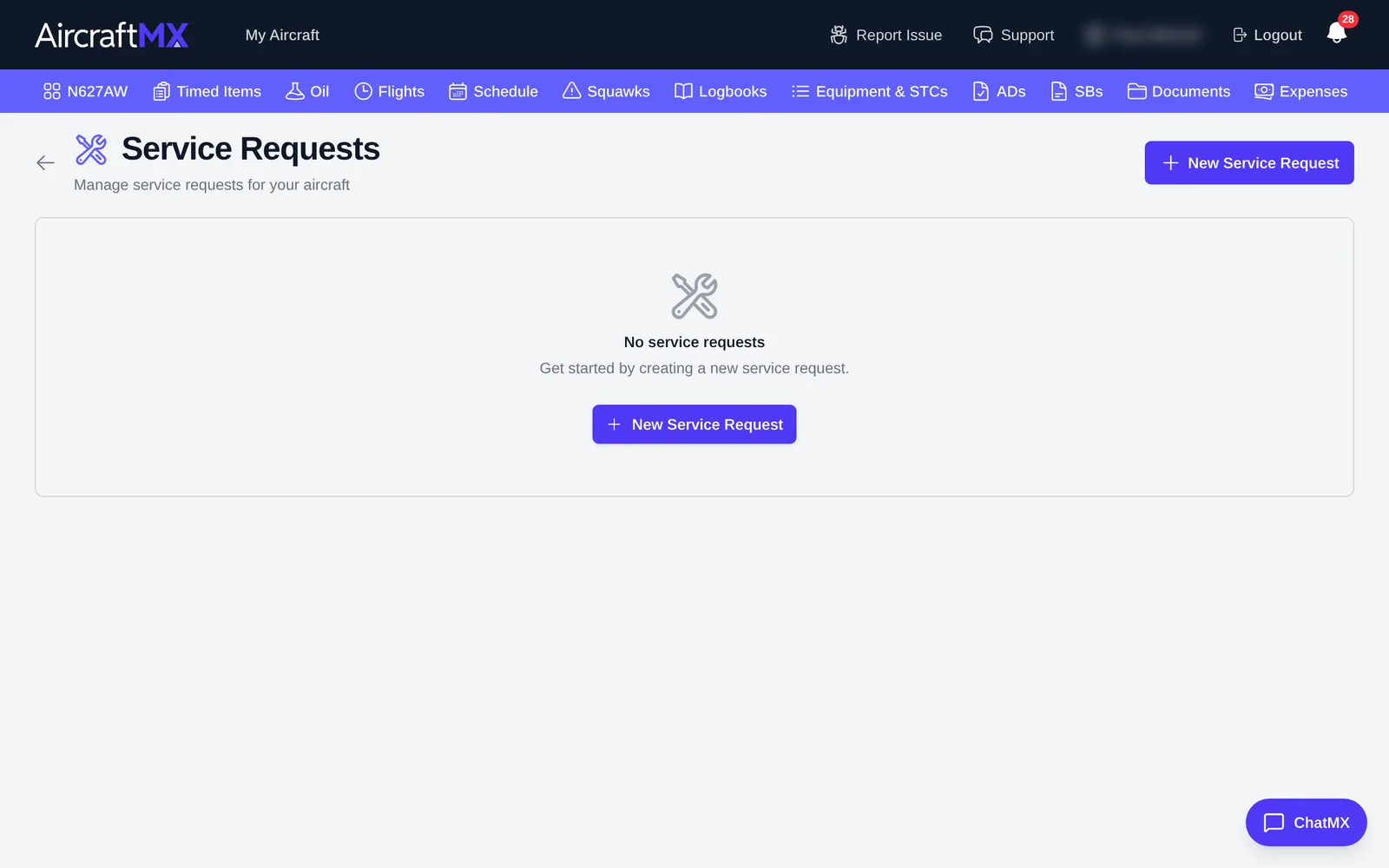
Create a request
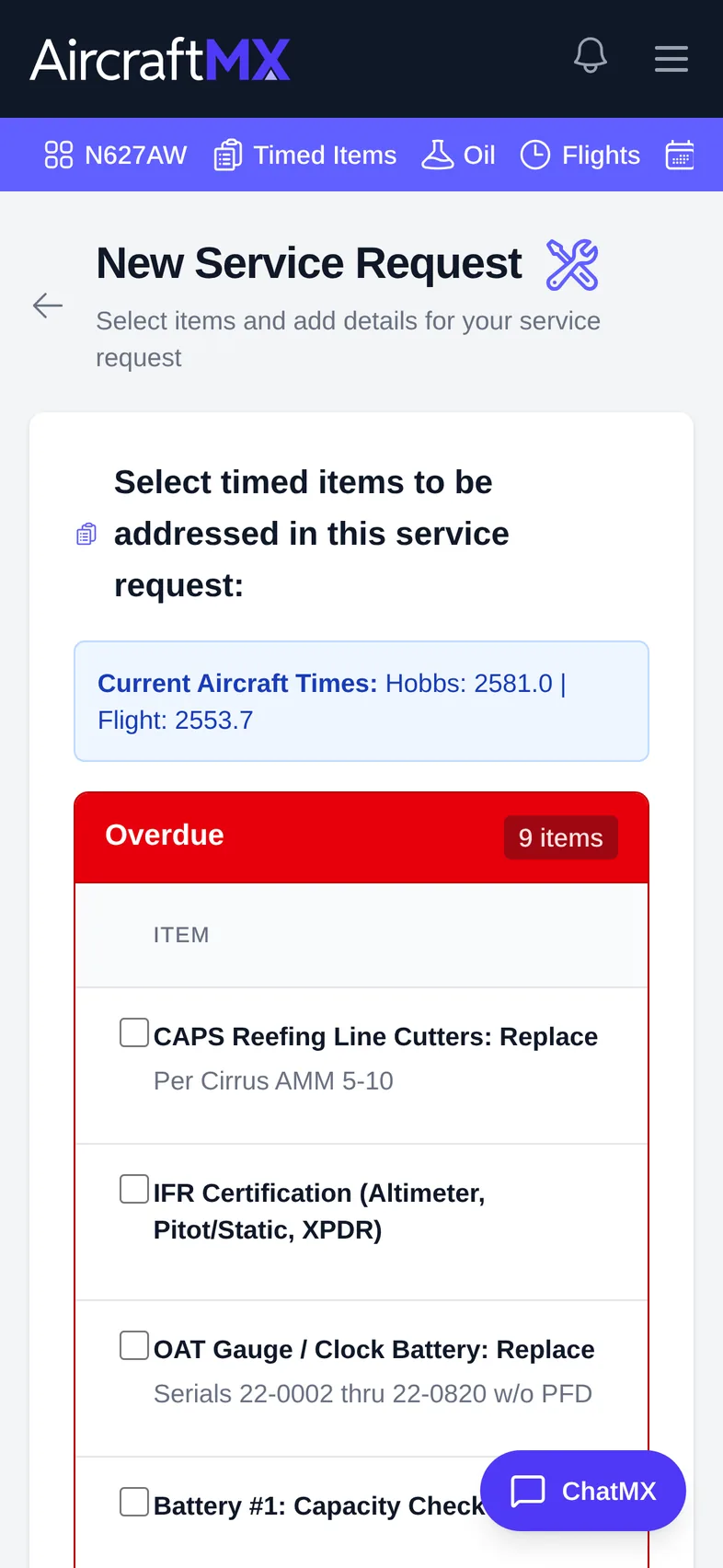
- Service requests are not in the aircraft navigation bar. On the aircraft dashboard, open the Service Requests card, then click New Service Request.
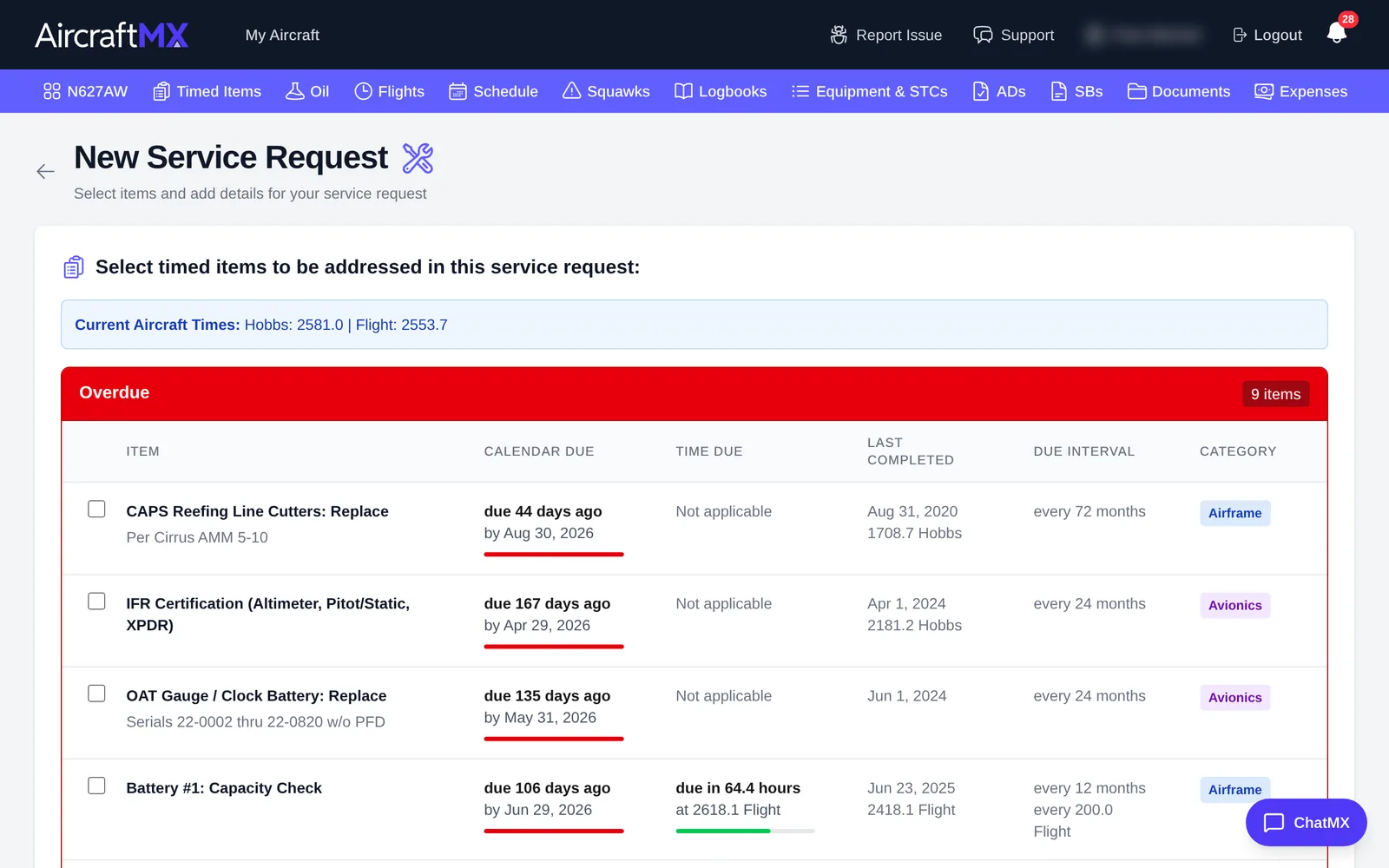
- Check the timed items and squawks to include.
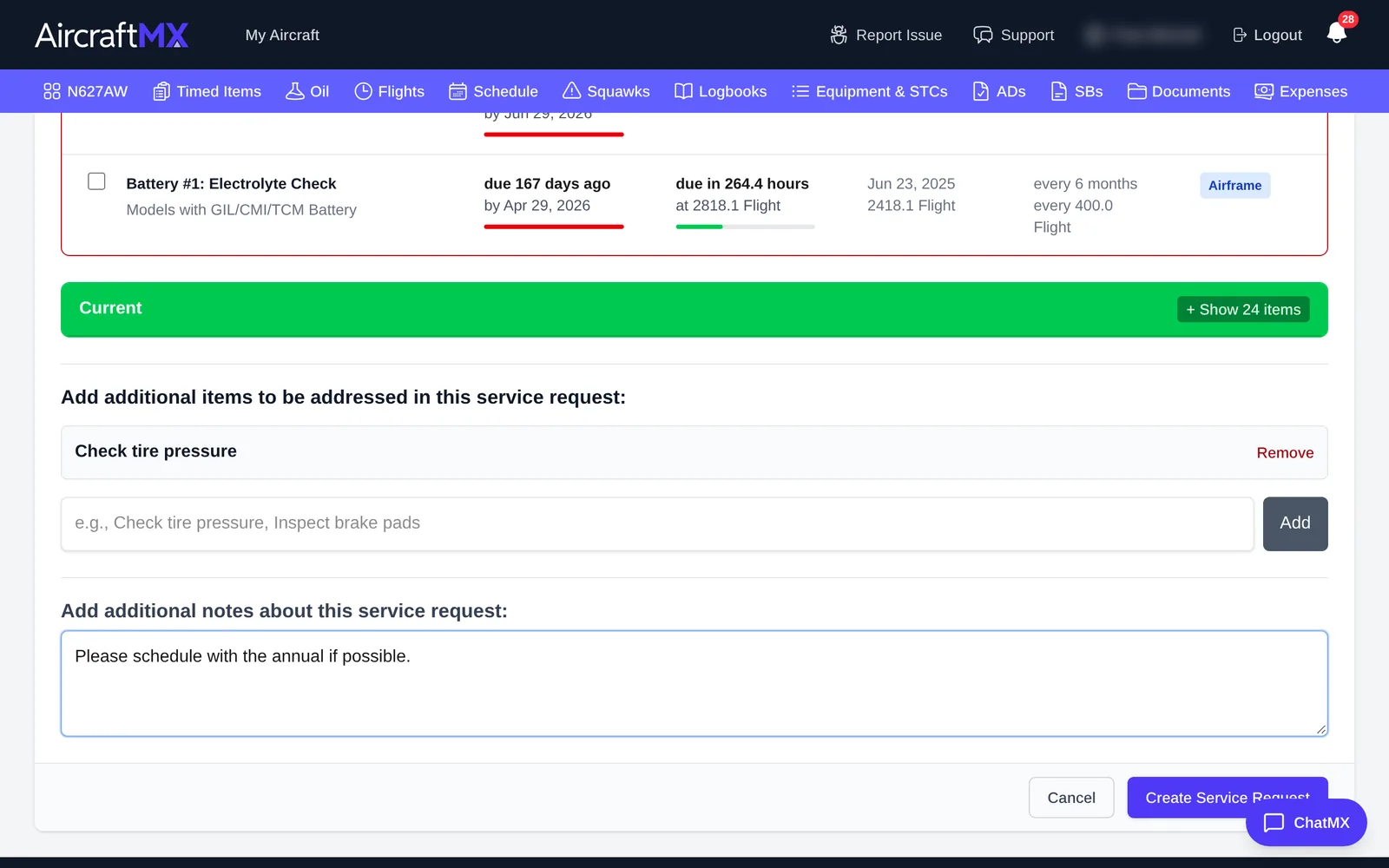
- Add any other items or notes.
- Save.
Share it with your mechanic
- Open the request and click Copy Share Link.
- Paste the link into an email or text to your shop.
Your mechanic can open the link without an AircraftMX account. It's read-only.
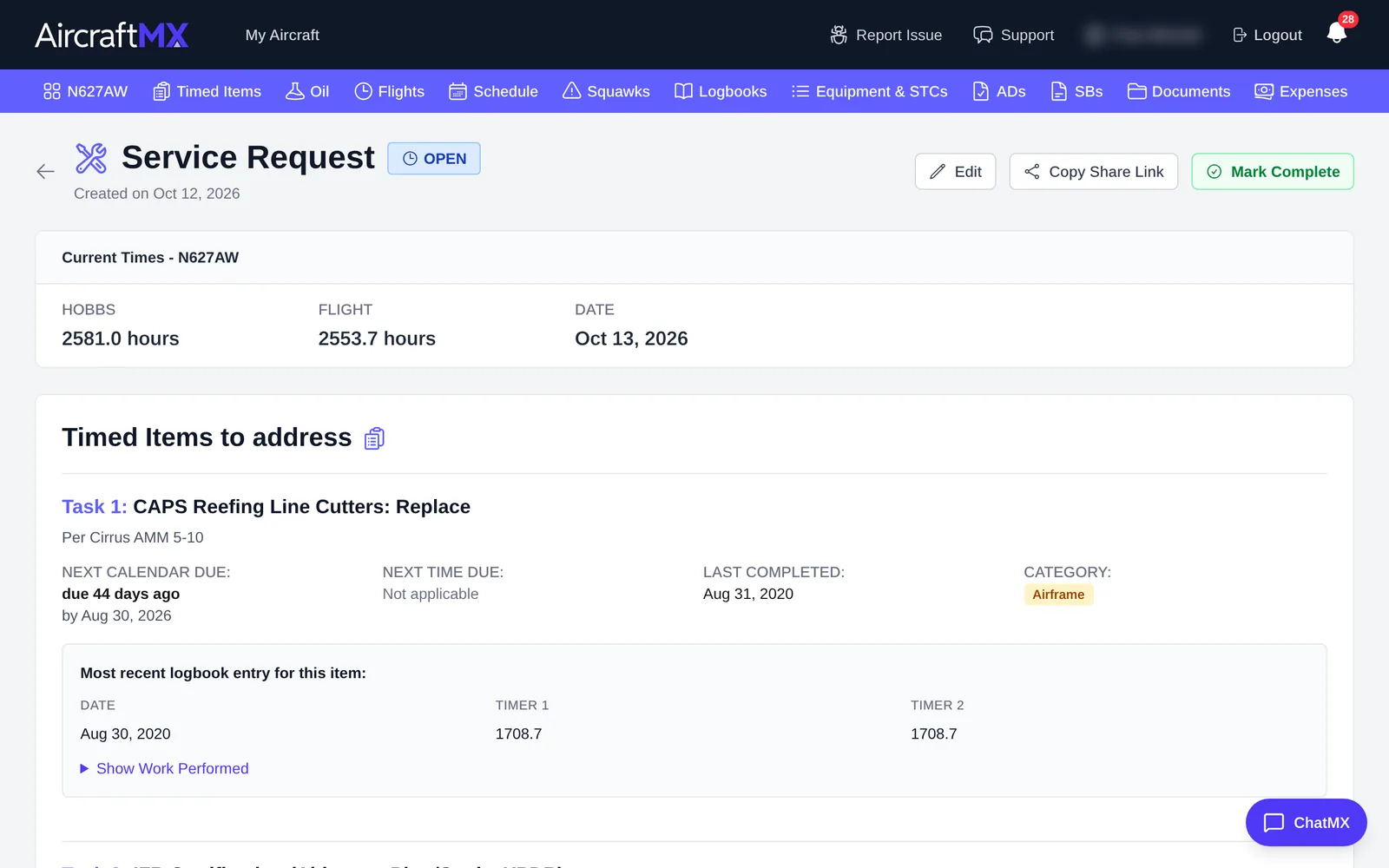
On a service request, Copy Share Link copies the link. The form always sends sharing as on, and there is no switch to turn a link off or set an expiry. The public page footer says This service request was shared securely from AirplaneMX. If the link does not load, the page says it may have expired or been disabled and to contact the aircraft owner. That message is not a setting you can change.
On a phone
The layout is the same on a phone; sections stack in a single column.
Still stuck?
Contact us, or use Report Issue in the top bar of the app.