Expenses
Track expenses
Expenses (Beta) keeps fuel, maintenance, hangar, insurance, and other costs for each aircraft in one place.
Open Expenses
Click Expenses in the navigation bar. If you don't see it, turn it on in Settings → Feature Visibility.
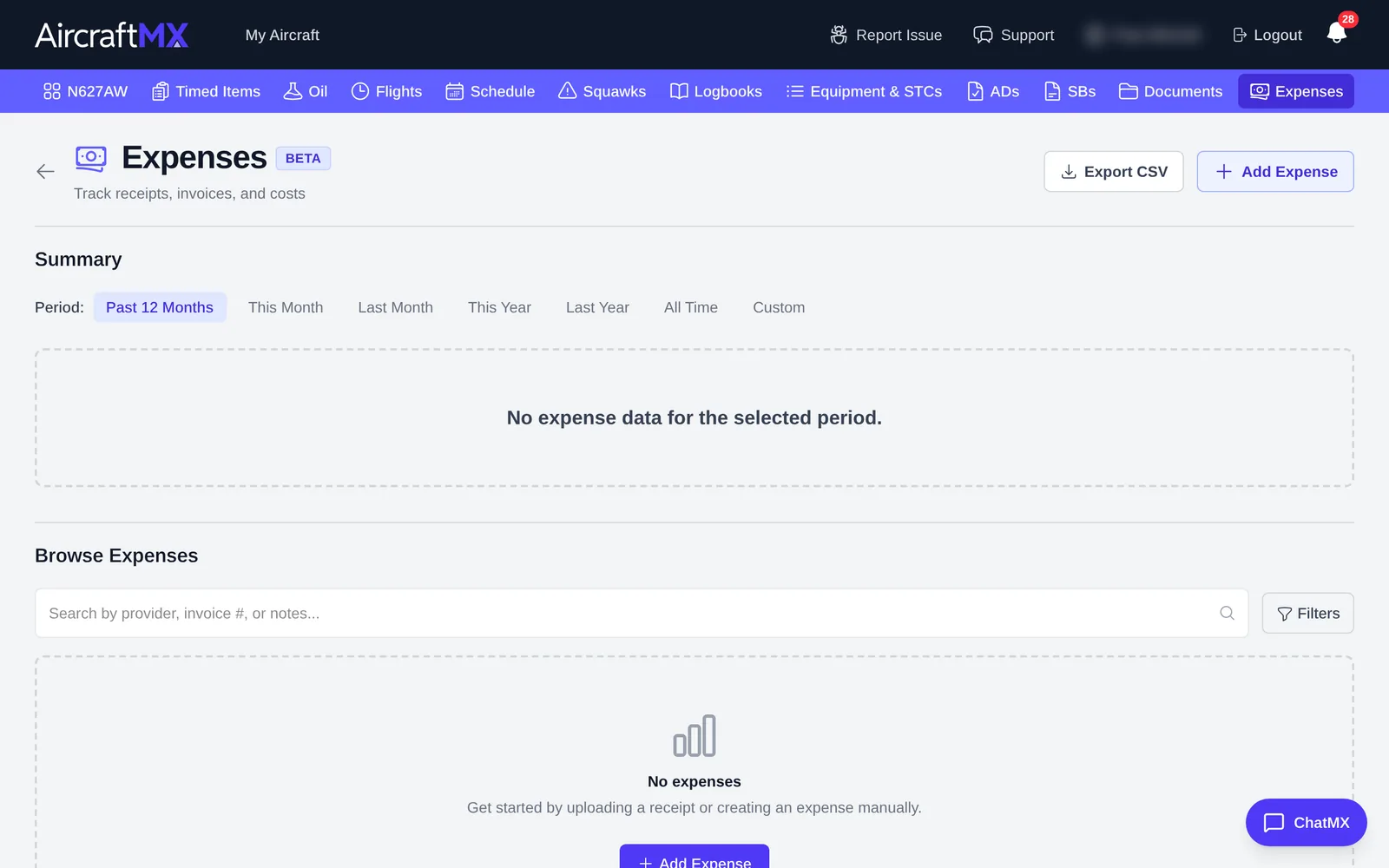
Add an expense
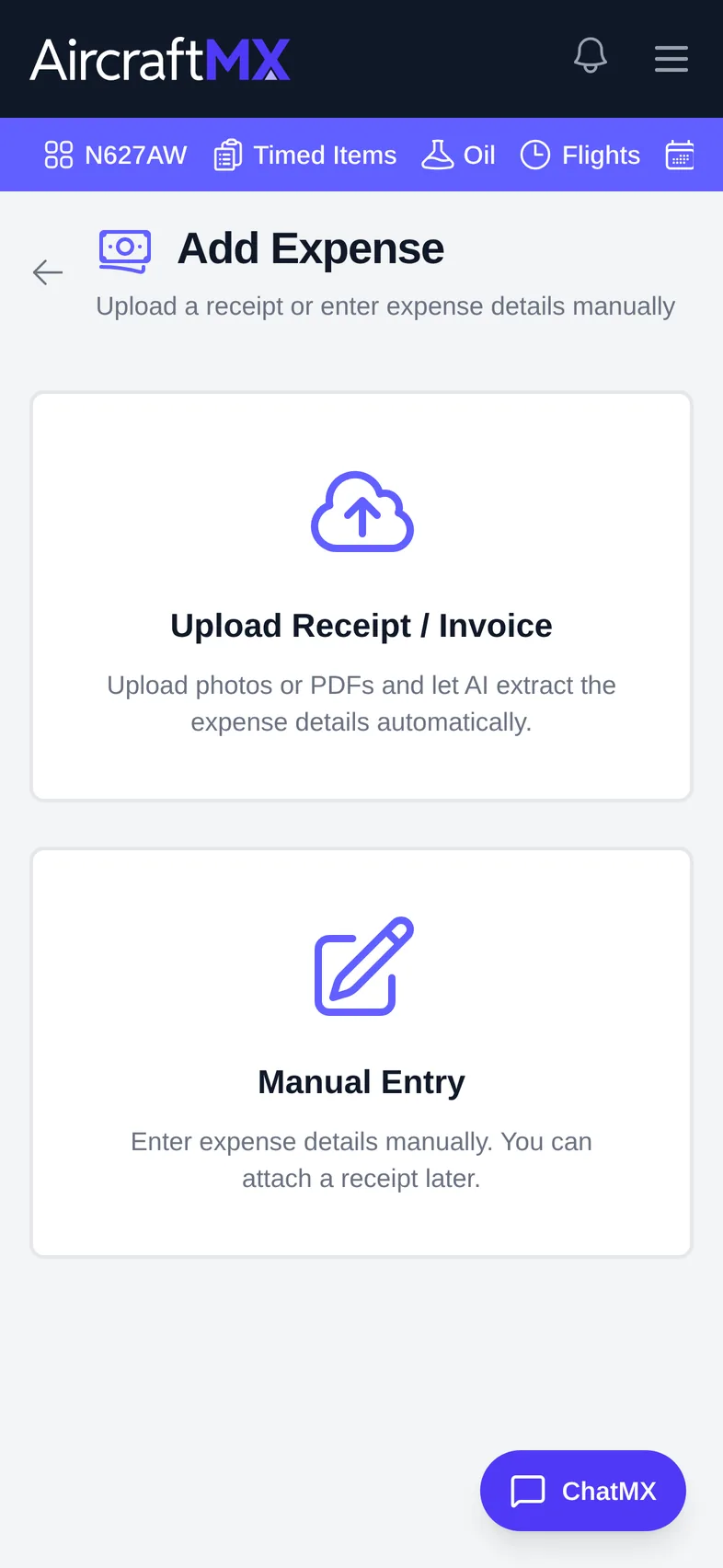
Click Add Expense and choose how to add it.
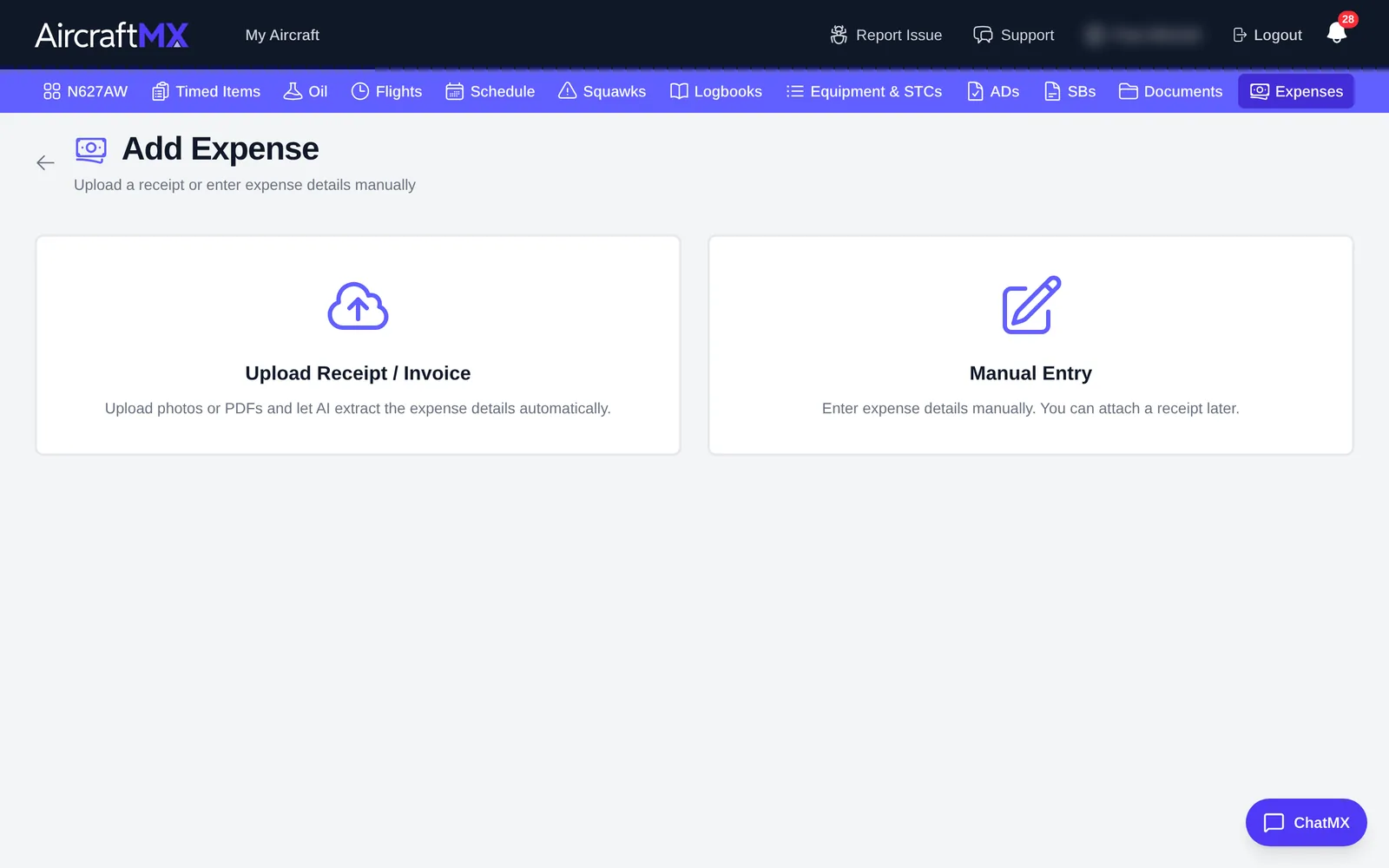
Upload a receipt or invoice
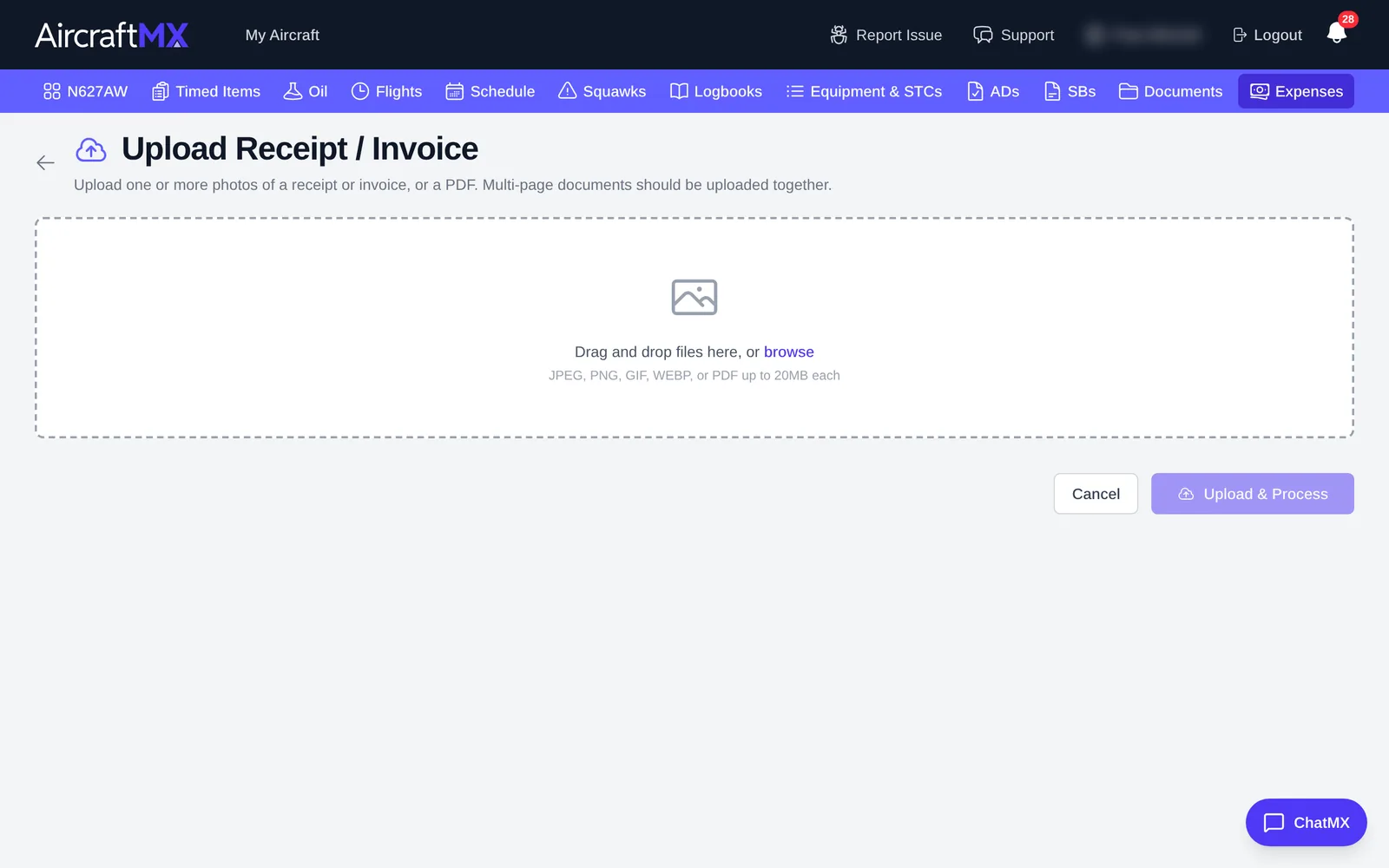
- Choose Upload Receipt / Invoice.
- Drag files in, or click browse. You can upload JPEG, PNG, GIF, WEBP, or PDF files up to 20 MB each. Upload all pages of a multi-page document together.
- Click Upload & Process.
Choose Upload a receipt. You can upload photos or a PDF, including multi-page documents together. When processing finishes, the app opens that expense to edit and says Expense processed successfully! If an expense is still Processing, its page says Processing your document... and that this may take a few minutes. If processing times out, you can fill in the details or click Reprocess. Status labels are Processing, Draft, Pending Review, and Verified. Review the expense, then click Mark Verified (or Save & Verify while editing). A manual expense is saved as Draft. An upload is not always left on Pending Review.
Enter it manually
- Choose Manual Entry.
- Under Provider / Vendor, enter the Name (plus phone, address, and email if you like).
- Under Expense Details, enter the Date, Invoice / Receipt #, and Payment Method.
- Under Line Items, enter a Description, Category (for example Fuel, Labor, Parts, Hangar Fees, Insurance), Qty, and Amount. Click + Add Line Item for more lines.
- Add Notes if needed, then click Save Expense.
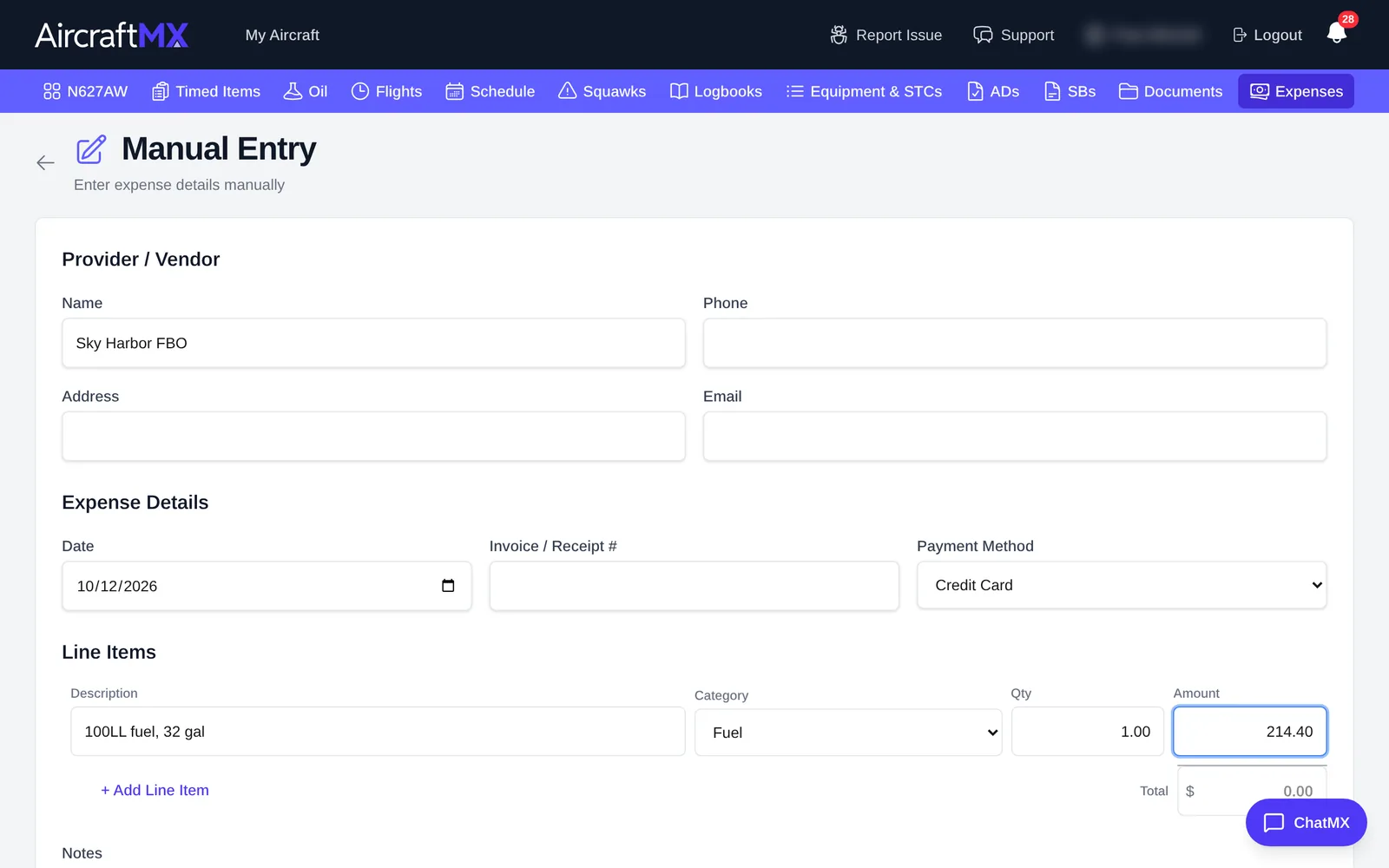
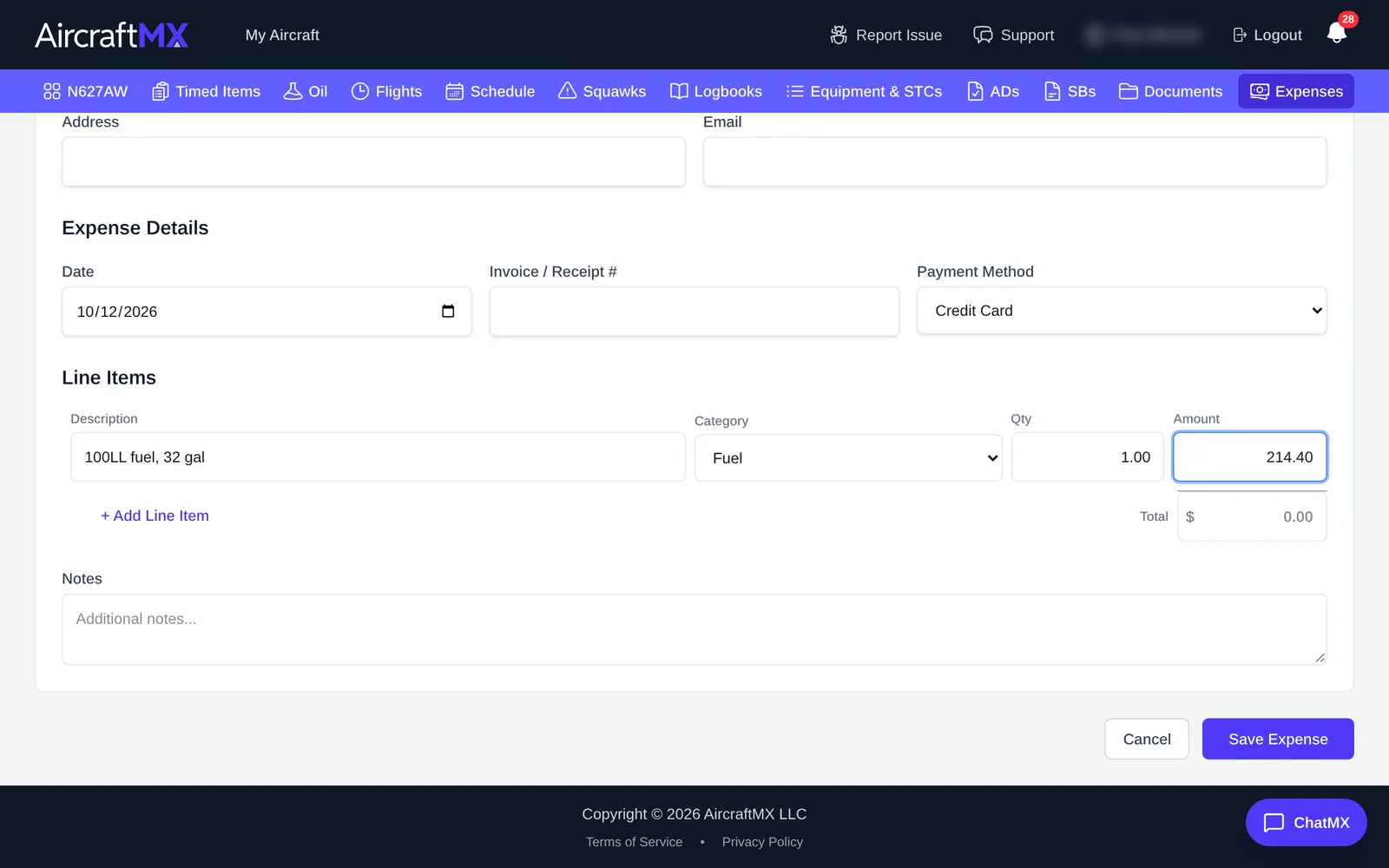
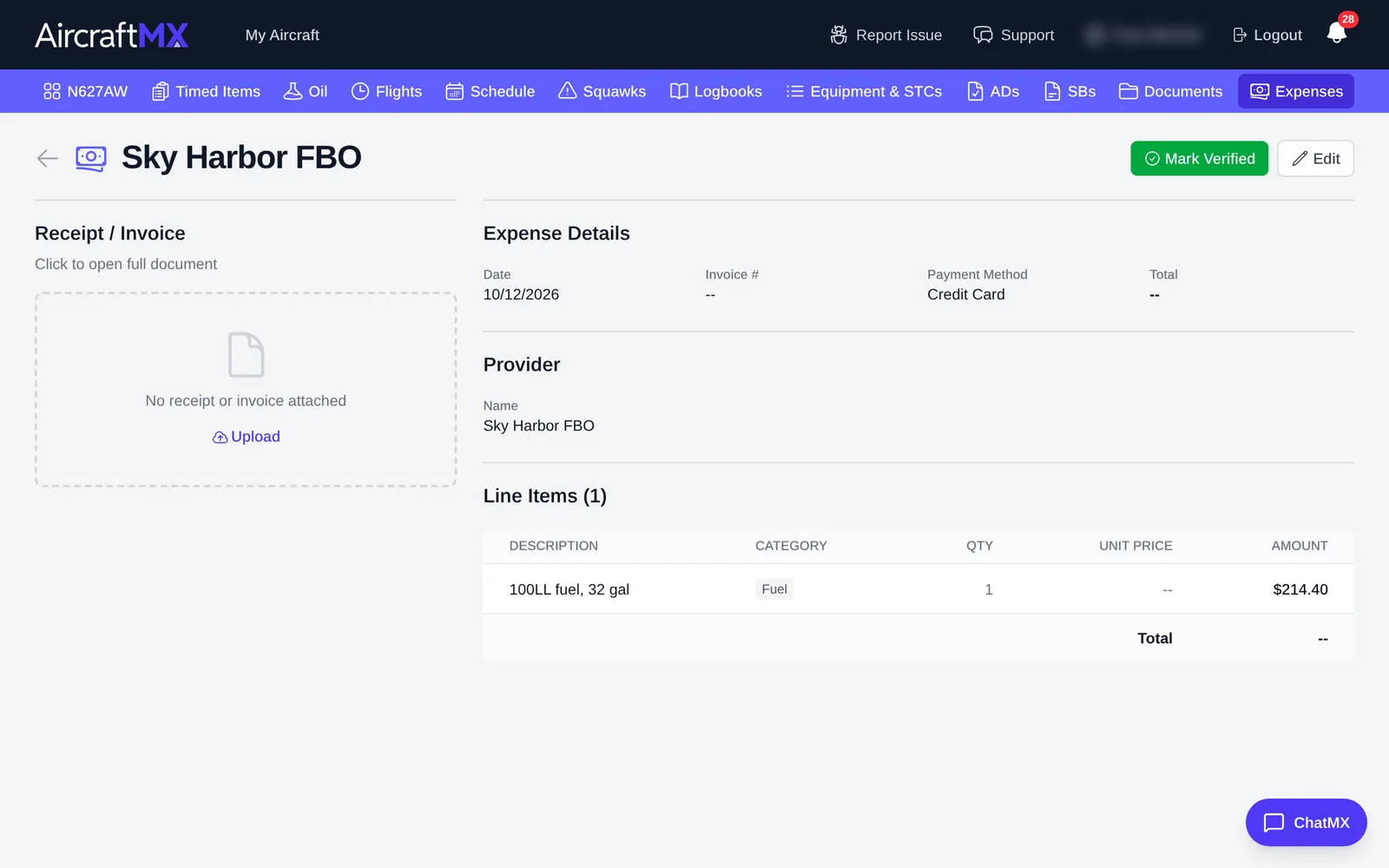
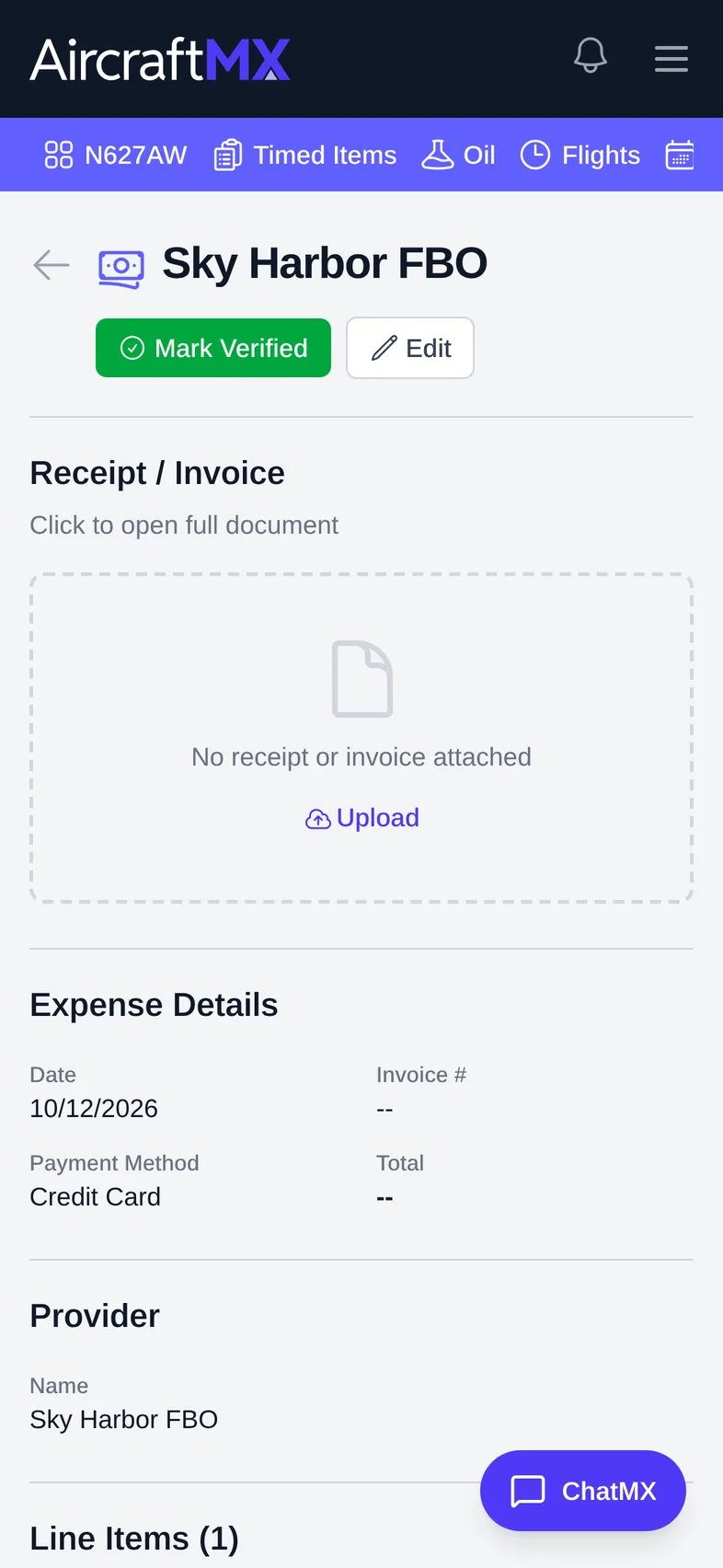
Total is its own field. Its placeholder is 0.00. A line amount does not fill Total. If you leave Total blank, the expense is saved with no total and the list and detail pages show --. On edit, if Total does not match the line items, the form says Differs from line items. A blank total is not a bug.
Review and verify
After saving, the expense opens. You can Upload the receipt later, Edit, or click Mark Verified once it's correct.
Summary and export
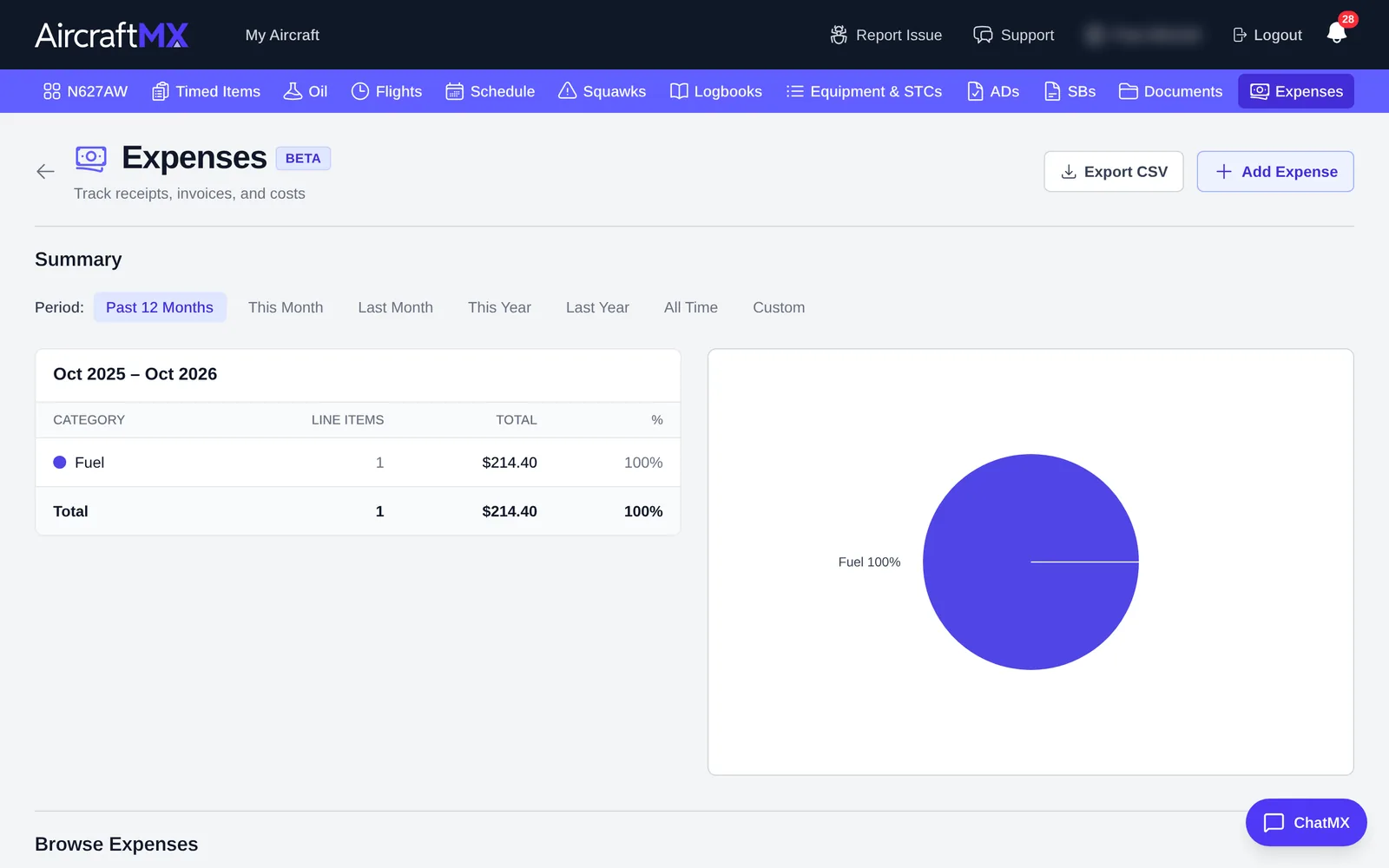
Back on Expenses, Summary totals your spending by category for a Period (Past 12 Months, This Month, Last Month, This Year, Last Year, All Time, or Custom). Use Browse Expenses to search and filter, and Export CSV to download.
On a phone
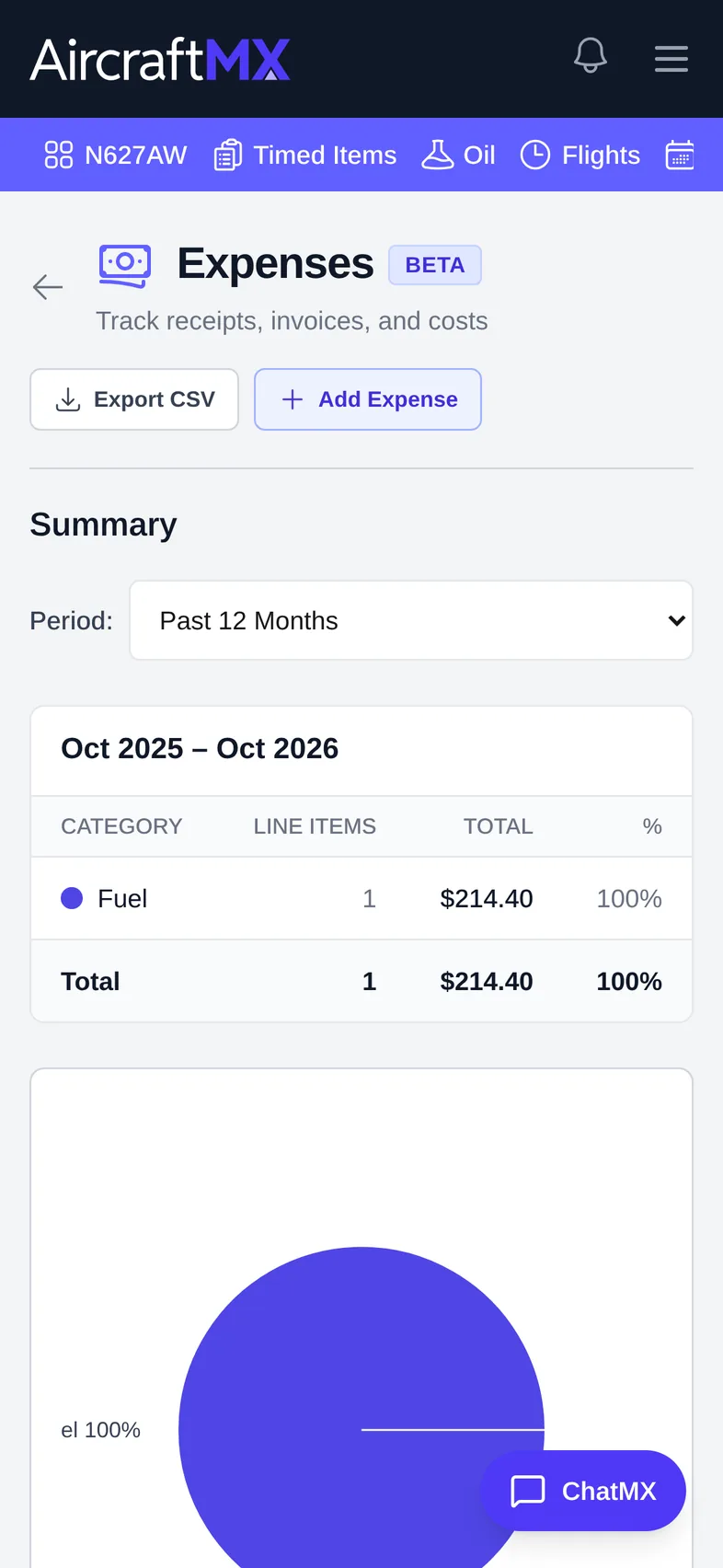
On a phone, the list and forms are a single column. Upload Receipt / Invoice lets you take a photo of the receipt.
Still stuck?
Contact us, or use Report Issue in the top bar of the app.