Expenses
Expense summary and CSV export
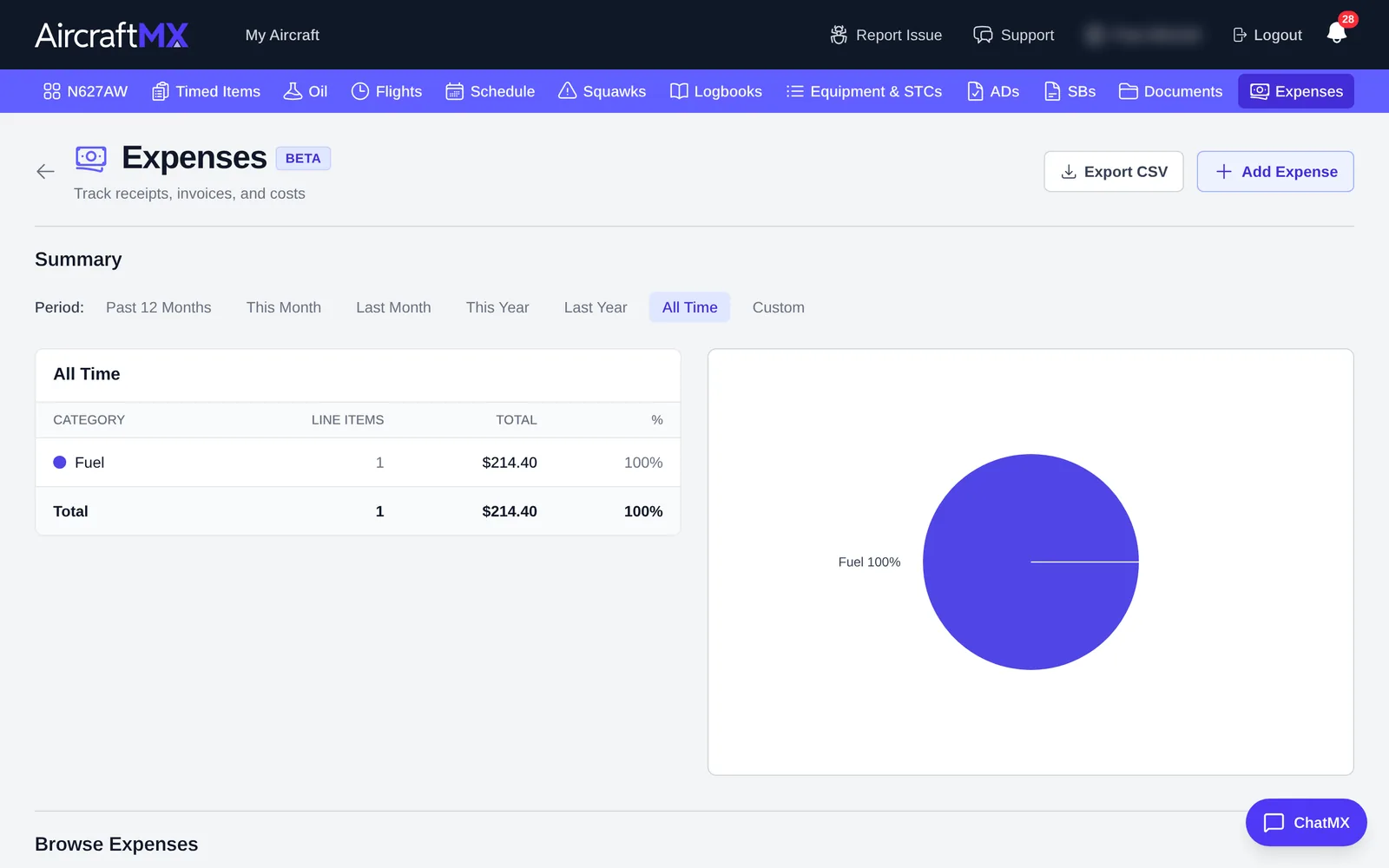
The expense summary totals your expenses by category over a period you choose.
- Click Expenses.
- Open the Summary tab.
- Pick the period, such as Past 12 Months, or choose Custom and set the dates.
Export to CSV
Click Export CSV to download the expenses for the period. Open the file in Excel, Numbers, or Google Sheets, or give it to your accountant.
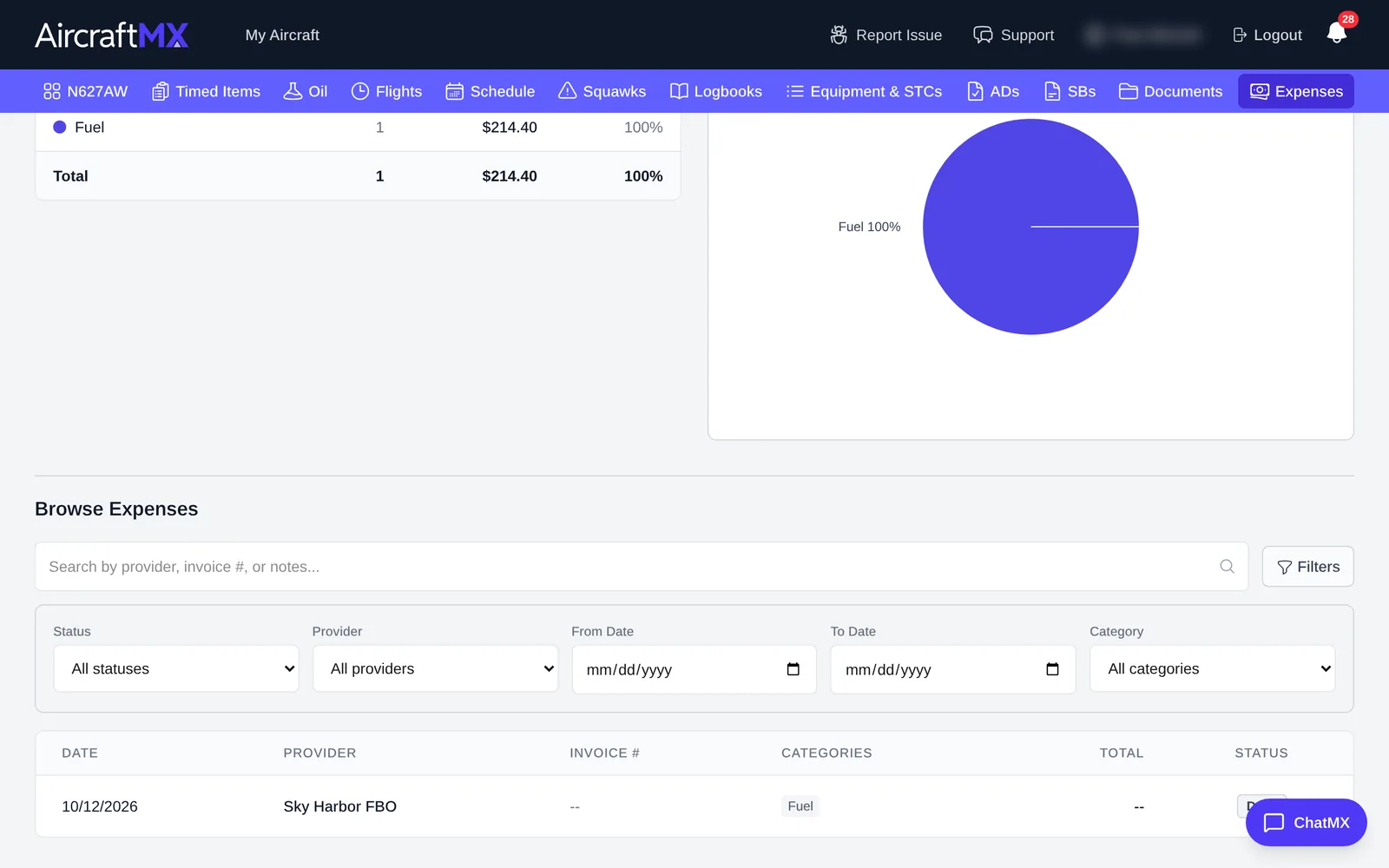
The report uses a date range and does not filter by status, so it is not limited to verified expenses. A blank total is shown as -- because Total was not entered. The dashboard summary separately shows how many expenses are unverified; that count is not the report's filter.
To add expenses, see Track expenses from receipts.
On a phone
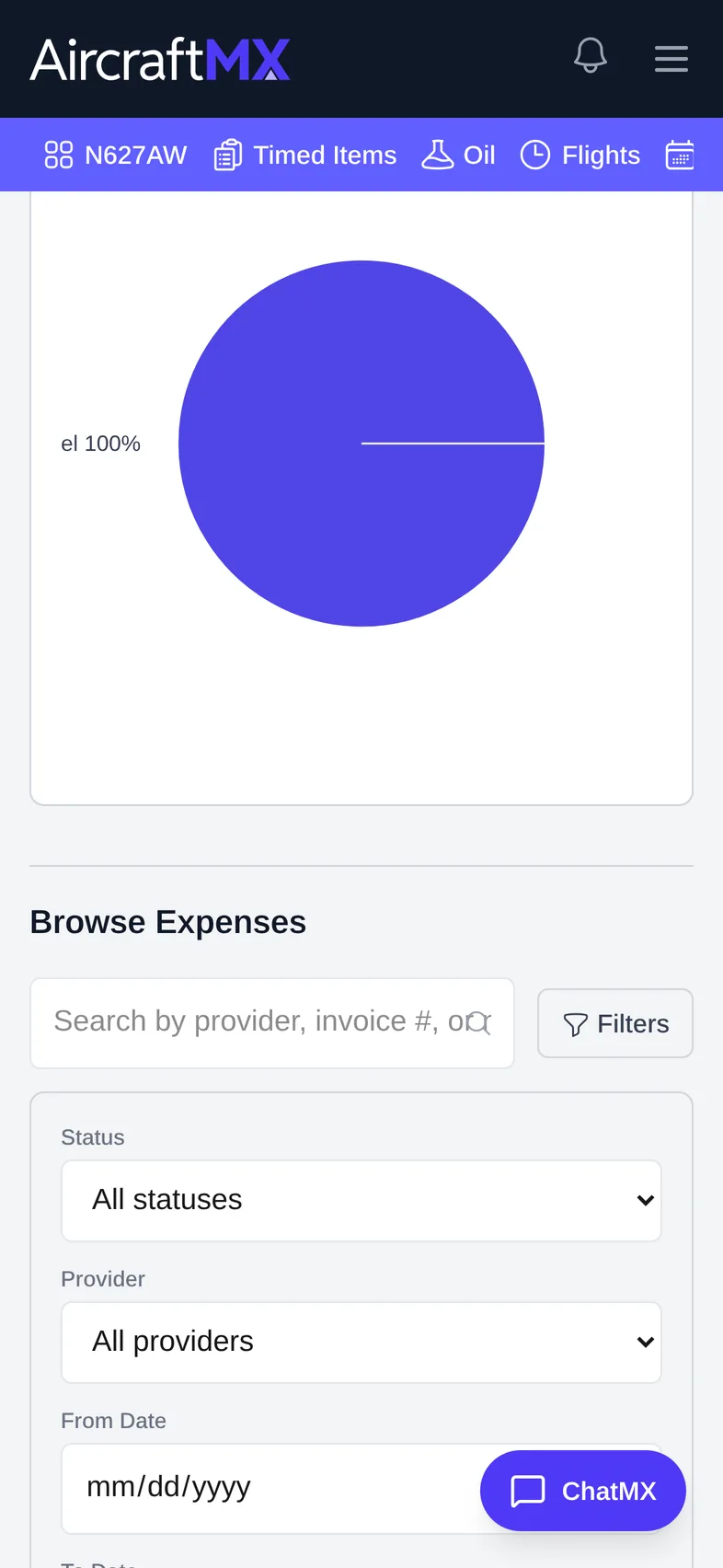
The layout is the same on a phone; sections stack in a single column.
Still stuck?
Contact us, or use Report Issue in the top bar of the app.