Oil Use
Upload oil analysis reports
Upload the reports you get back from an oil analysis lab (such as Blackstone). AircraftMX reads the values and charts them so you can spot trends.
Upload a report
- Click Oil in the navigation bar.
- Click Upload Analysis.
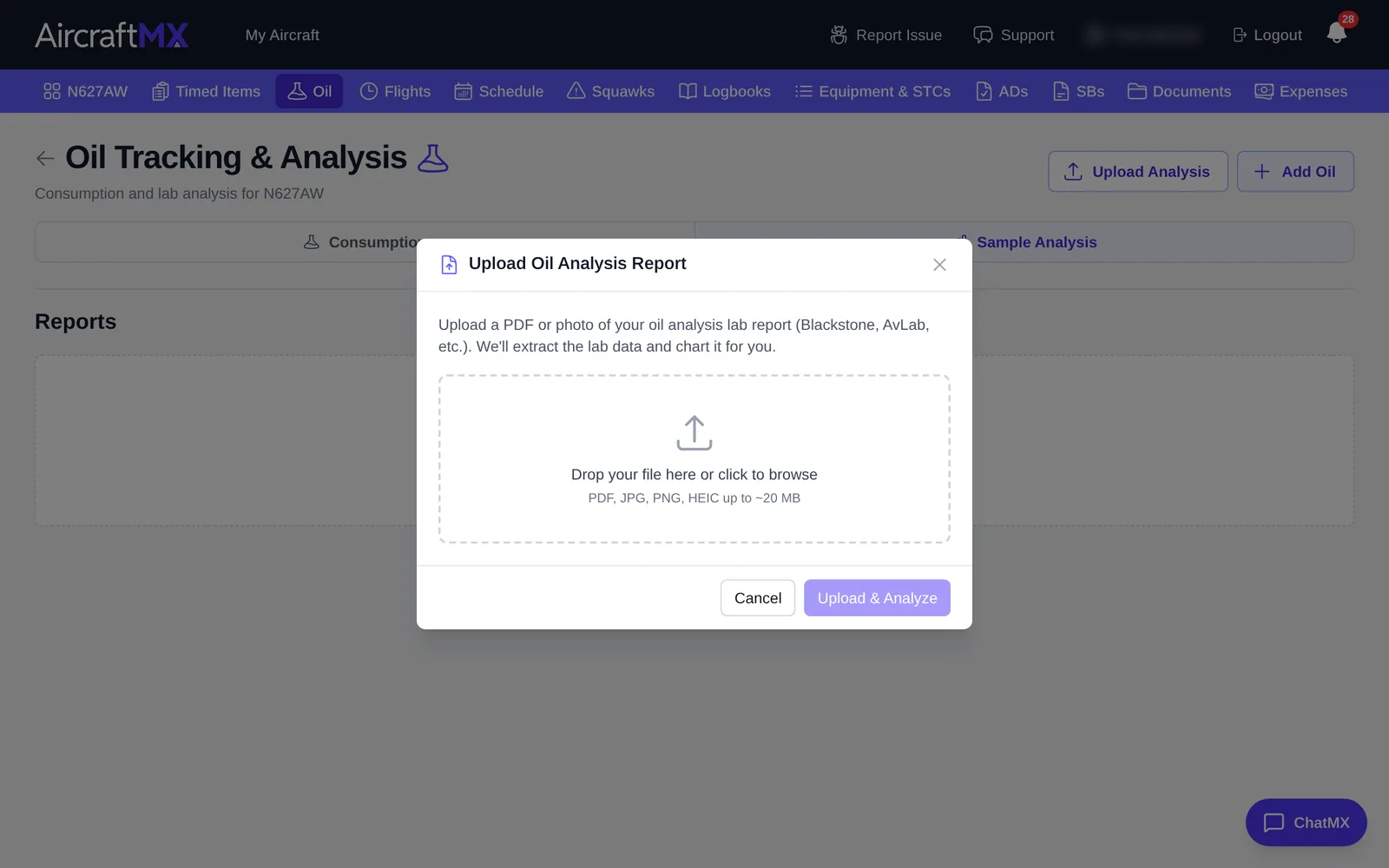
- In Upload Oil Analysis Report, choose a PDF or photo. The dialog says (Blackstone, AvLab, etc.). The hint under the drop zone is PDF, JPG, PNG, HEIC up to ~20 MB. The file picker also accepts GIF and WebP. The app shows that size hint and does not enforce a byte size.
- Click Upload. AircraftMX extracts the values. Review them and correct anything that's wrong.
See your reports and trends
Switch to the Sample Analysis tab to see your reports and charts of each value over time.
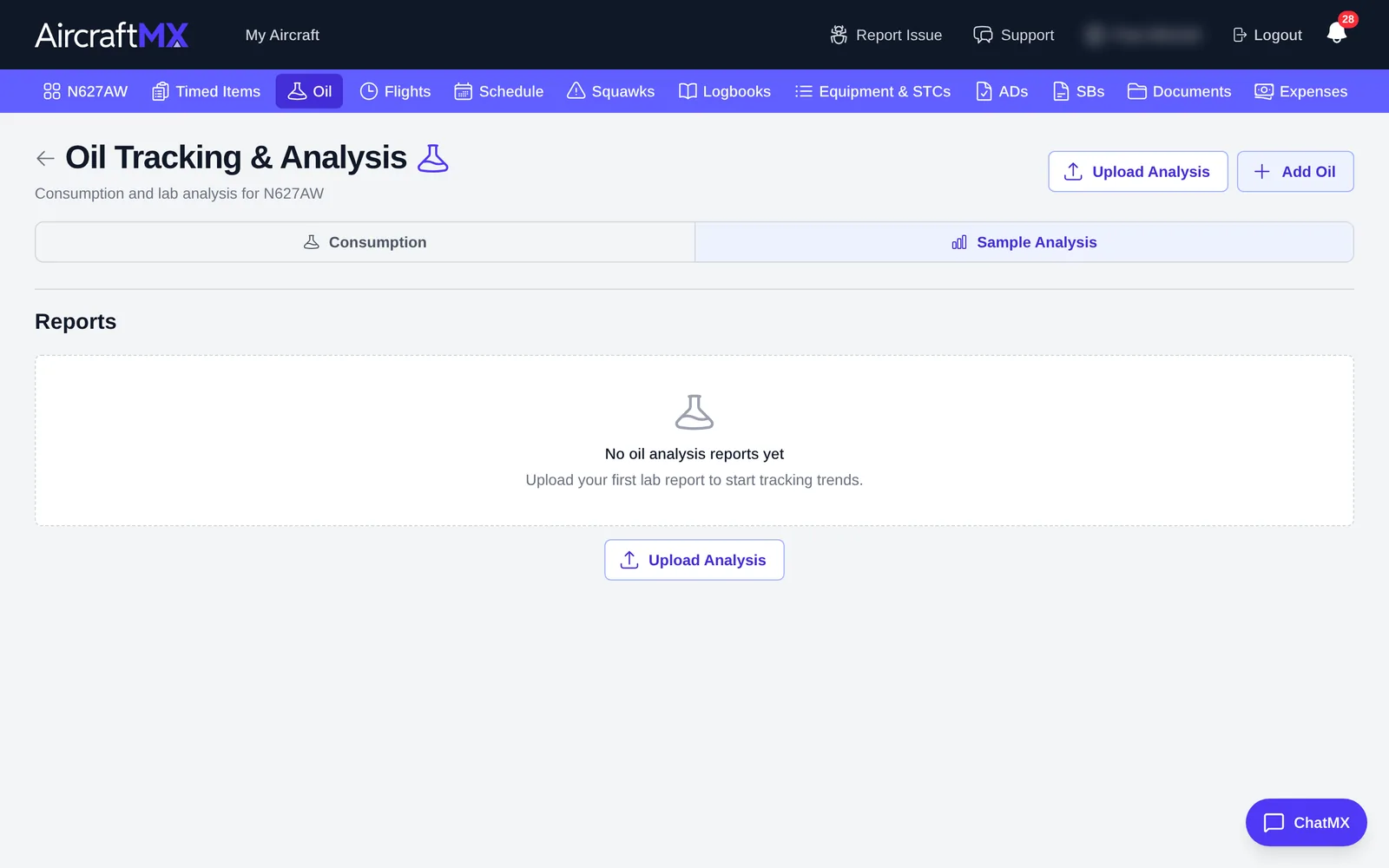
Tip: if you upload an oil analysis report through Documents, AircraftMX recognizes it and imports it here automatically ("Oil analysis detected and imported.").
On a phone
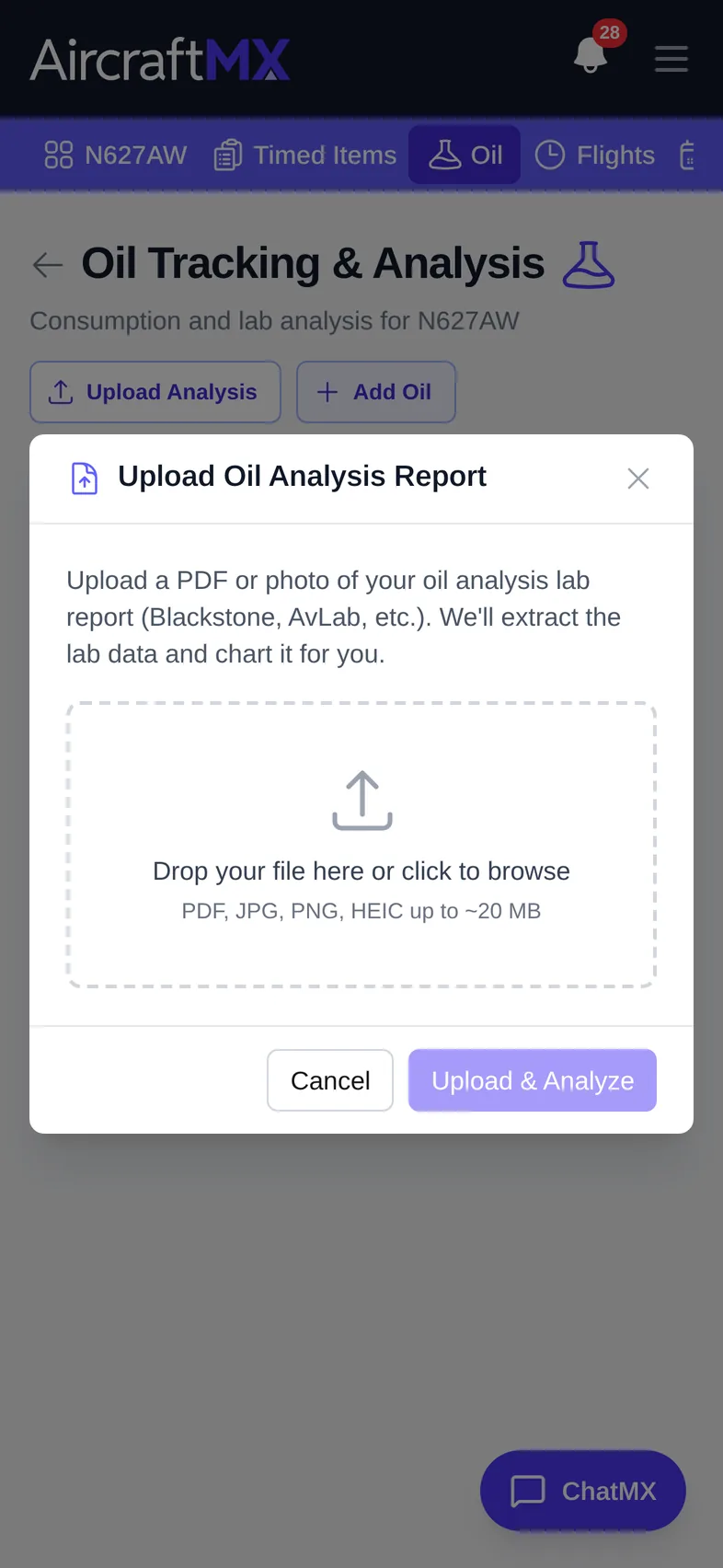
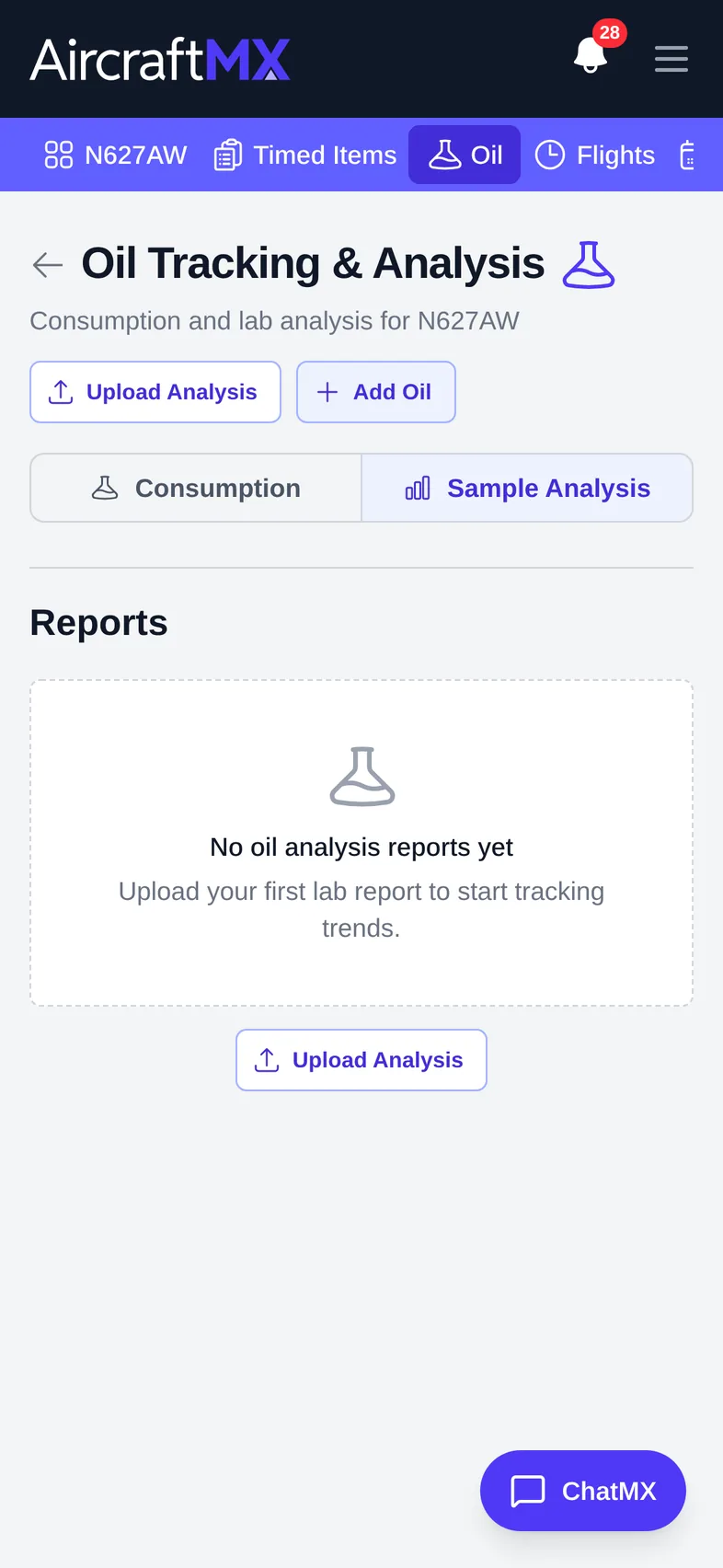
The layout is the same on a phone; sections stack in a single column.
Still stuck?
Contact us, or use Report Issue in the top bar of the app.