Oil Use
Track oil consumption
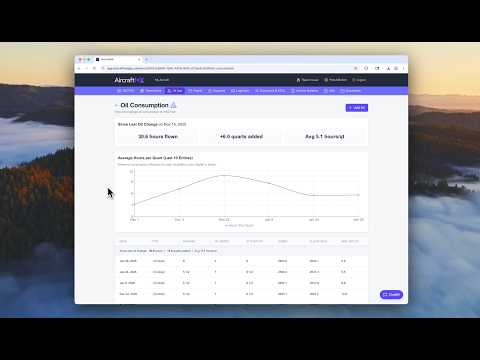
AircraftMX tracks oil additions and oil changes over time and calculates your consumption rate, so you can spot excessive oil use early. It works on desktop and on your phone, which makes it easy to log oil during preflight.
Open Oil
Log in, open your aircraft's dashboard, and click Oil. The page title is Oil Tracking & Analysis. The screen shows:
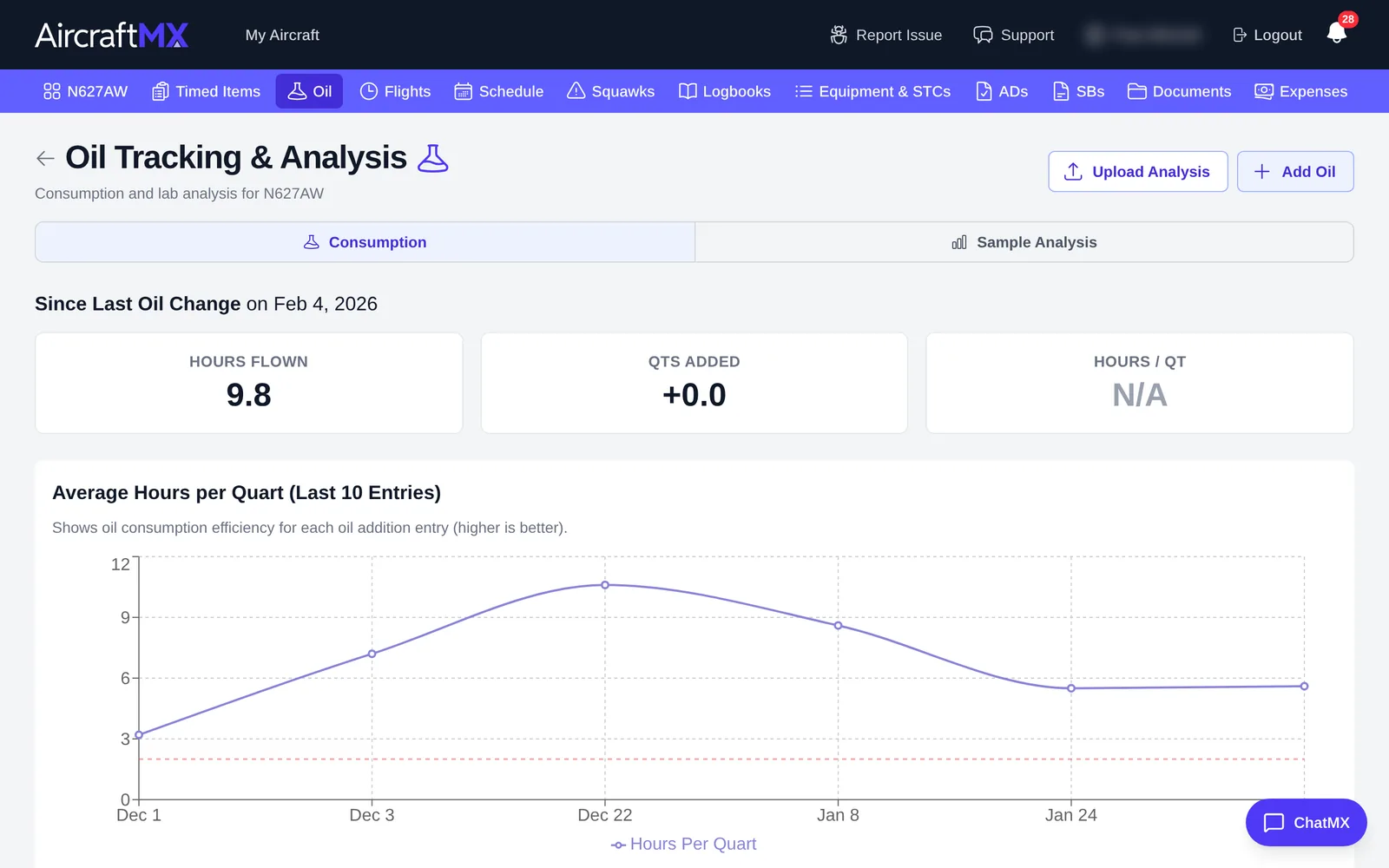
- your history of oil changes and additions
- hours flown since your last oil change
- total quarts added
- average hours flown per quart
Oil use is counted on the timer you pick (Which timer do you use for oil tracking?). Tach or flight time is typical. If the aircraft has no flight-time meter, choose Hobbs. The numbers are not tied to a flight-time field.
Since the last oil change, AircraftMX shows:
- Hours Flown — current reading on that timer, minus the reading at the oil change. This updates as the meter moves, even before you add oil.
- Qts Added — quarts you added after the oil change.
- Hours / Qt — hours from the oil change up to the last oil entry, divided by quarts added since the change. It stays N/A until you have added oil. Hours you fly after the last addition stay in Hours Flown and are not part of Hours / Qt until the next entry.
After you save an addition, the Hrs. per Qt column and the Average Hours per Quart chart add a point for the stretch since the previous entry: hours on the oil timer, divided by how much the dipstick dropped (previous level after adding oil, minus the dipstick reading this time). Higher means the engine used less oil.
If an entry has no timer reading, that cell says Not entered and it is left out of the rate. If the oil change was recorded on a different timer than the one you use now, hours are taken from the oil entries instead of the current meter.
Record oil you added
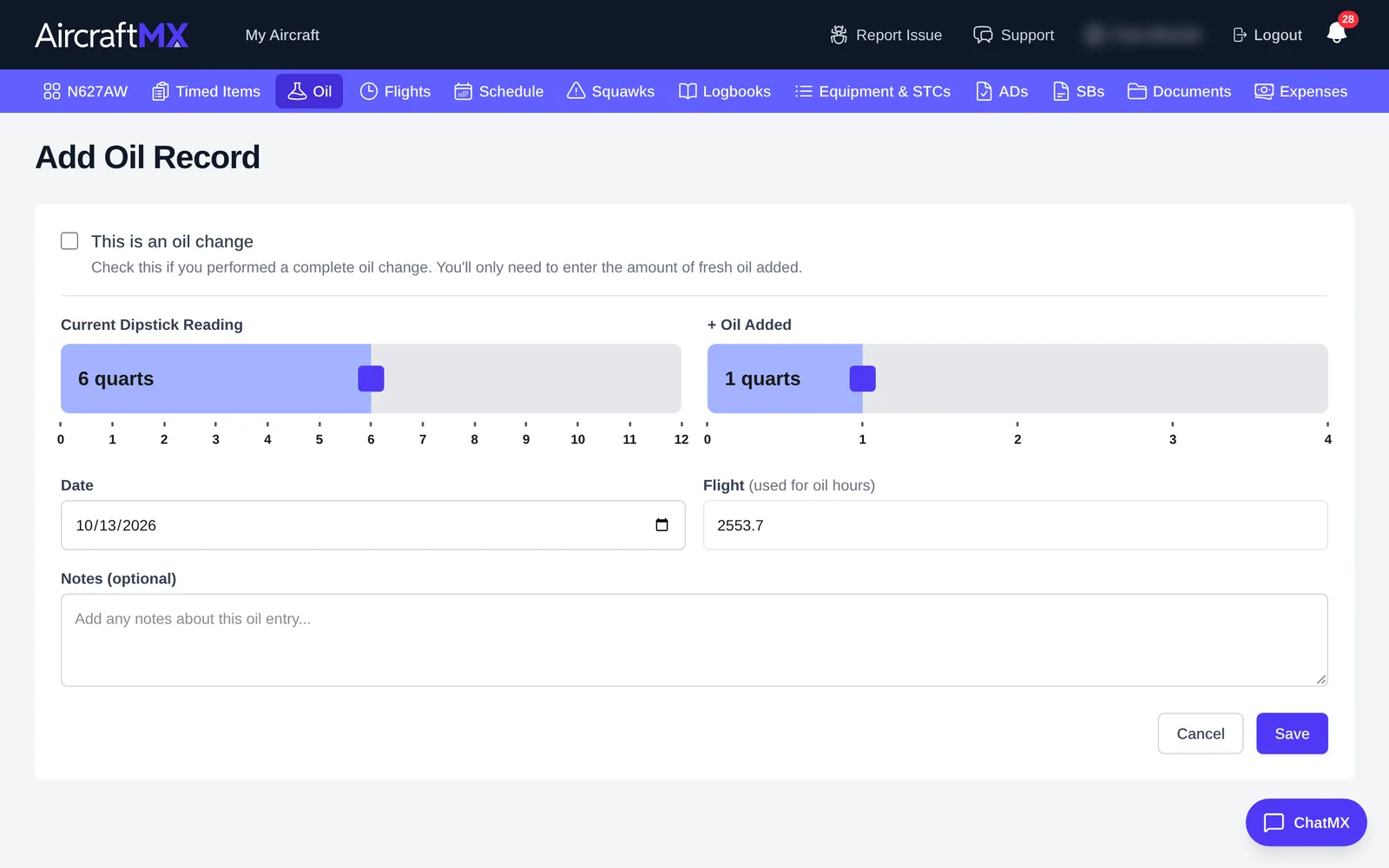
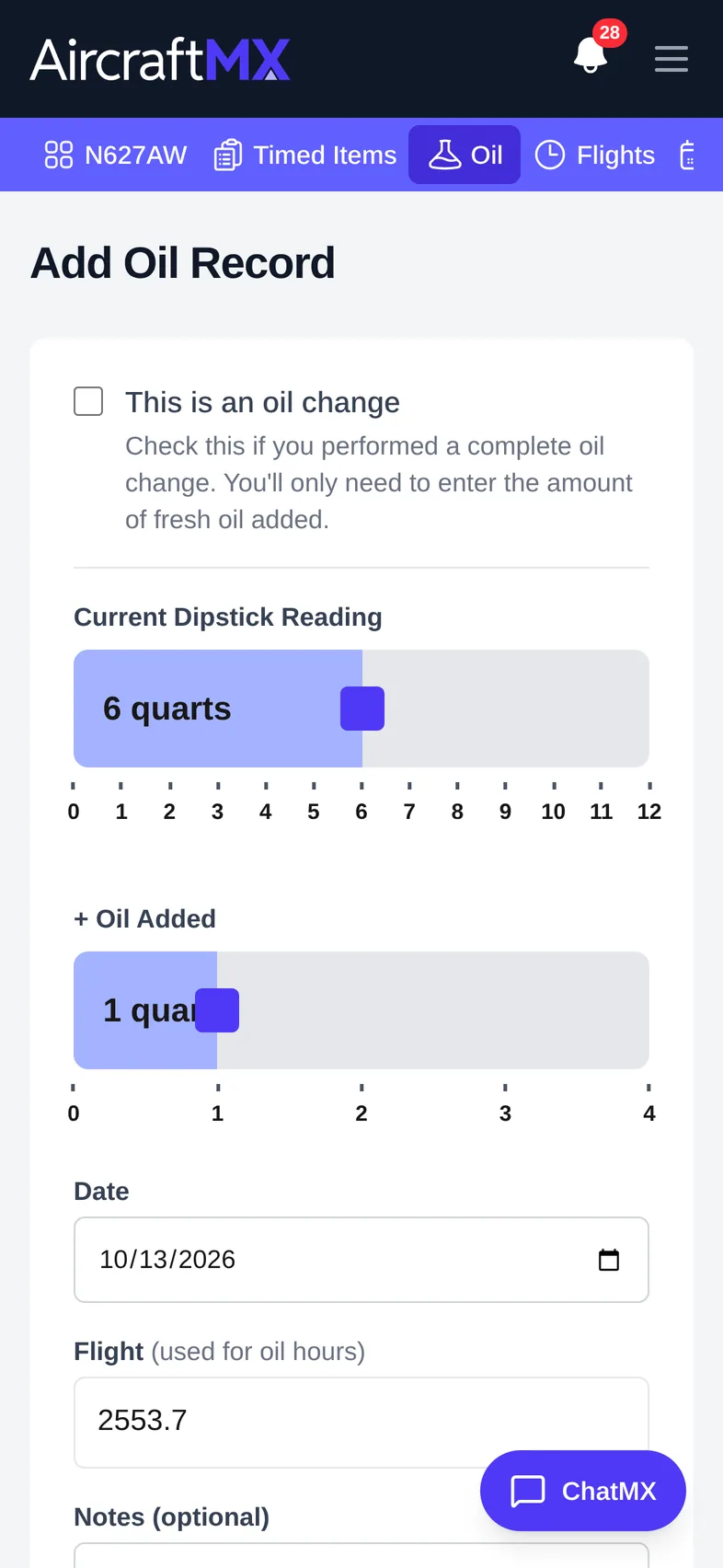
- On Oil, tap Add Oil.
- Today's date and your current times are filled in. Check them: if your times in AircraftMX aren't up to date, correct them.
- Enter the dipstick reading before you add oil.
- Enter how much oil you added.
- Tap Save.
Record an oil change
- Add a new oil entry, or edit an existing one.
- Check This is an oil change.
- Enter how much fresh oil you put in after draining.
- Tap Save.
After an oil change, AircraftMX starts a new tracking period and calculates consumption from that point.
Reading the trend
As you log entries, AircraftMX builds a consumption trend that helps you:
- watch hours flown per quart
- see changes in your consumption rate
- catch excessive oil use early
Tips for accurate tracking
- Log in real time: record oil on your phone during preflight.
- Keep your times current: up-to-date readings on the oil timer give accurate consumption numbers.
- Be consistent: regular entries give a better trend.
On a phone
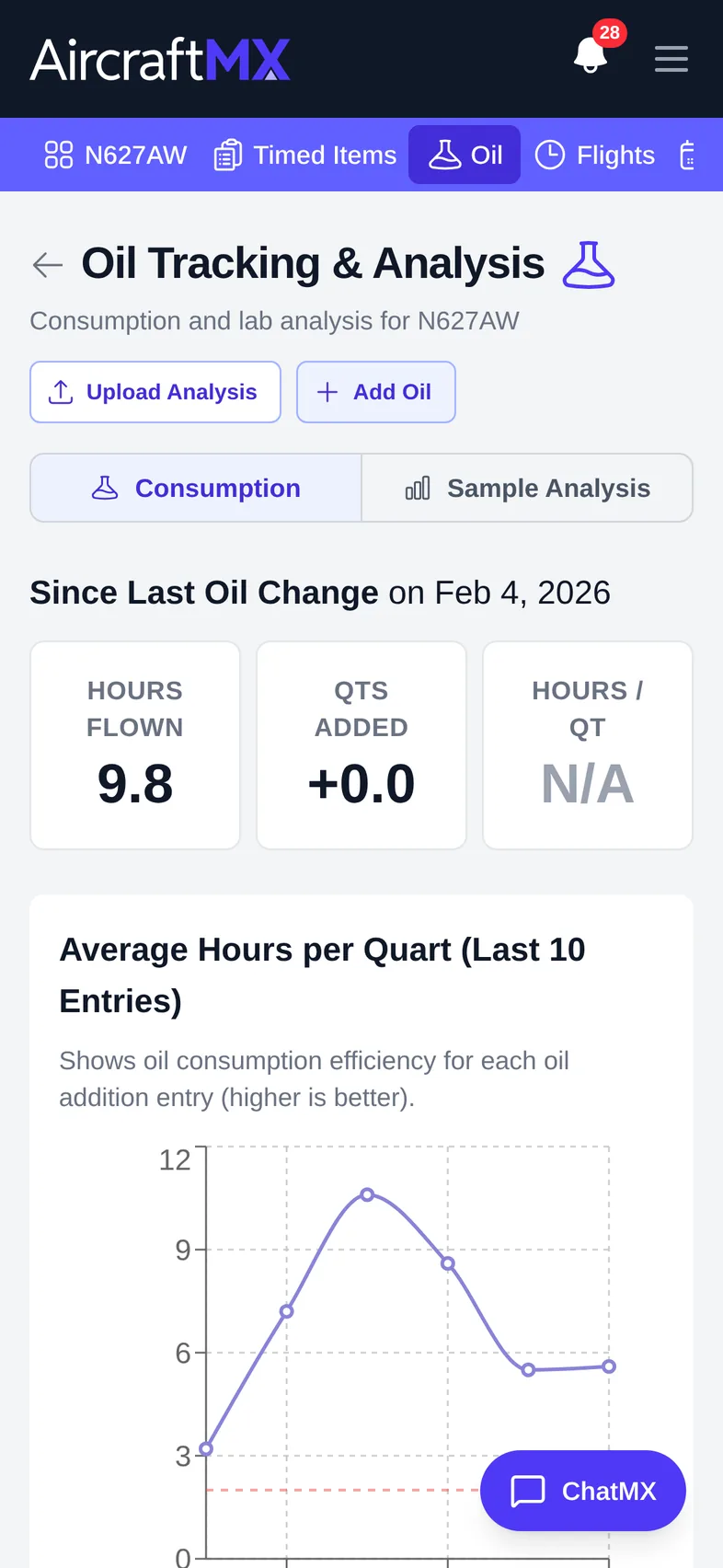
On a phone, the summary cards and chart stack in one column. Add Oil is at the top of the page.
Still stuck?
Contact us, or use Report Issue in the app. To send files, attach them from Report Issue.