Squawks
Report and resolve squawks
A squawk is anything on the aircraft that needs attention: a worn tire, an inop light, a sticky latch. Logging it keeps partners and your mechanic informed until it's fixed.
See your squawks
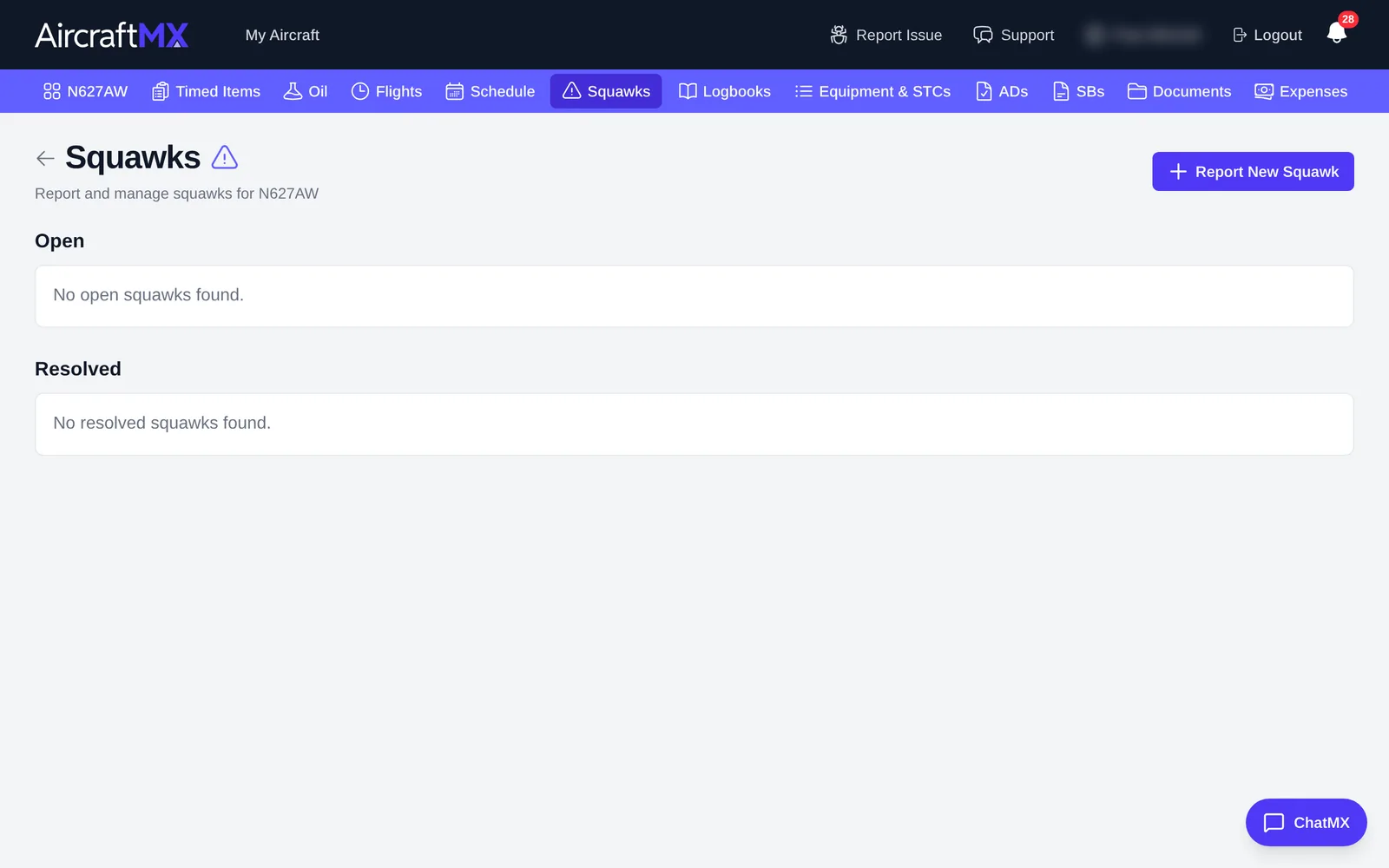
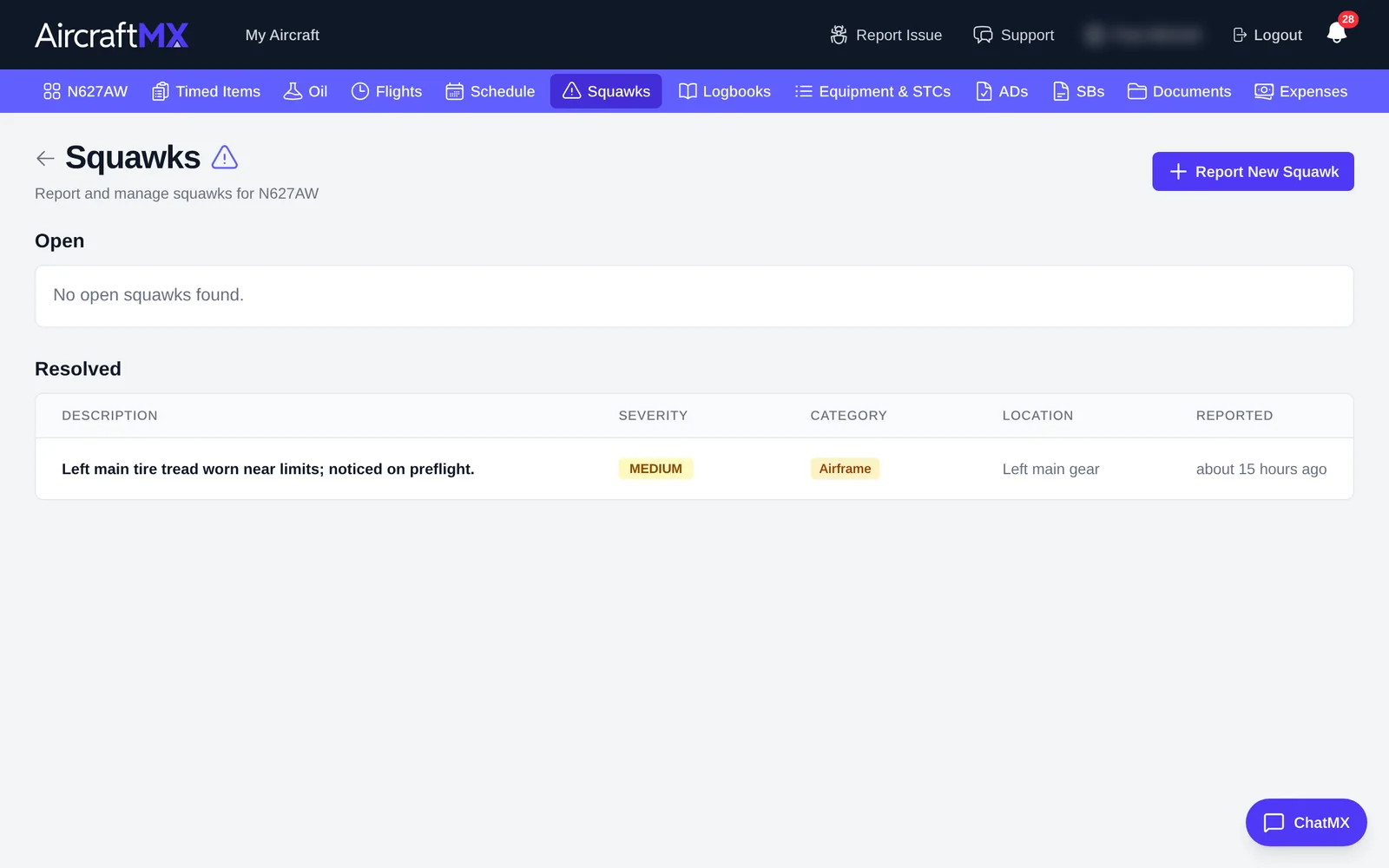
Click Squawks in the navigation bar, or the Squawks card on the dashboard. Squawks are grouped into Open and Resolved.
Report a squawk
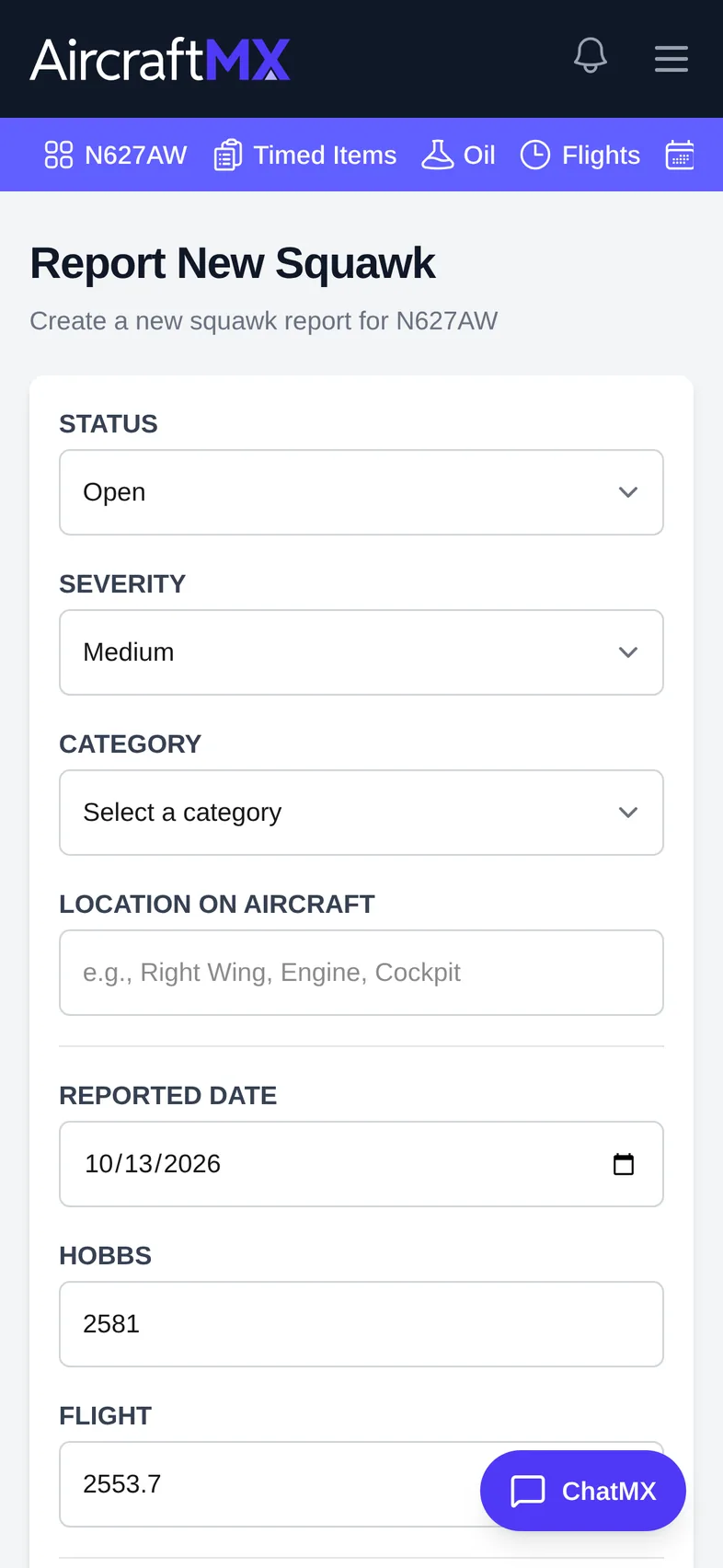
- Click Report New Squawk.
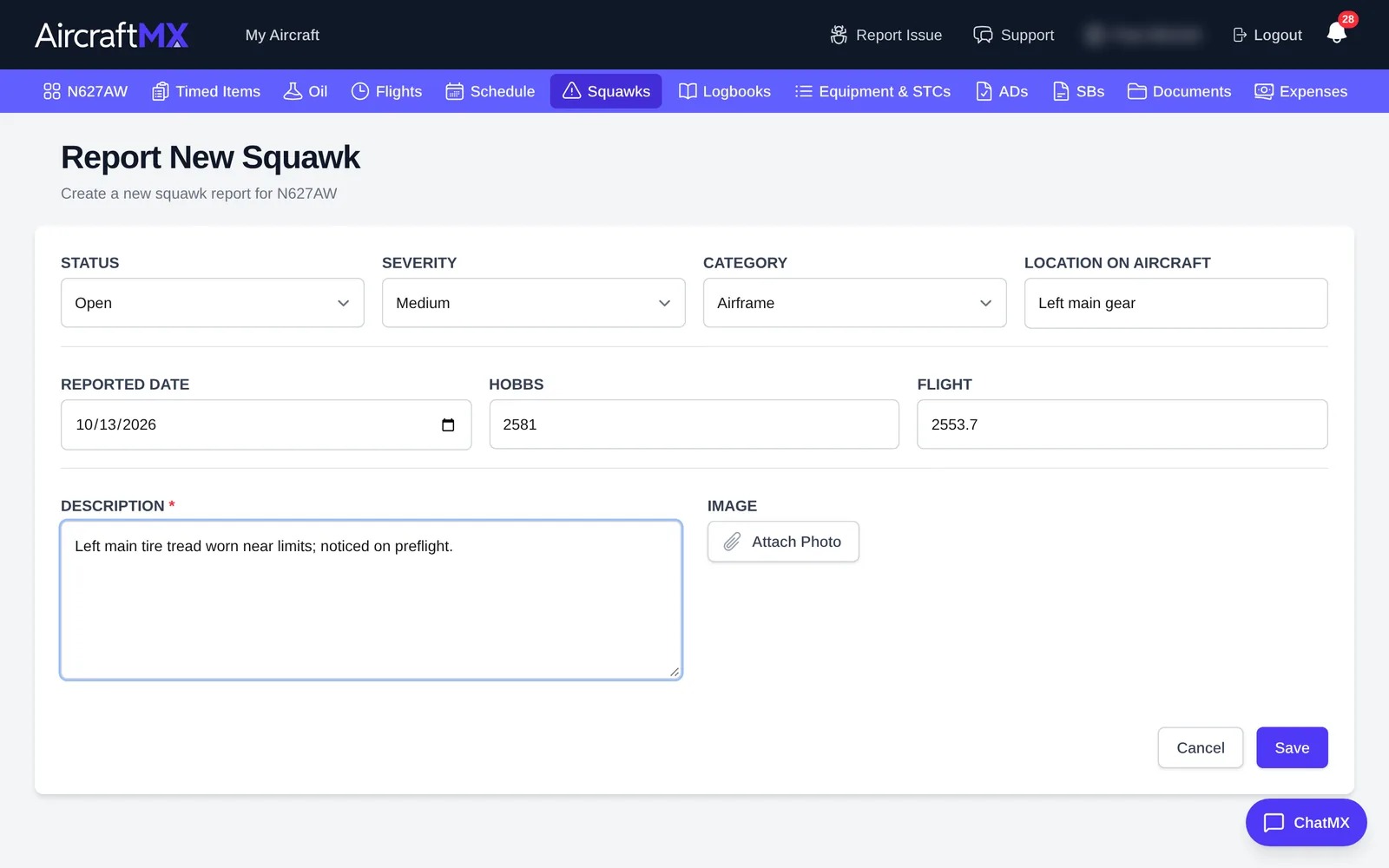
- Fill in the form:
- Status: usually Open (other choices are In Progress, Resolved, and Deferred).
- Severity: Low, Medium, High, or Critical.
- Category: for example Airframe, Engine, Propeller, Avionics.
- Location on Aircraft: for example "Left main gear".
- Reported Date and the current meter values (filled in for you).
- Description (required).
- Image: click Attach Photo to add a picture. On a phone you can take one with the camera.
- Click Save.
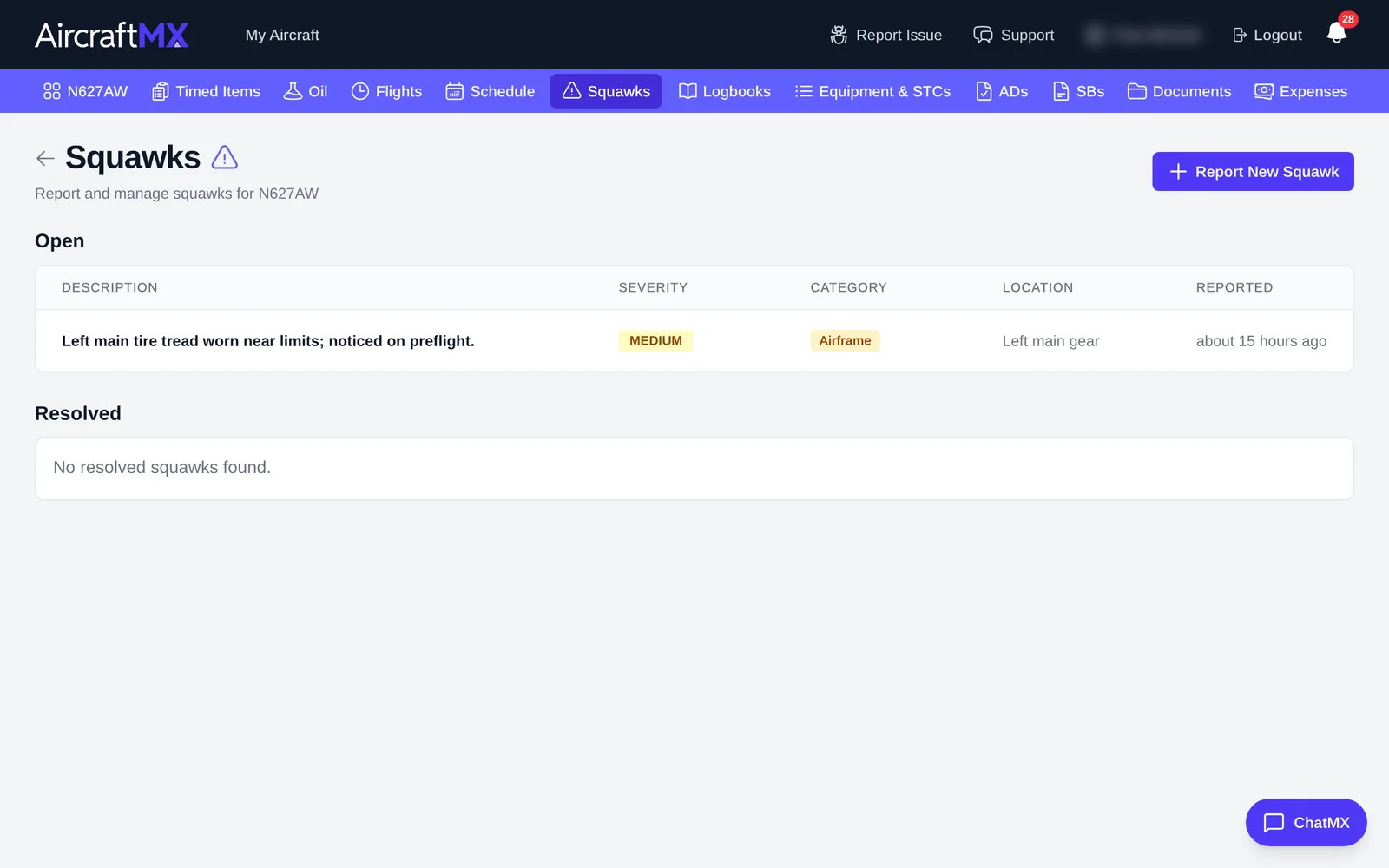
The squawk now appears under Open, and the dashboard's Squawks card shows it.
View or edit a squawk
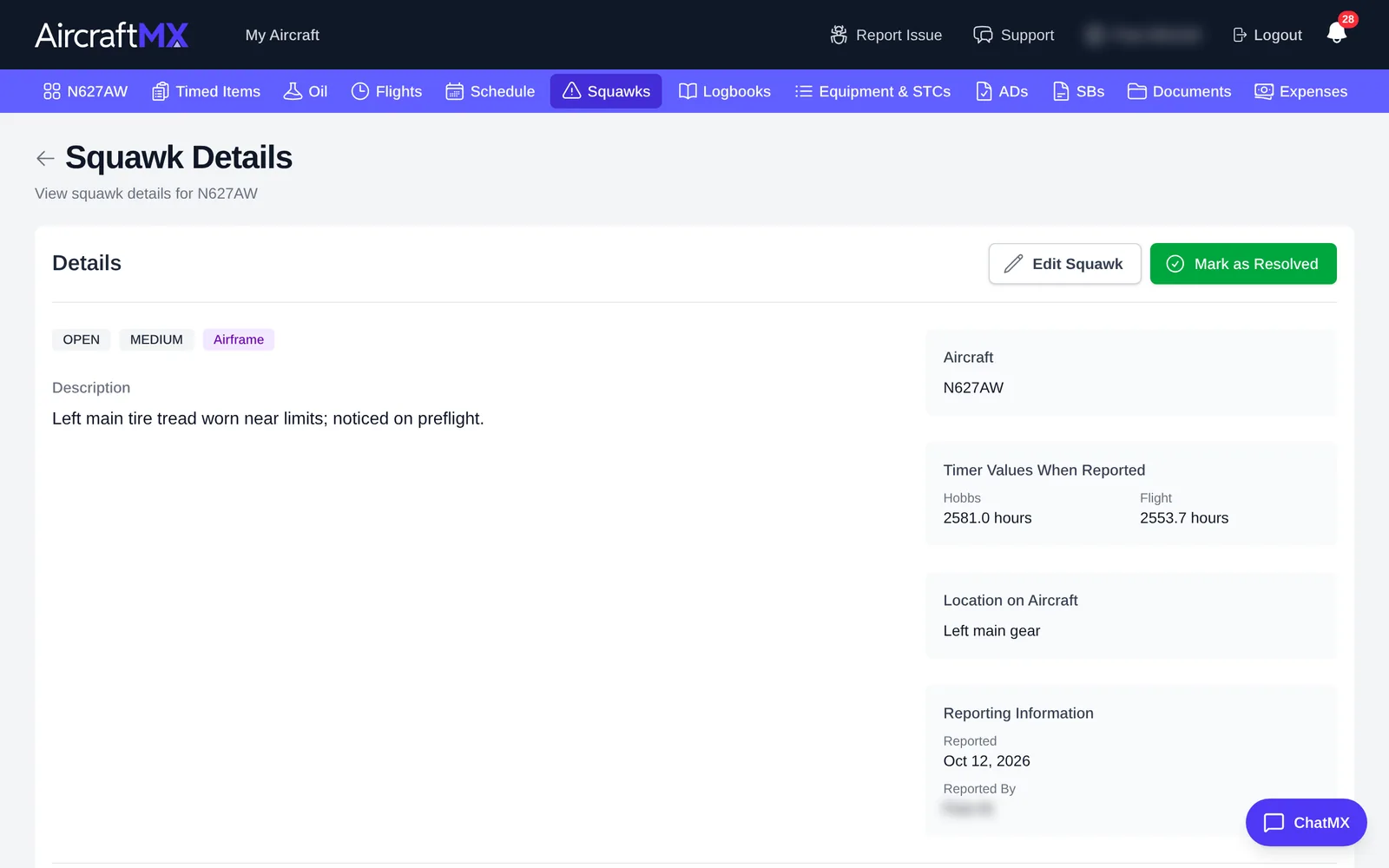
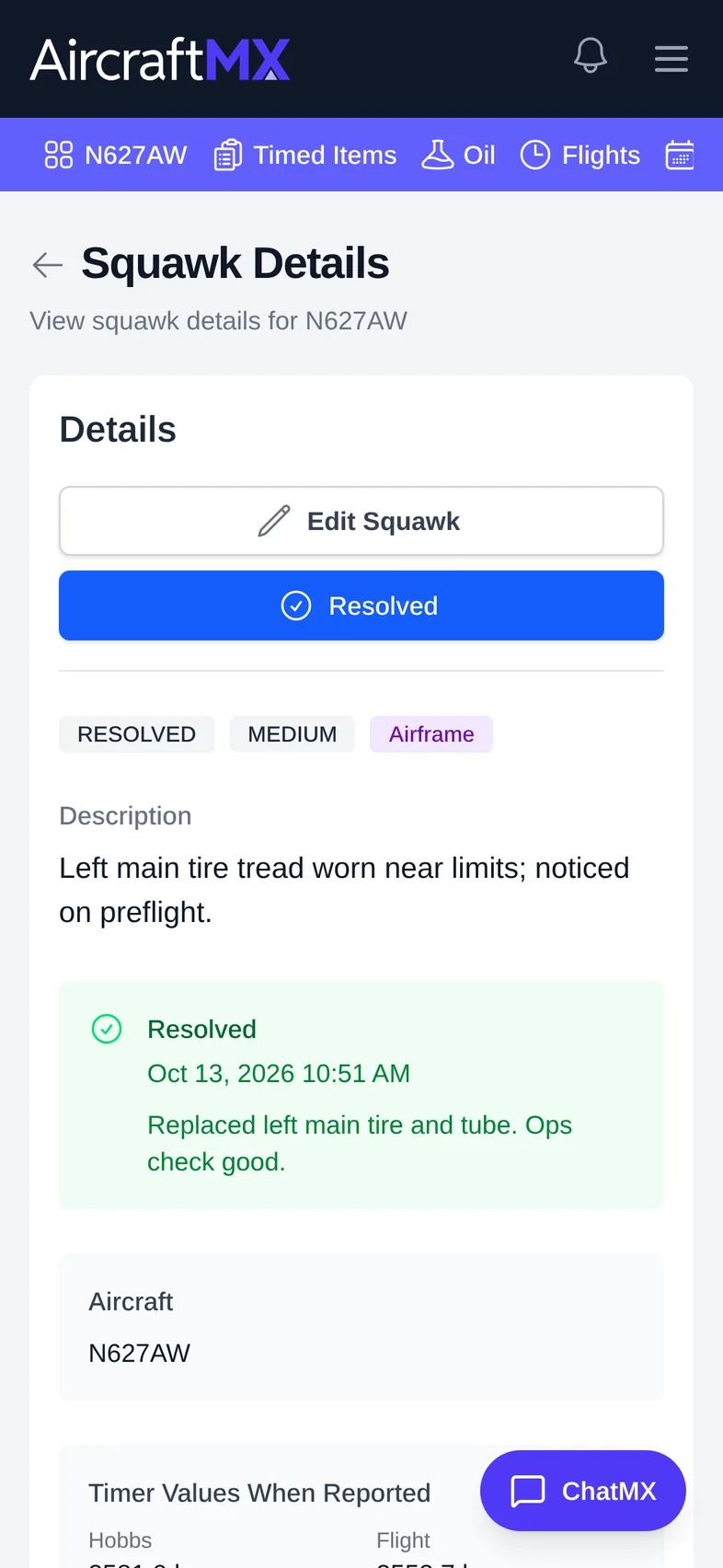
Click a squawk to open Squawk Details, which shows the description, image, meter values when reported, location, who reported it, and Linked Logbook Entries. Click Edit Squawk to change it.
Resolve a squawk
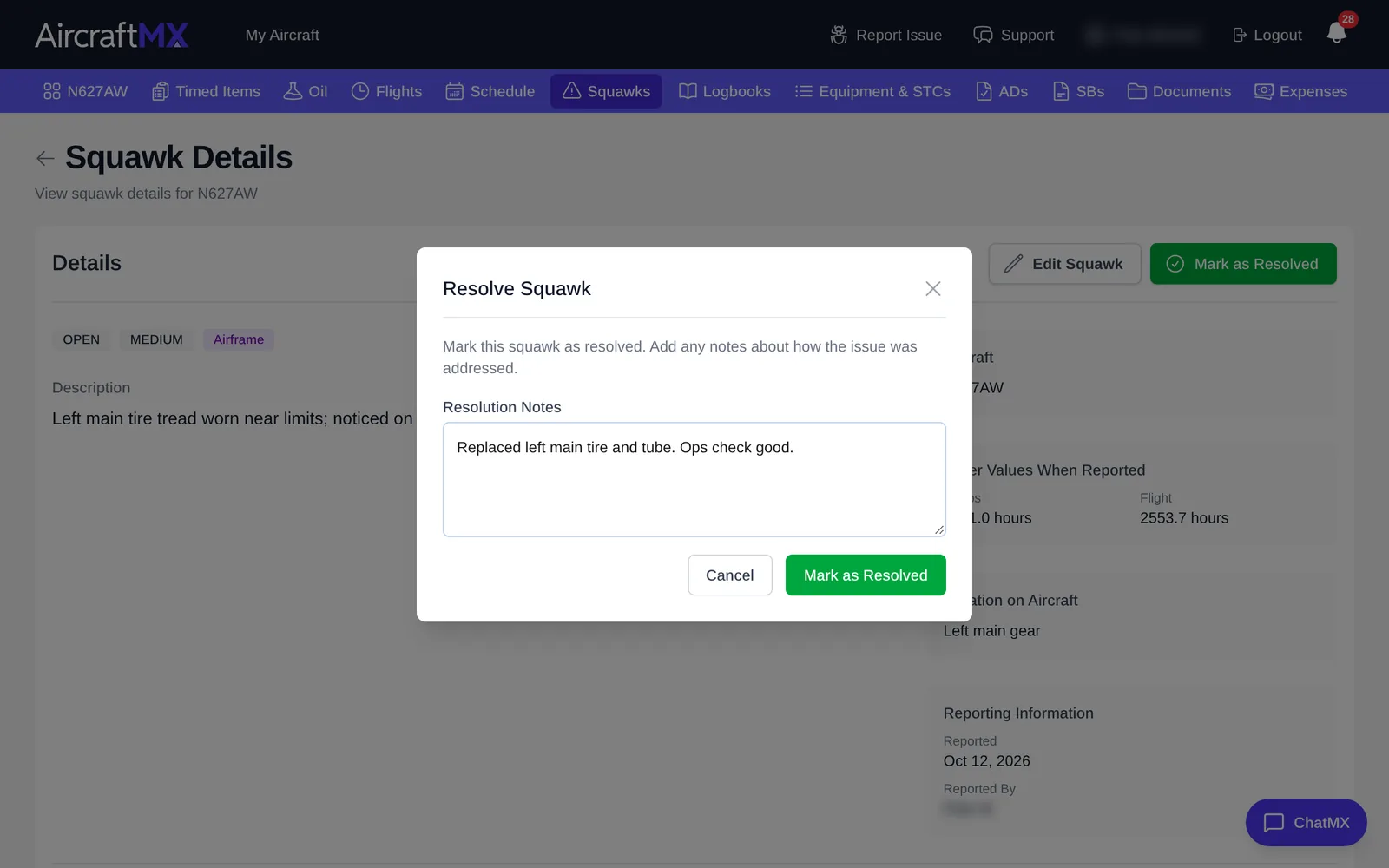
- Open the squawk and click Mark as Resolved.
- In Resolve Squawk, add Resolution Notes describing the fix.
- Click Mark as Resolved.
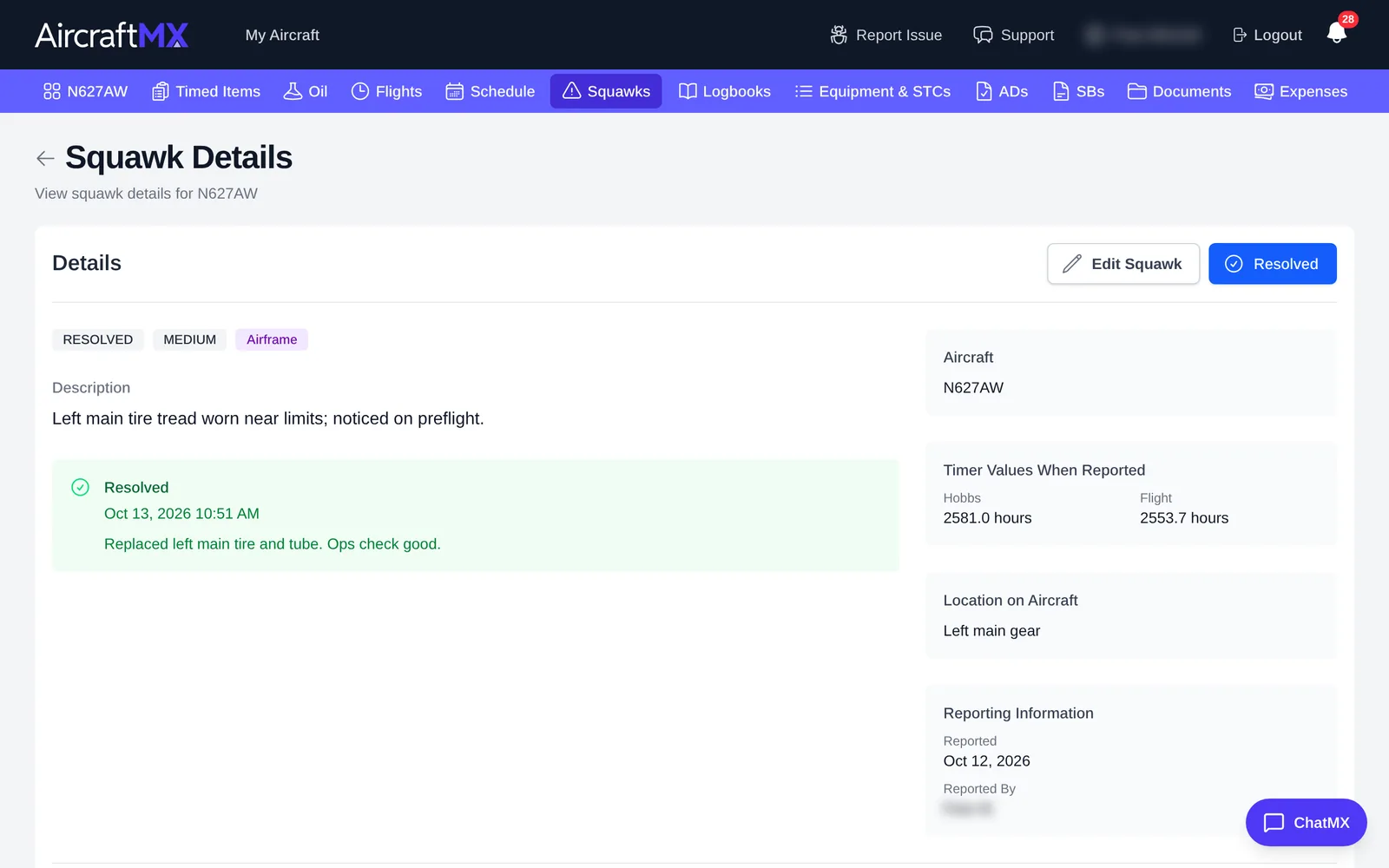
The squawk shows a green Resolved box with the date and your notes, and moves to the Resolved list.
Tip: you can also resolve squawks from the logbook entry that fixed them: under Squawks Resolved, click Show Open Squawks. See Add a logbook entry manually.
On a phone
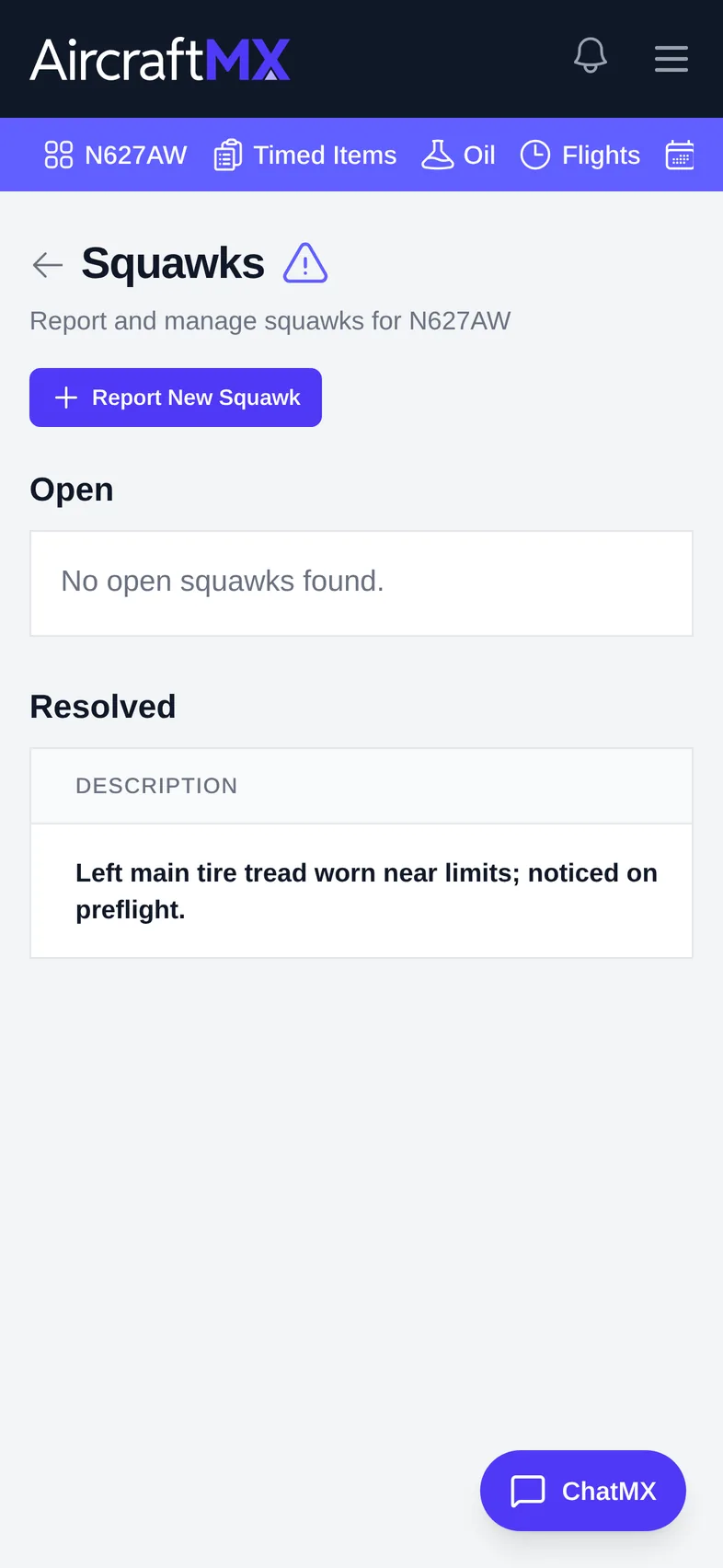
On a phone, the form is a single column. Tap Attach Photo to take a picture with the camera.
Still stuck?
Contact us, or use Report Issue in the top bar of the app.