Logbooks
Add a logbook entry manually
If you don't have a photo or PDF of an entry, you can type it in. To upload a picture instead, see Upload a logbook entry from your phone or Upload logbook entries from a PDF.
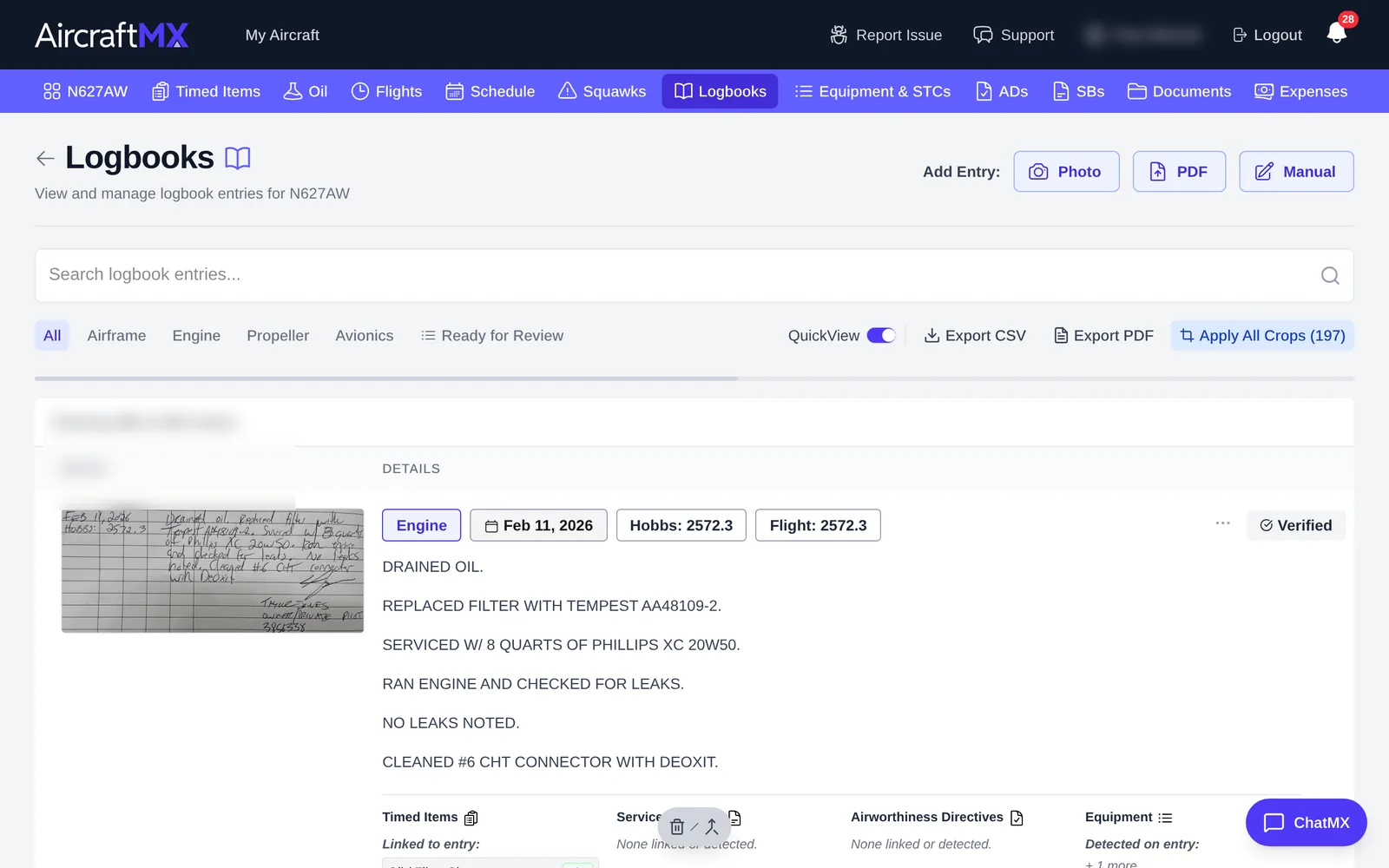
Start a new entry
- Click Logbooks in the navigation bar.
- Next to Add Entry:, click Manual.
Fill in the entry
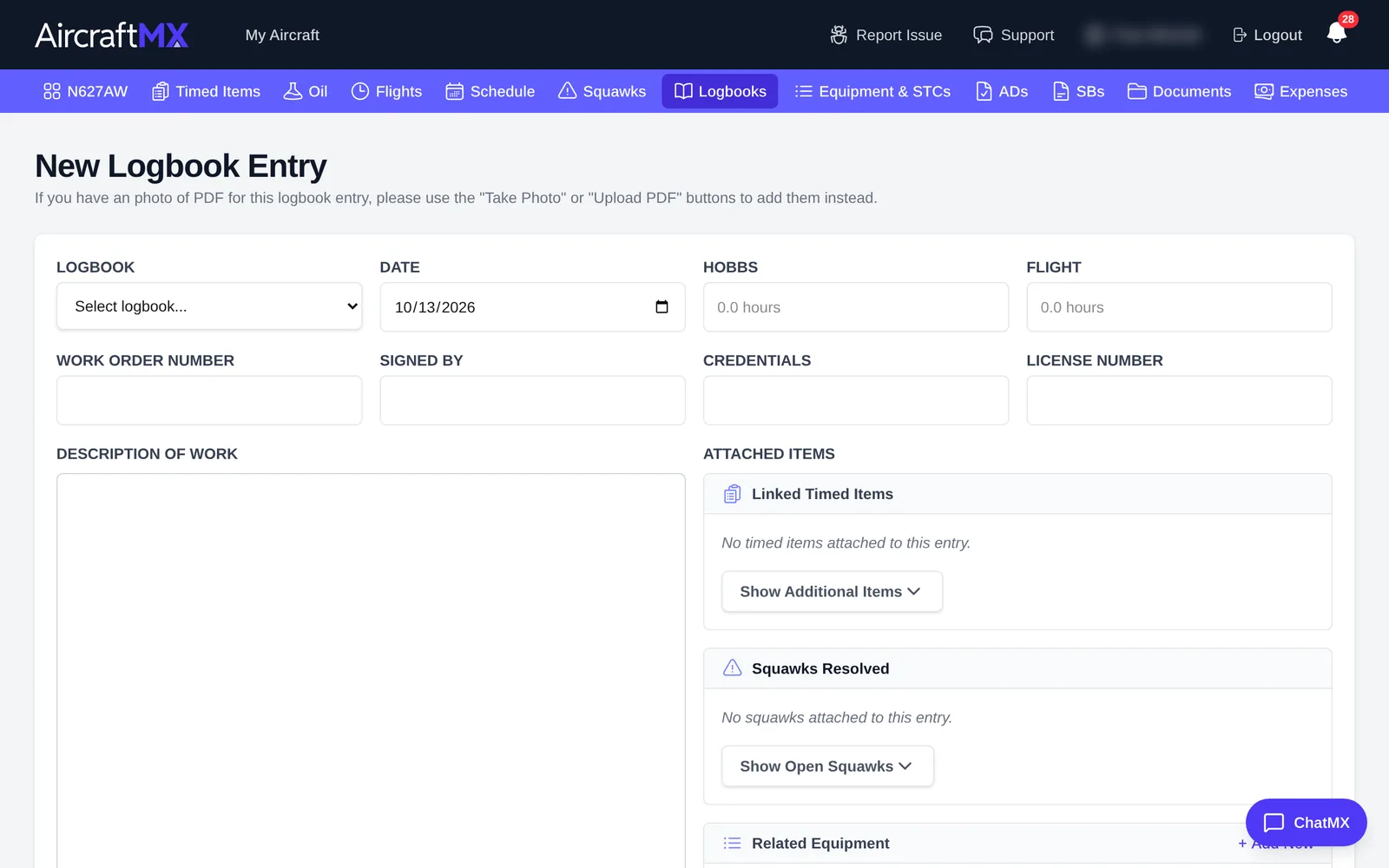
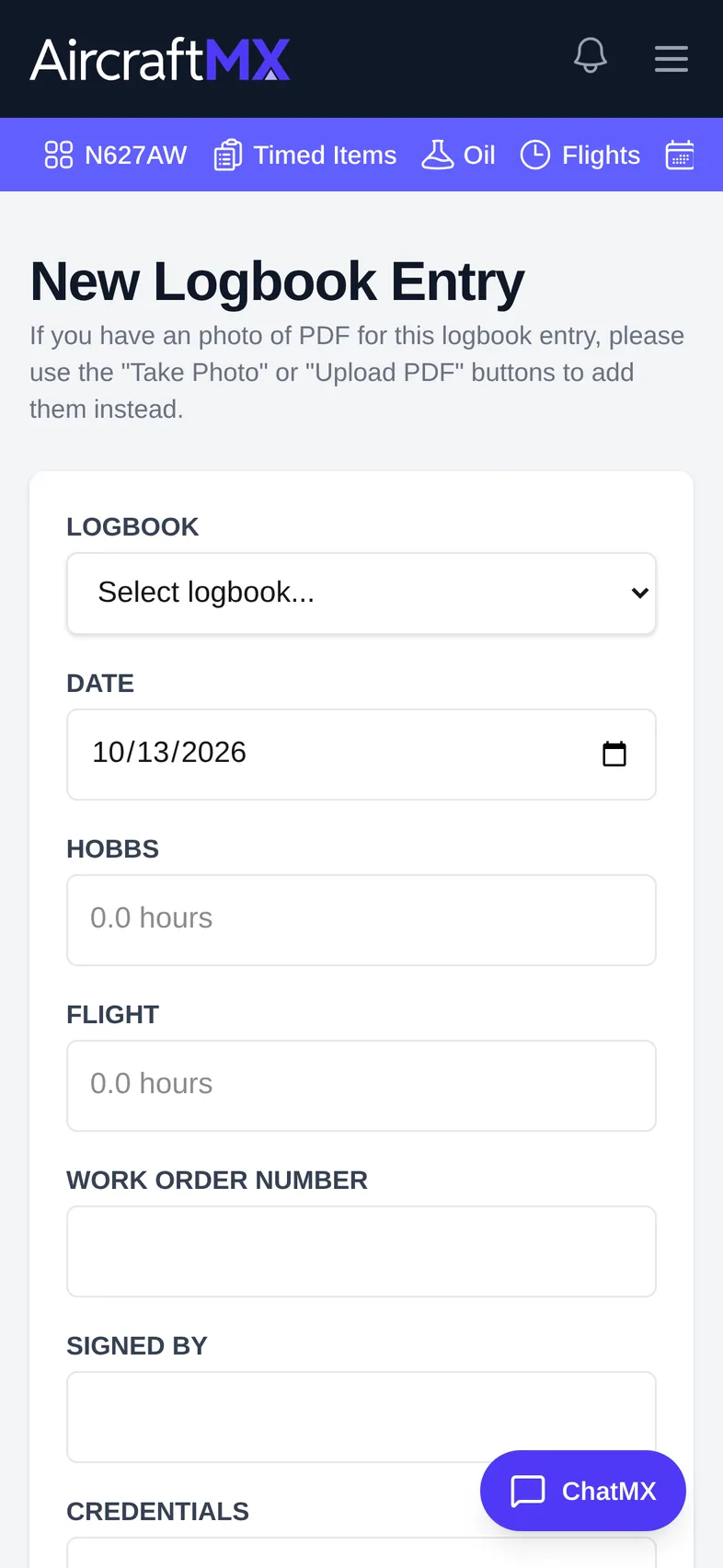
- Logbook: choose which logbook the entry belongs to (for example Airframe, Engine, Propeller, Avionics).
- Date: defaults to today.
- Meter values (for example Hobbs and Flight): the times when the work was done.
- Optional: Work Order Number, Signed By, Credentials (for example A&P or IA), and License Number.
- Description of Work: the text of the entry.
Link related items (optional)
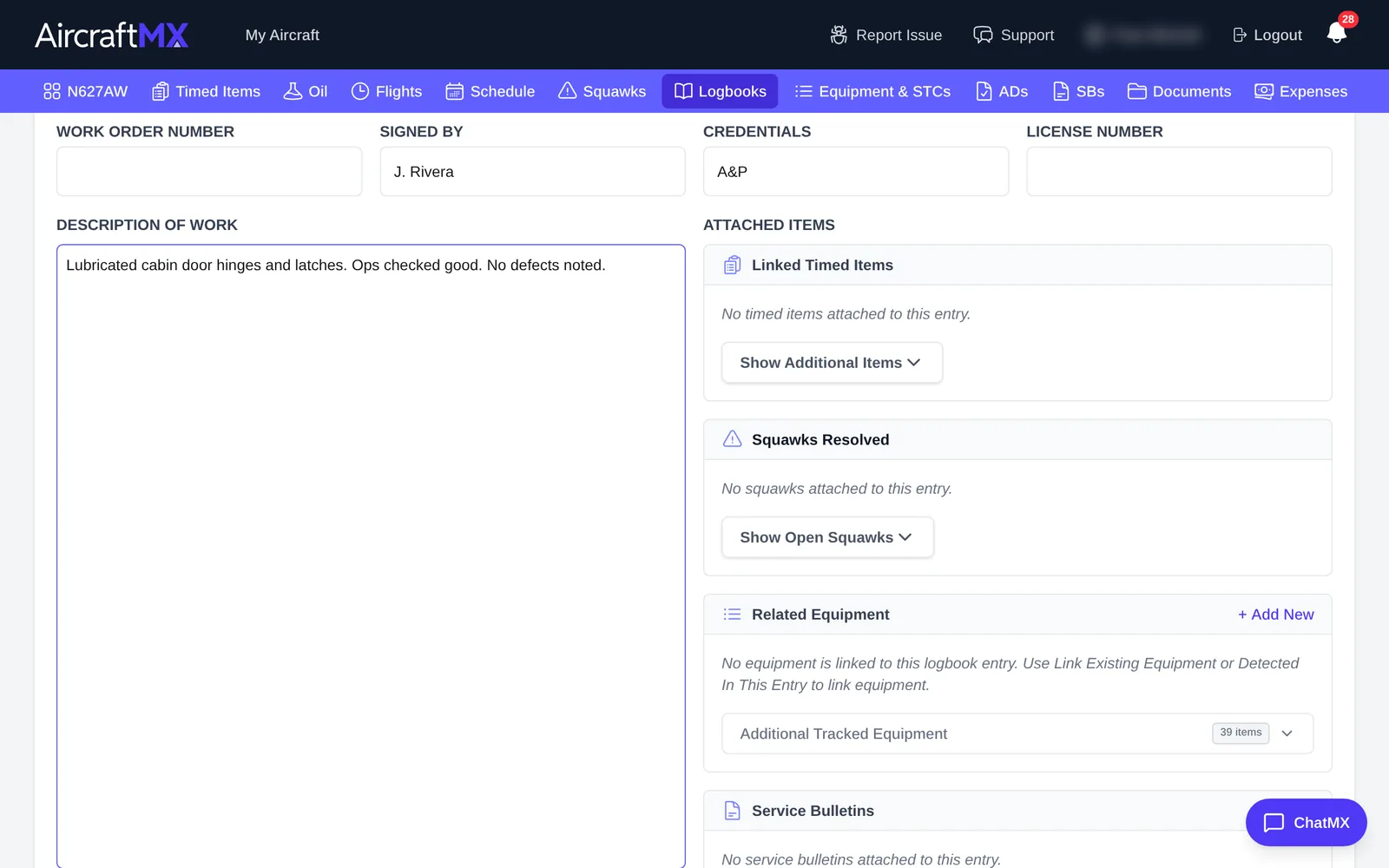
Under Attached Items you can link the entry to:
- Linked Timed Items: click Show Additional Items, then Link & Mark Complied, to attach the timed item and update its next due status. Next due is updated only if this entry is more recent than the last completed information already on the timed item. The compliance dialog shows Last Completed Date for that check.
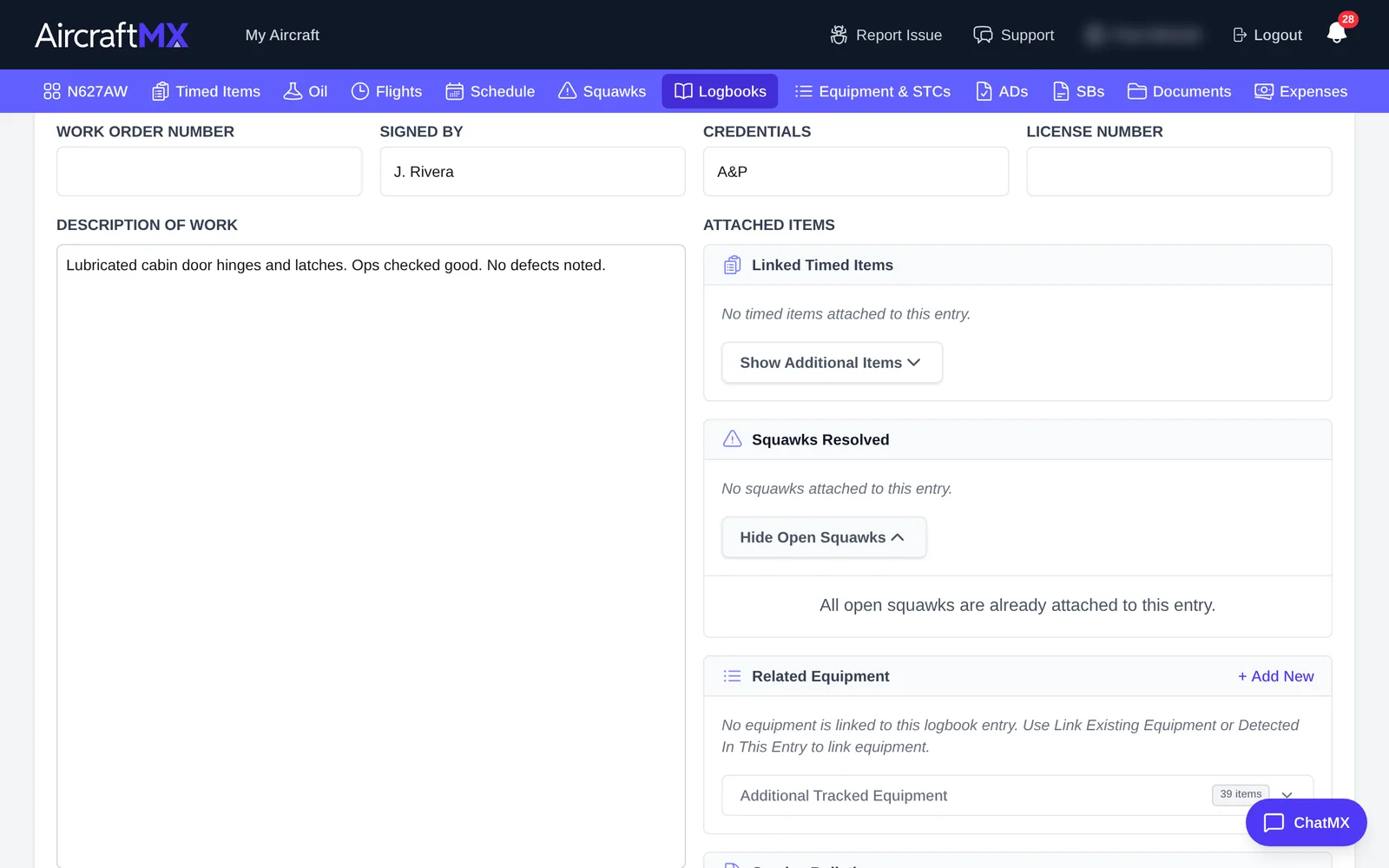
- Squawks Resolved: click Show Open Squawks to pick squawks this work fixed.
- Related Equipment: link tracked equipment, or + Add New.
- Service Bulletins and Airworthiness Directives: search by number or subject. Selecting one marks it as complied with on this aircraft.
Save
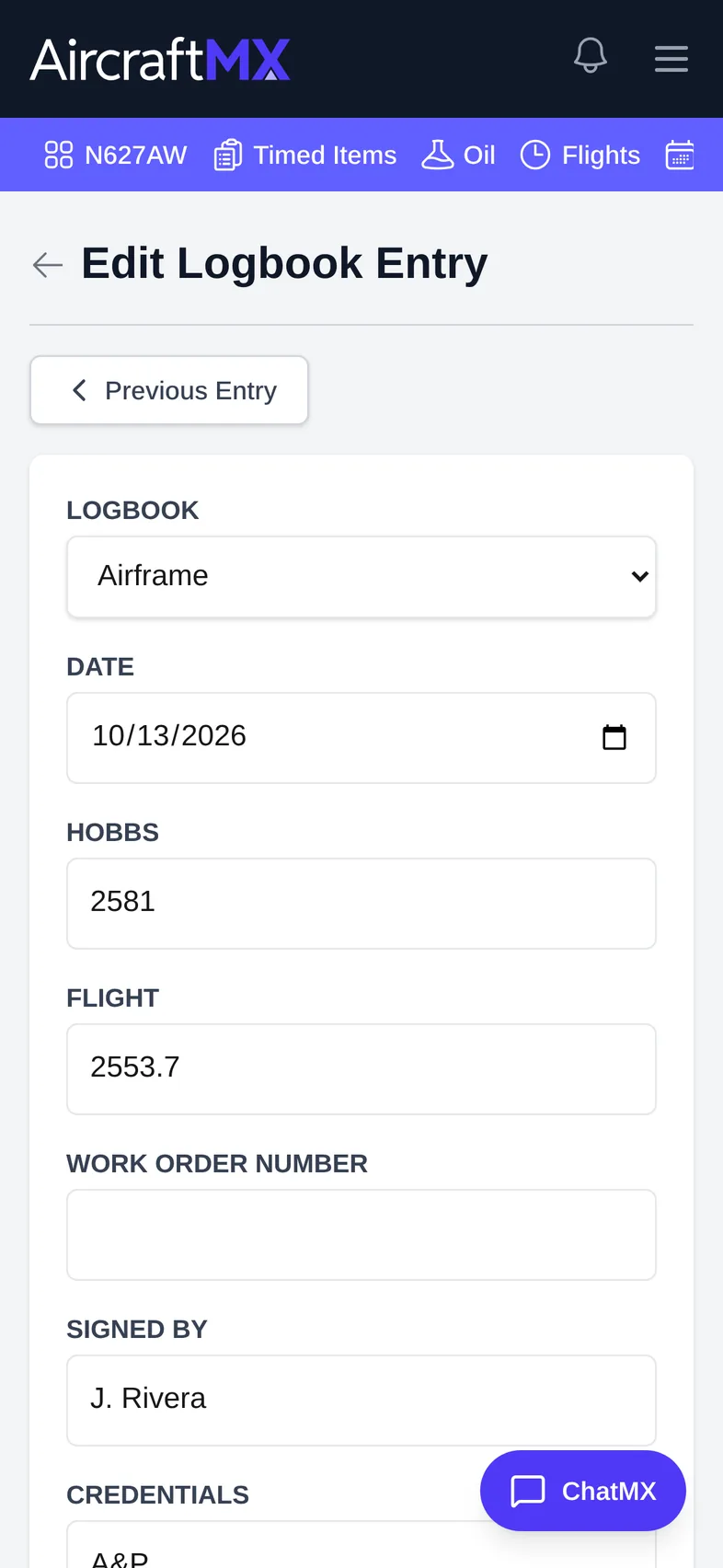
Click Create Entry. The entry opens in Edit Logbook Entry, where you can Attach Image of the paper entry, add documents under Logbook Documents, or keep editing.
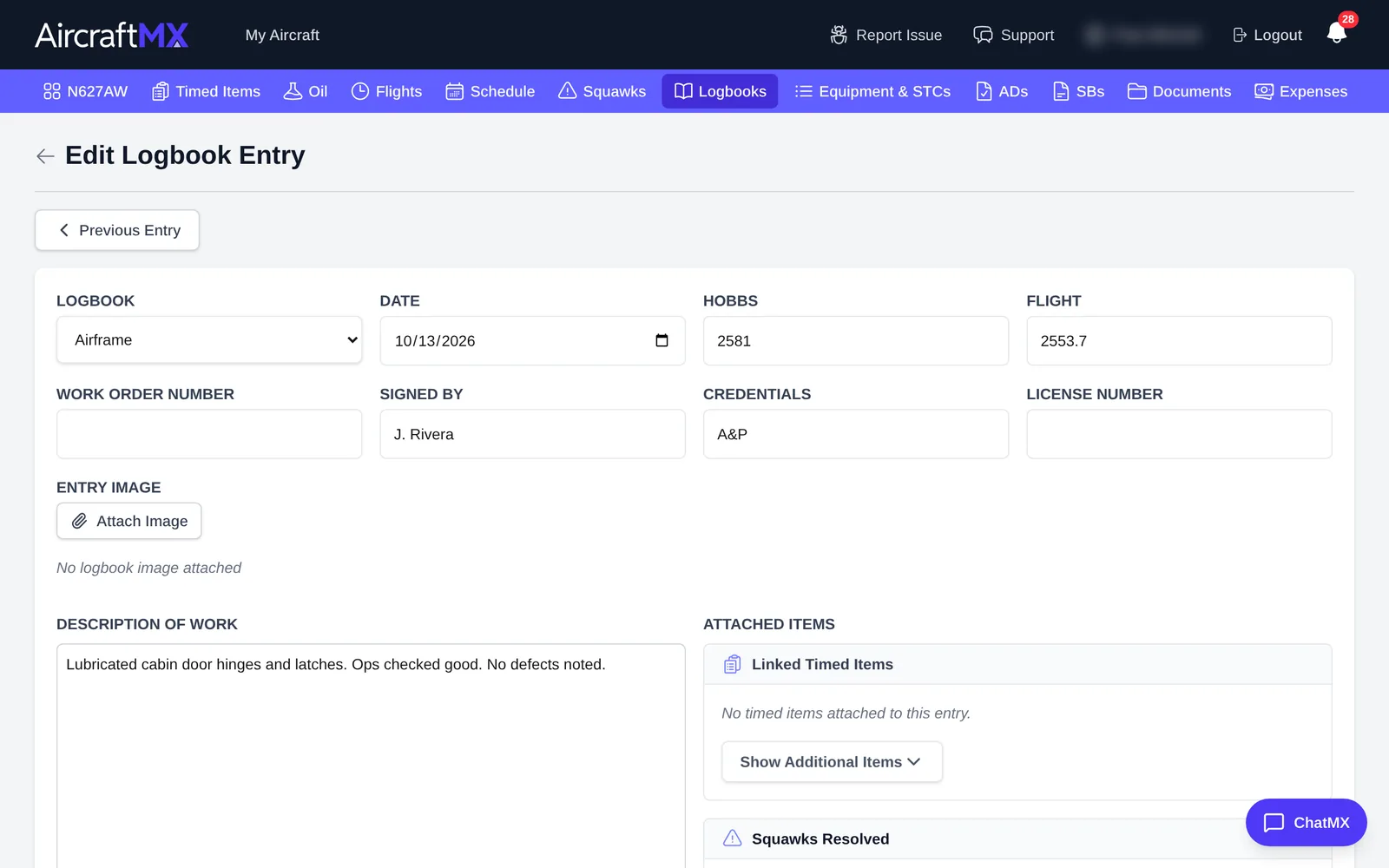
A manual entry does not go through transcription review. Transcription Ready for Review and Save & Mark as Verified appear for a transcribed entry whose status is ready. The manual save does not set that status.
On a phone
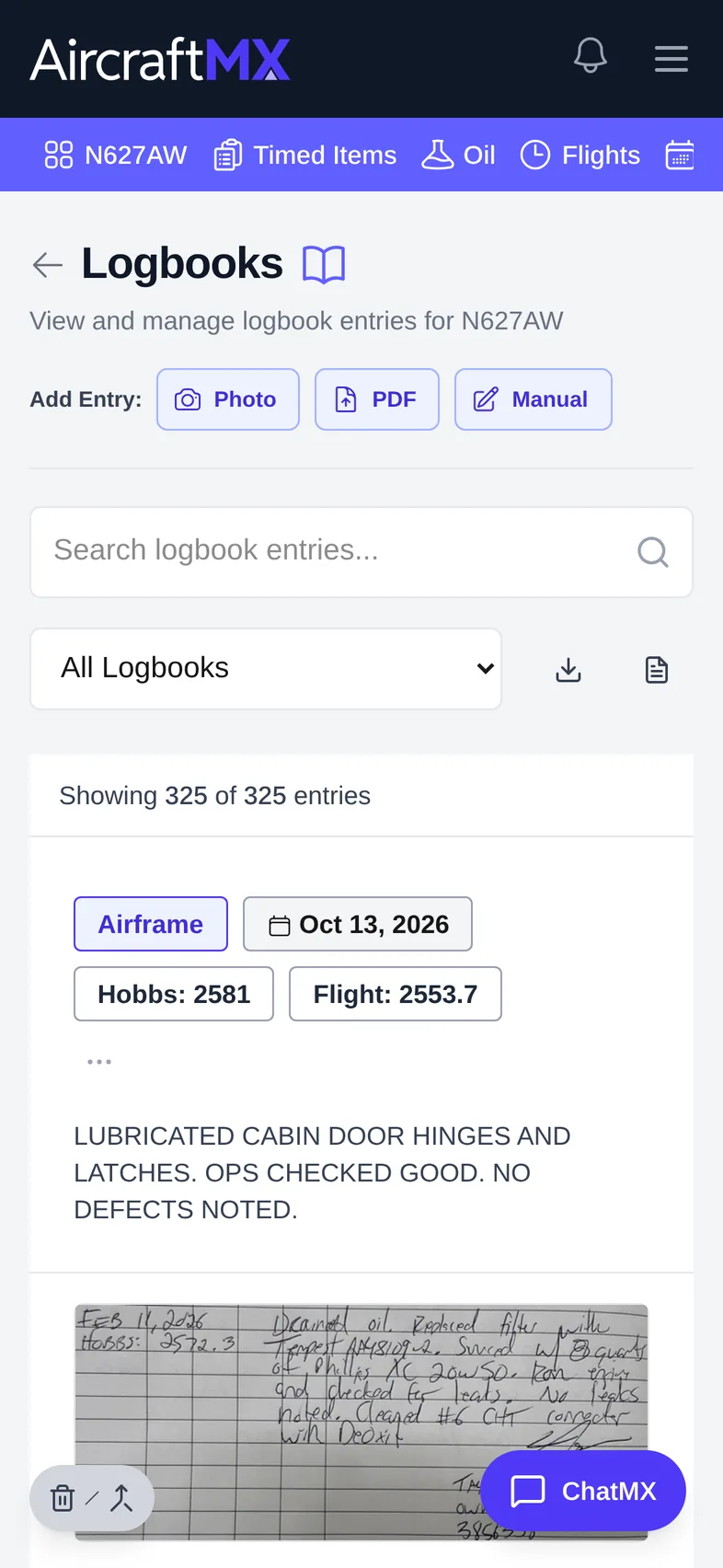
On a phone, Add Entry: with Photo, PDF, and Manual sits at the top of Logbooks, and the entry form is a single column.
Still stuck?
Contact us, or use Report Issue in the top bar of the app.