Logbooks
Export your logbooks to PDF or CSV
Export to PDF
- Go to Logbooks.
- Click Export PDF.
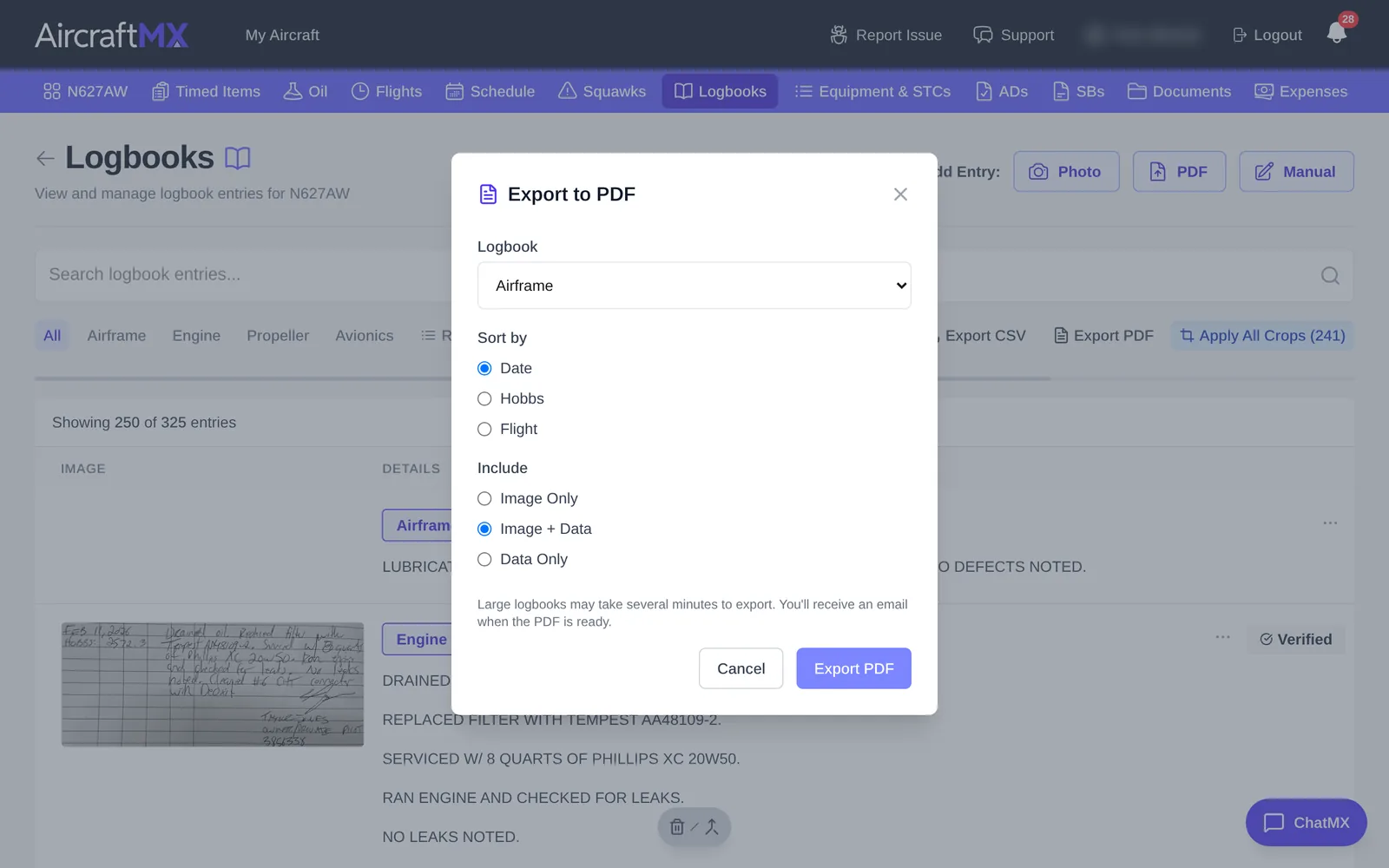
- In Export to PDF, choose:
- Logbook: one logbook or all of them.
- Sort by: oldest or newest first.
- Include: which parts of each entry to include, such as the page images and the transcribed text.
- Click Export PDF.
After you start a PDF export, the dialog says you will receive an email when it is ready, and that the file will also appear in Documents under Exports. You'll also get an Export Ready notification, and a push alert in the iOS app once it is out, if you've turned it on.
Export to CSV
Click Export CSV on the Logbooks page to download the entries as a spreadsheet you can open in Excel, Numbers, or Google Sheets. CSV downloads in the browser immediately. It uses the current category and the current search text. It does not use the selected logbook or the ready-for-review filter.
On a phone
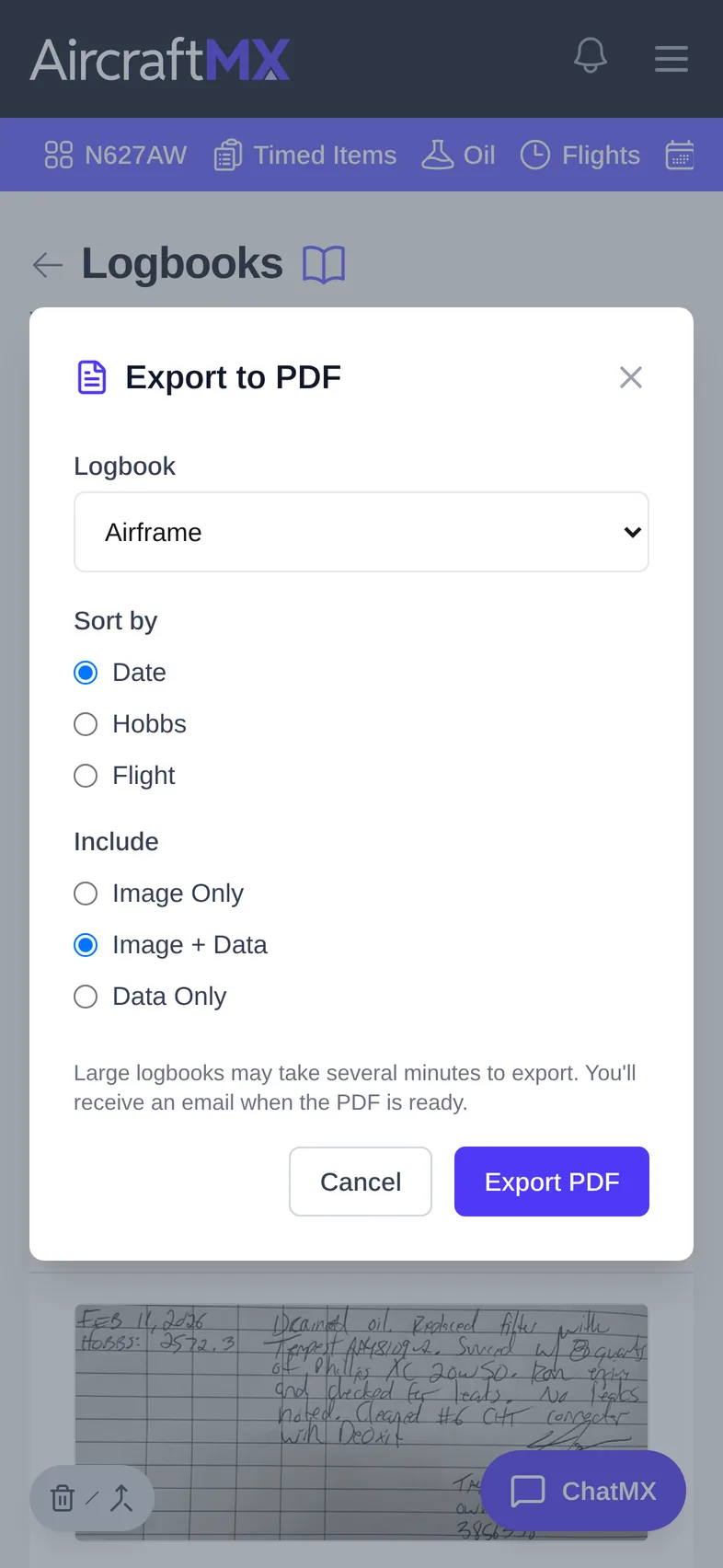
On a phone, the export buttons are icons without labels next to the search box: tap the PDF/download icon to open Export to PDF.
Still stuck?
Contact us, or use Report Issue in the top bar of the app.