Logbooks
Upload a logbook entry from your phone

This guide explains how to photograph logbook pages on your phone and send them to AircraftMX for transcription. You can add more than one photo at a time.
Before you begin
- Log in to AircraftMX on your phone. The phone browser works. The iOS app is coming soon.
- Have the logbook entry in front of you, or photos of it.
Step 1: Go to Logbooks
Open your aircraft's dashboard, scroll down to the Logbooks section, and tap Logbooks.
Step 2: Add photos
At the top of Logbooks, next to Add Entry:, tap Photo.
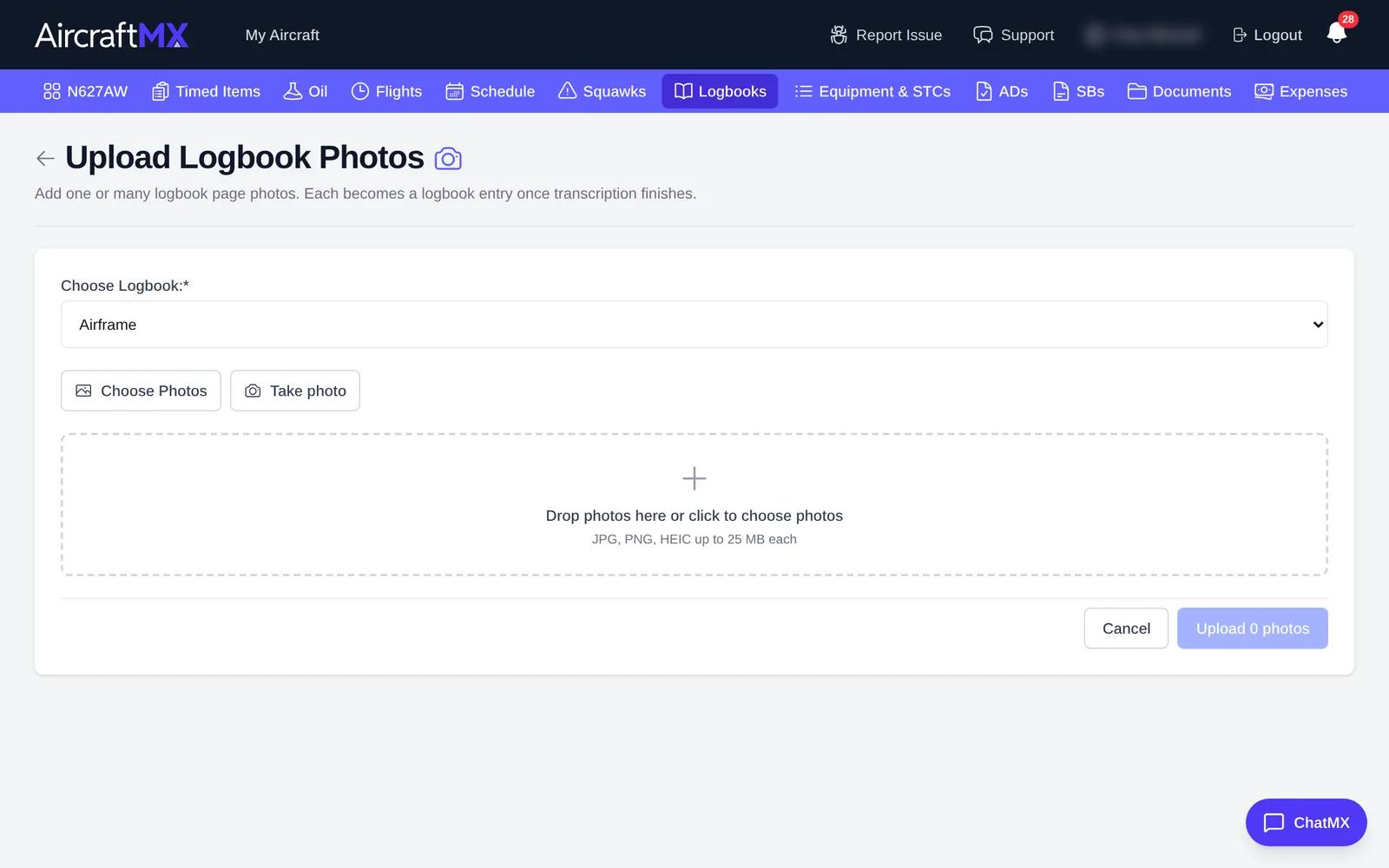
Choose the logbook this file belongs to. The menu is labeled Choose Logbook: and lists the logbooks on this aircraft (the ones that came from the maintenance template). The PDF upload and the photo upload use the same list.
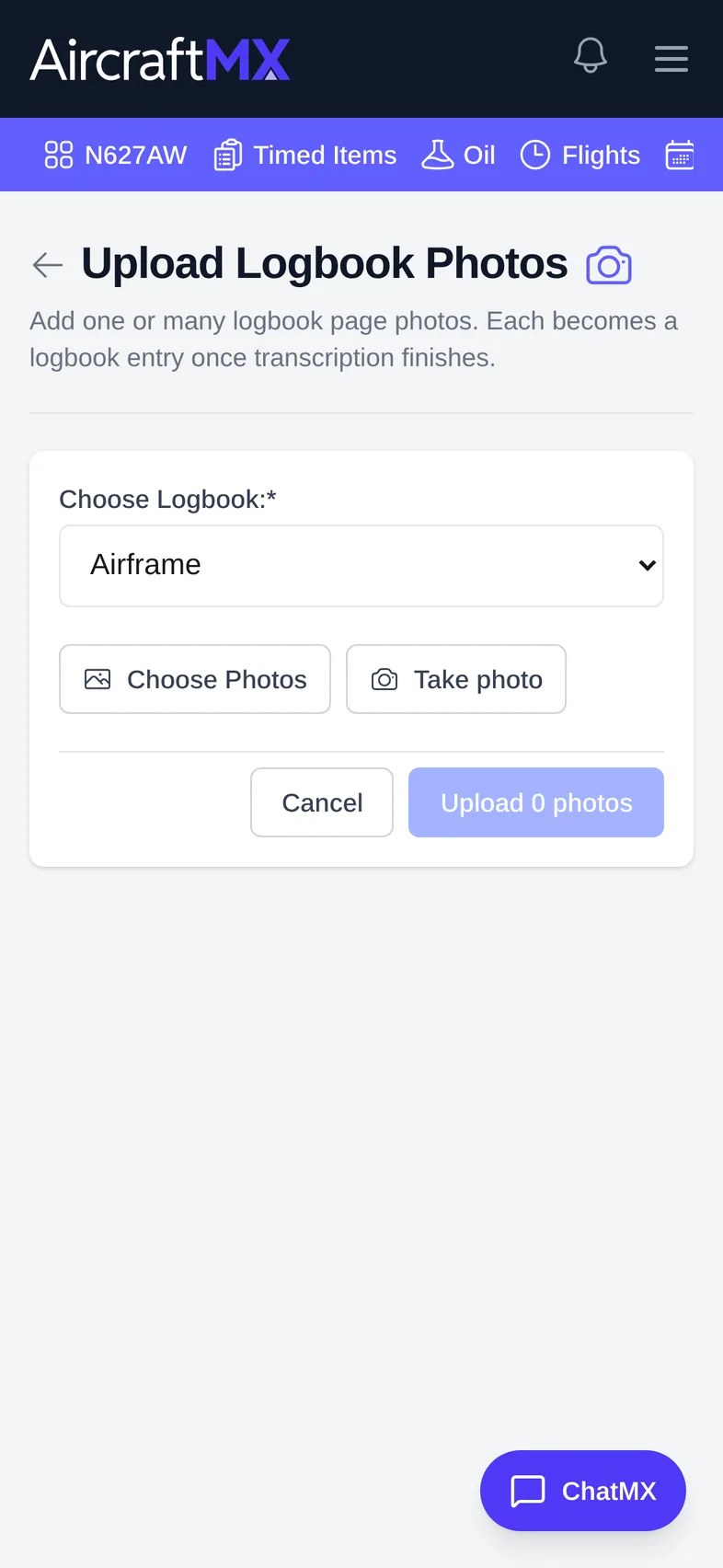
Then tap Take photo or Choose Photos. You can add more than one. Use the rotate icons if a photo is sideways. The file types are JPG, PNG, and HEIC, up to 25 MB each.
Tap Upload 1 photo (or Upload {n} photos). AircraftMX returns you to Logbooks. Transcription continues in the background. When an entry is ready, it shows under Ready for Review.
Step 3: Review the results
Open the entry from Ready for Review to see what AircraftMX found, including:
- the transcribed description of work
- service bulletins it identified
- equipment or components it detected
To confirm everything, see Review and verify logbook entries.
Tip: keep your aircraft up to date
Upload new entries as soon as you get them from your mechanic. Your records stay current and nothing gets overlooked.
On a phone
These steps are written for a phone. The screenshot below was taken on an iPhone-sized screen.
Still stuck?
Contact us, or use Report Issue in the app. To send files, attach them from Report Issue.