Logbooks
Review and verify logbook entries
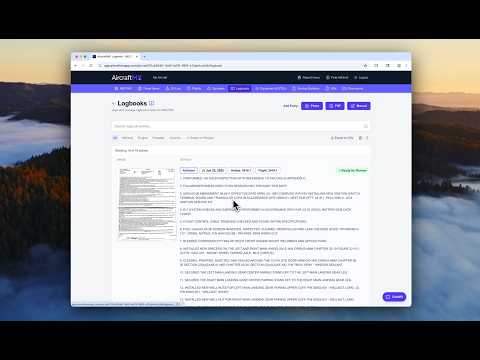
After you upload logbook entries, AircraftMX uses AI to transcribe them and detect maintenance items. Use the Ready for Review filter to find entries that still need you to confirm what the AI found. When transcription is ready, the banner title is Transcription Ready for Review.
Step 1: Open an entry
From your aircraft dashboard, go to Logbooks. Use the Ready for Review filter. Click an entry to open its edit view.
Step 2: Check the basics
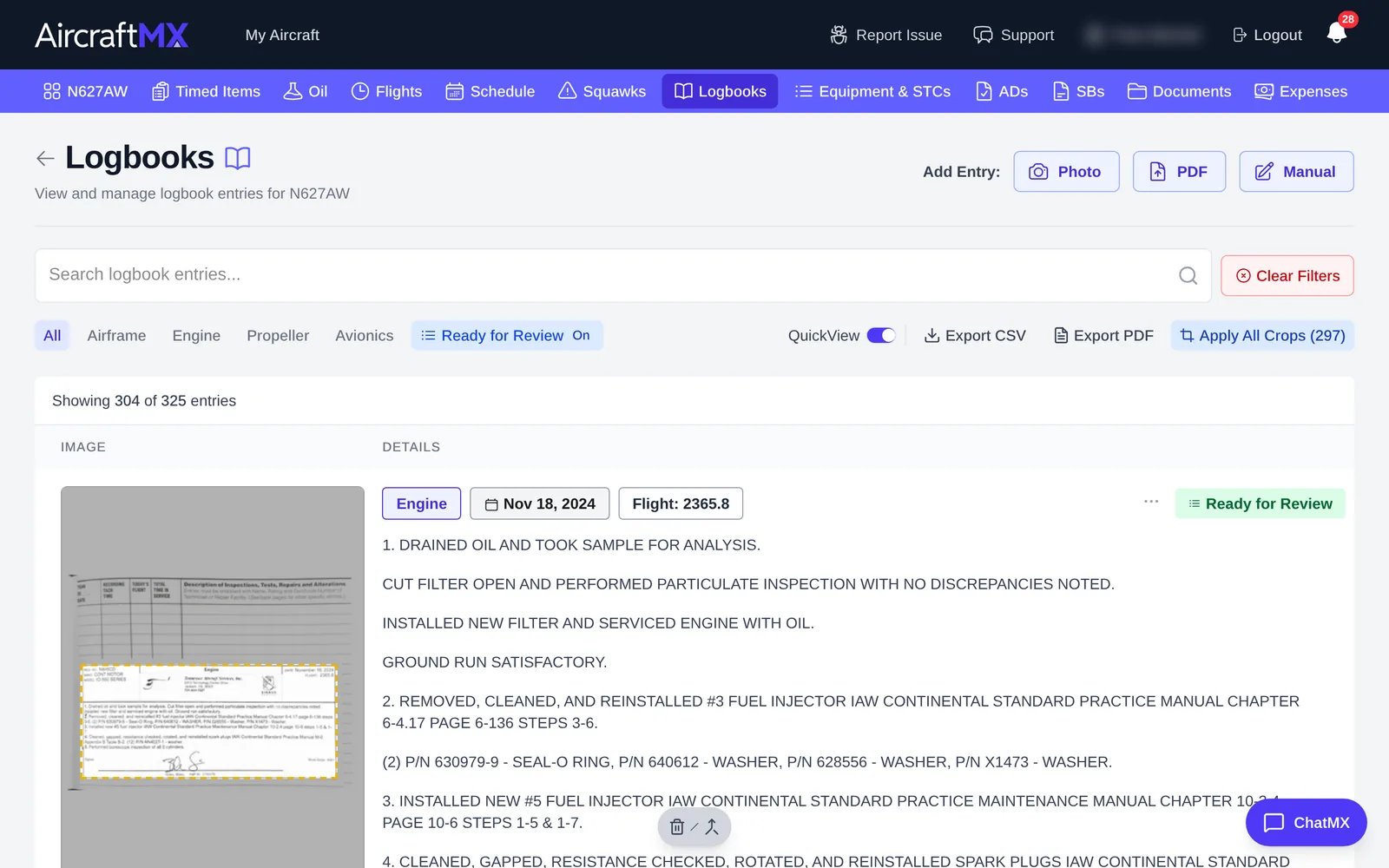
The edit view shows the entry image next to what the AI detected:
- date
- times (Hobbs, flight, tach, and so on)
Compare them with the image.
Step 3: Review the transcription
Scroll to Description of Work. If the transcription is wrong, tap Issue with this entry transcription? Let us know. That opens Report Issue with Logbook Entry. Describe the problem and tap submit. AircraftMX files it as a support request and shows the request number, with a link to View it in your support requests.
Step 4: Confirm timed items
Under Attached Items you'll see the timed items the AI found completed in this entry, such as an annual, ELT test, or battery replacement.
- For each correct item, tap Link & Mark Complied. This links the item to the entry and updates its countdown with the new completion date.
- If the entry covered items the AI missed, tap Show Additional Items and mark them completed yourself.
Step 5: Resolve squawks (if any)
If the entry fixed open squawks, select them from the list to mark them completed.
Step 6: Confirm equipment
Review the equipment the AI detected. Mark the items you want to track (such as batteries or avionics) as related to this entry. You can skip parts that don't need ongoing tracking.
Step 7: Add service bulletins
To record compliance with an SB the entry references:
- Search for it (for example, SB 9201).
- Check the box to select it.
- Confirm the compliance status.
- Add notes if needed.
- Tap Add to Entry.
The SB is linked to the entry, and its status updates in Service Bulletins.
Step 8: Add airworthiness directives
Same steps for ADs:
- Search for the AD number (for example, 93-05-06).
- Check the box to select it.
- Confirm the compliance status.
- Add notes if needed.
- Tap Add to Entry.
Click any linked AD to see its compliance status, or open your full AD list.
Step 9: Save and mark as verified
When everything is confirmed, tap Save & Mark as Verified. The entry leaves the Ready for Review list.
Tips
- Filter by status: use the Ready for Review filter to see only entries that still need checking.
- Your first upload takes longest: reviewing historical logbooks is the big job. After that, new entries are quick.
- Linking keeps you current: when you link entries to timed items, due dates update automatically.
On a phone
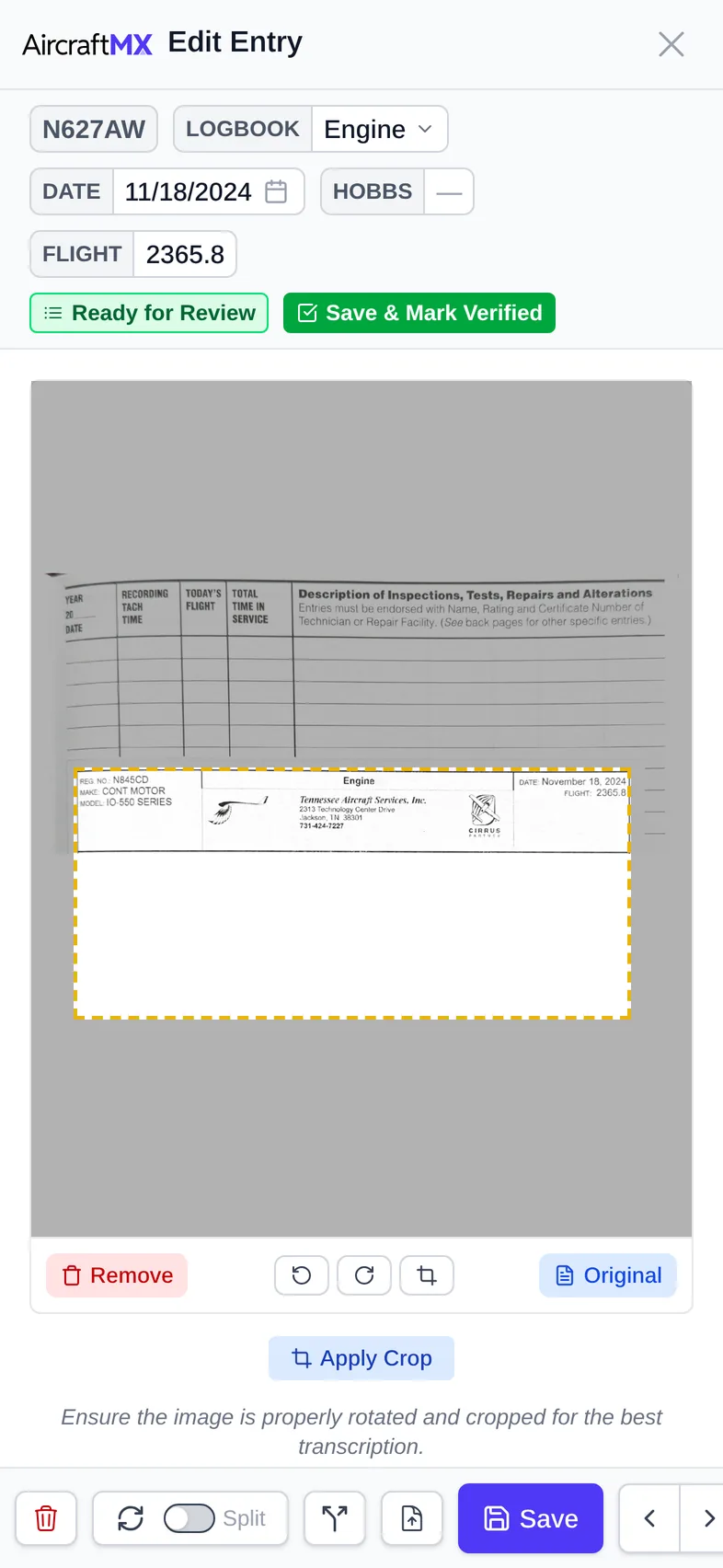
On a phone, the entry image appears above the fields instead of beside them. Scroll down to reach each section.
Need help?
If you have questions about reviewing entries, contact us, or use Report Issue in the app. To send files, attach them from Report Issue.