Logbooks
Merge or split logbook entries
Transcription reads each page or photo as one entry. Sometimes that isn't right:
- One entry continues onto the next page, so it was saved as two entries. Merge them.
- One page holds several separate entries. Split it.
Merge two entries
- Go to Logbooks.
- Select the two entries to combine.
- Click Merge. Merge Logbook Entries shows a preview of the combined entry.
- Check the preview, then click Merge Entries.
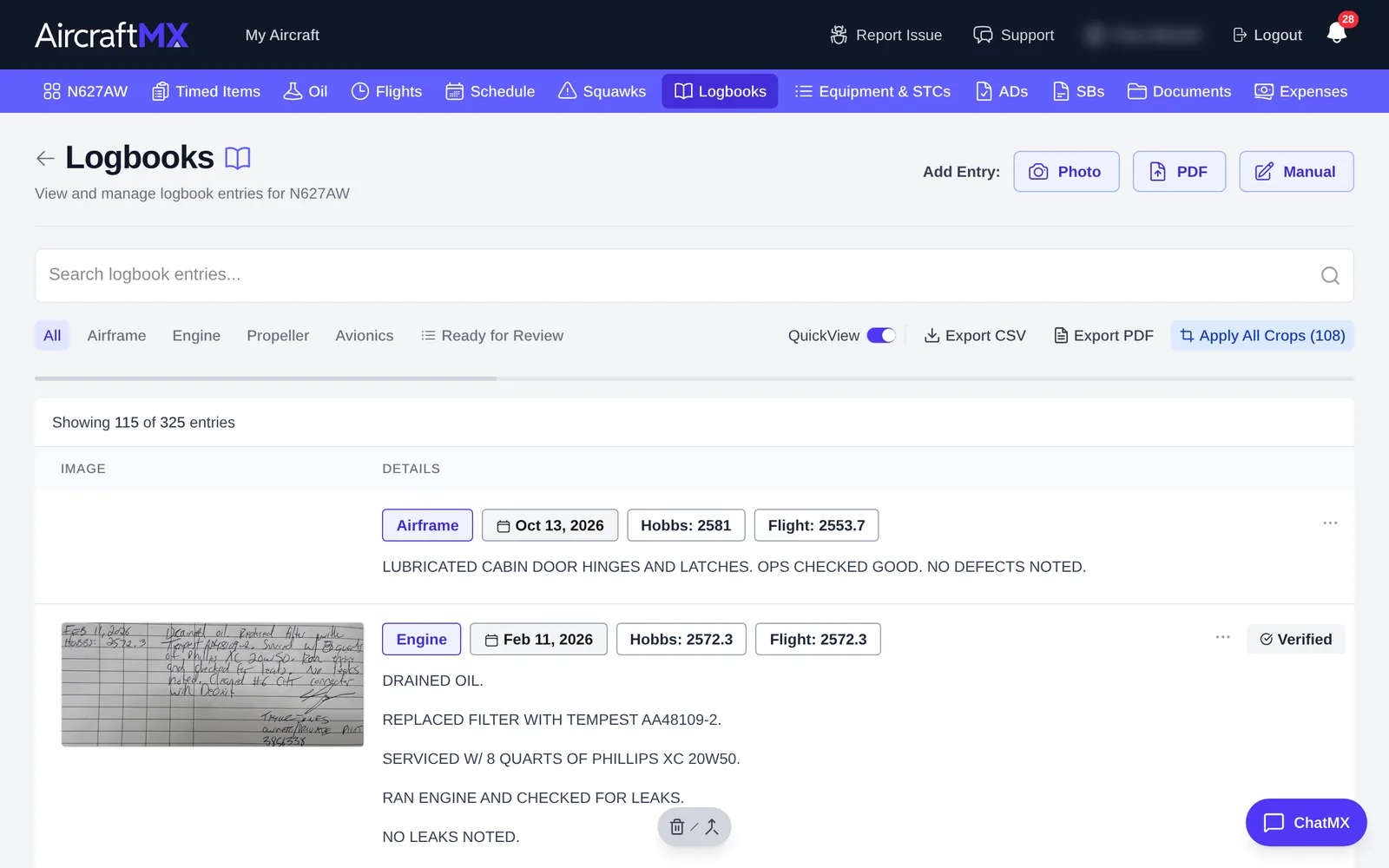
The app has no undo for a merge. The confirm dialog is Merge Logbook Entries, and the result preview labels each meter (higher value). The preview shows one date, titled Merged Result Preview. The app does not say which entry that date comes from. Details are combined with a separator, and attached timed items, squawks, and similar links are carried over.
Split a multi-entry page
Split Entries is a heading on an entry, and only when that entry already has related split entries. It is not a button on the logbook list. Allow splitting is the accessible name of a Split switch shown next to transcription actions (Retry/Restart Transcription, Process with OCR, Reprocess Transcription). On the list, that switch is on the admin reprocess bar. A saved entry also has Split Entry (the visible word Split is hidden on a phone; the icon remains) and a Split button in the bottom bar. A new unsaved entry cannot be split.
On a phone
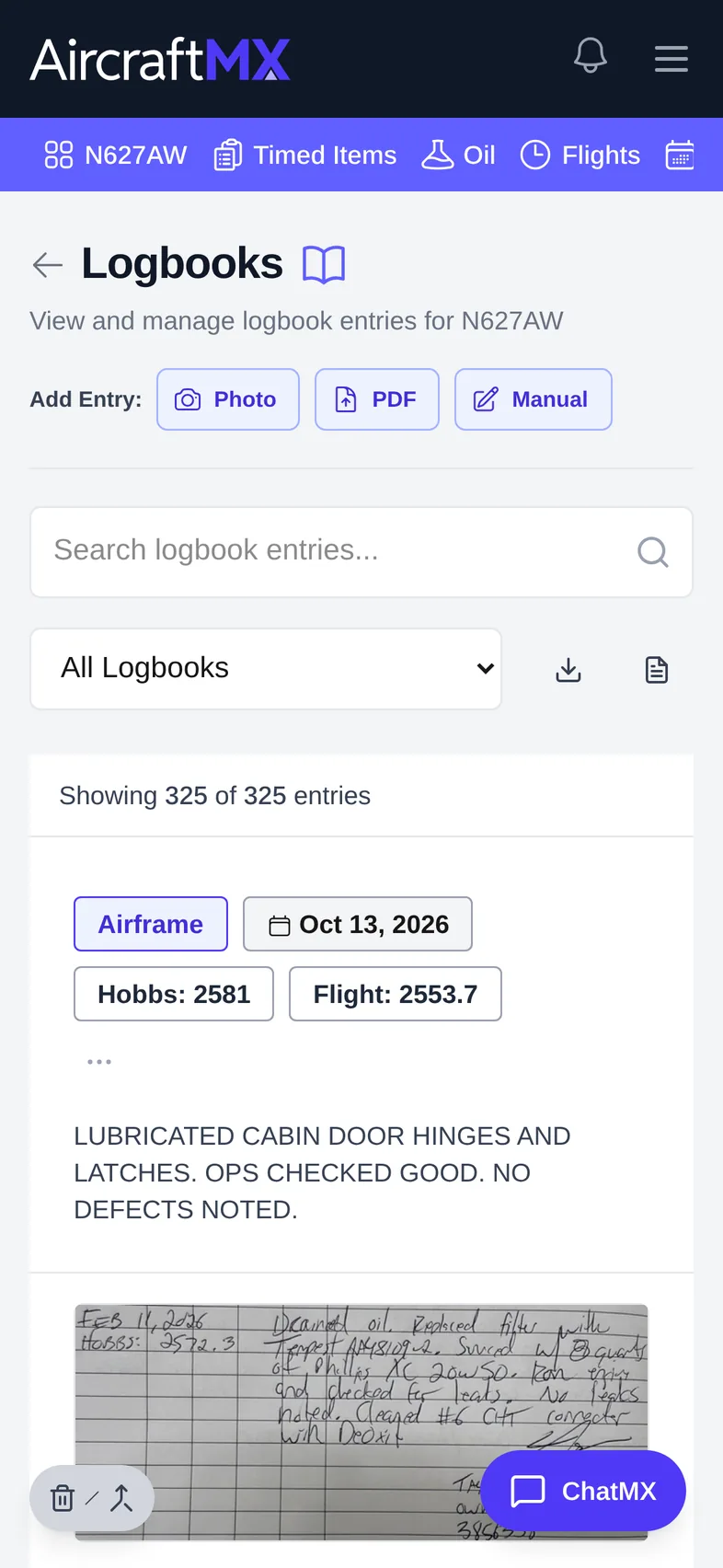
On a phone, turn on selection and tap the checkbox on two entry cards. The cards stack in one column. With two entries selected, tap Merge on the bar at the bottom of the screen.
Still stuck?
Contact us, or use Report Issue in the top bar of the app.