Logbooks
Upload logbook entries from a PDF
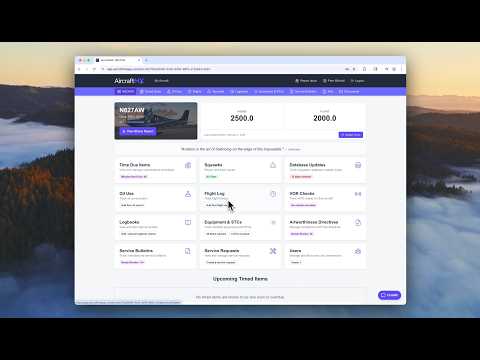
This guide explains how to upload PDF logbook files to AircraftMX, and what happens while AI transcribes them.
Before you begin
- Log in to AircraftMX and open your aircraft's dashboard.
- Have a PDF of your logbook entries ready. To upload entries as photos from your phone or computer instead, see Upload a logbook entry from your phone.
Step 1: Go to Logbooks
From your aircraft dashboard, click Logbooks. If you haven't uploaded anything yet, the list is empty.
Step 2: Start the upload
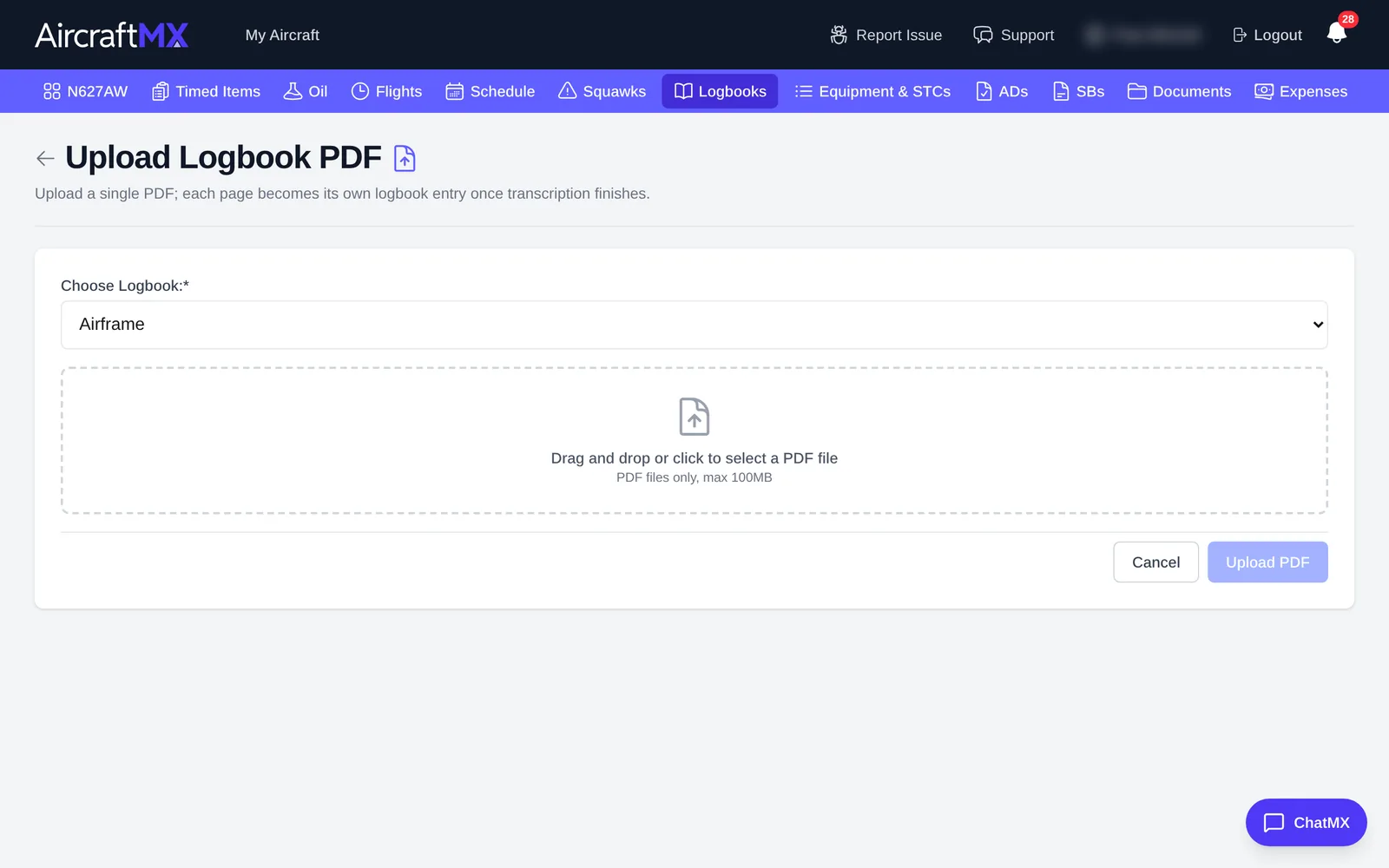
Next to Add Entry:, click PDF. Drag the file onto the upload area, or click it and choose the file. PDF files only, up to 100 MB. Then click Upload PDF.
Step 3: Choose the logbook
Choose the logbook this file belongs to. The menu is labeled Choose Logbook: and lists the logbooks on this aircraft (the ones that came from the maintenance template). The PDF upload and the photo upload use the same list.
Step 4: Wait while it processes
A green banner shows the upload is in progress. During this time AircraftMX:
- uploads your file
- detects the individual logbook entries
- splits the PDF into separate entry pages
Large files can take several minutes. The page refreshes automatically when it's done.
Step 5: AI transcription
Next, AircraftMX transcribes each entry and looks for:
- Timed items that were complied with
- Service bulletins that were addressed
- Airworthiness directives that were completed
- Equipment that was referenced, installed, or removed
As each entry finishes, it shows under Ready for Review. This can take several minutes, depending on the number of entries.
Next steps
When your entries show under Ready for Review, check and confirm what the AI found. See Review and verify logbook entries.
On a phone
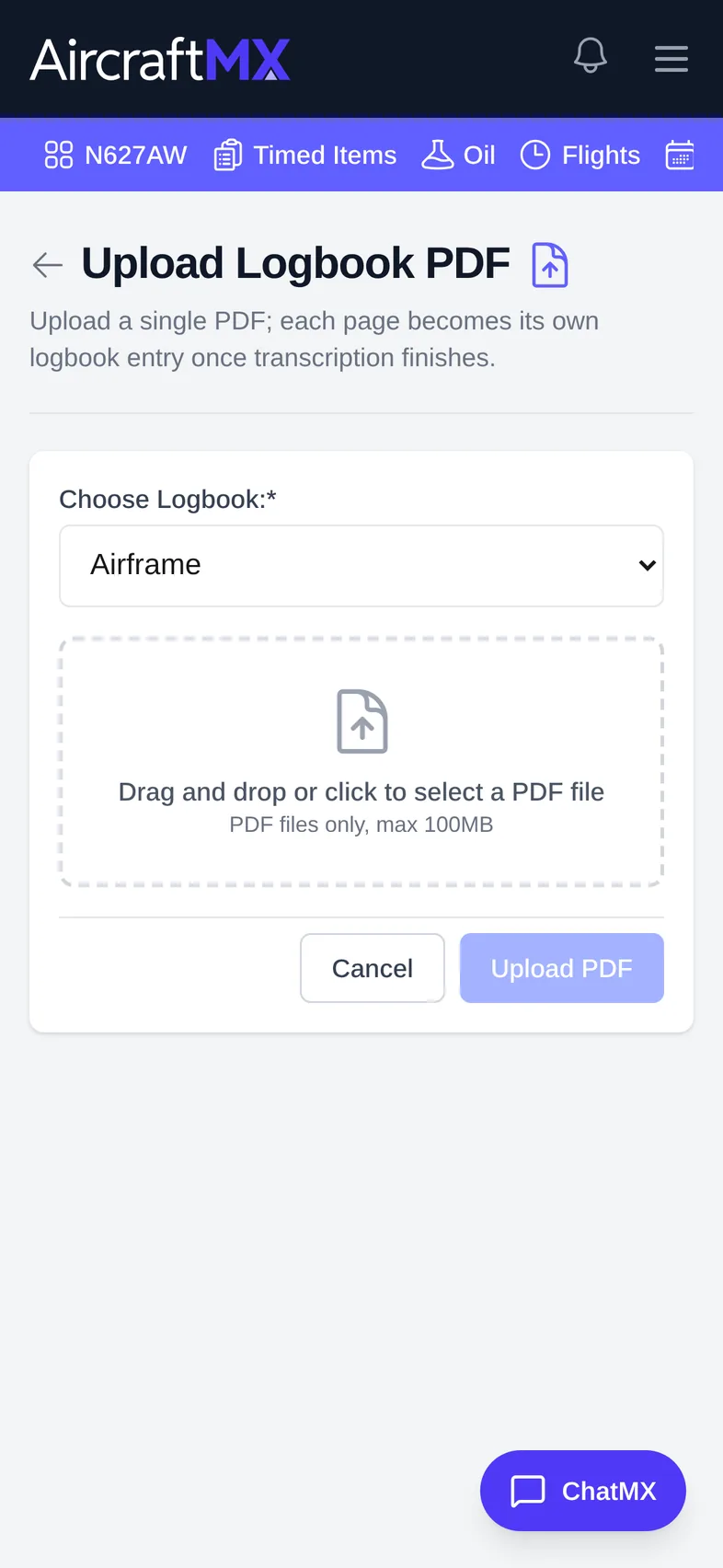
On a phone, Add Entry: sits above the list; tap PDF and choose a file from your phone or iCloud Drive.
Still stuck?
Contact us, or use Report Issue in the app. To send files, attach them from Report Issue.