Scheduling
Check the aircraft out and in
Checking out and in records the meter times and fuel at the start and end of each reservation, so the next pilot knows the aircraft's state.
Check out
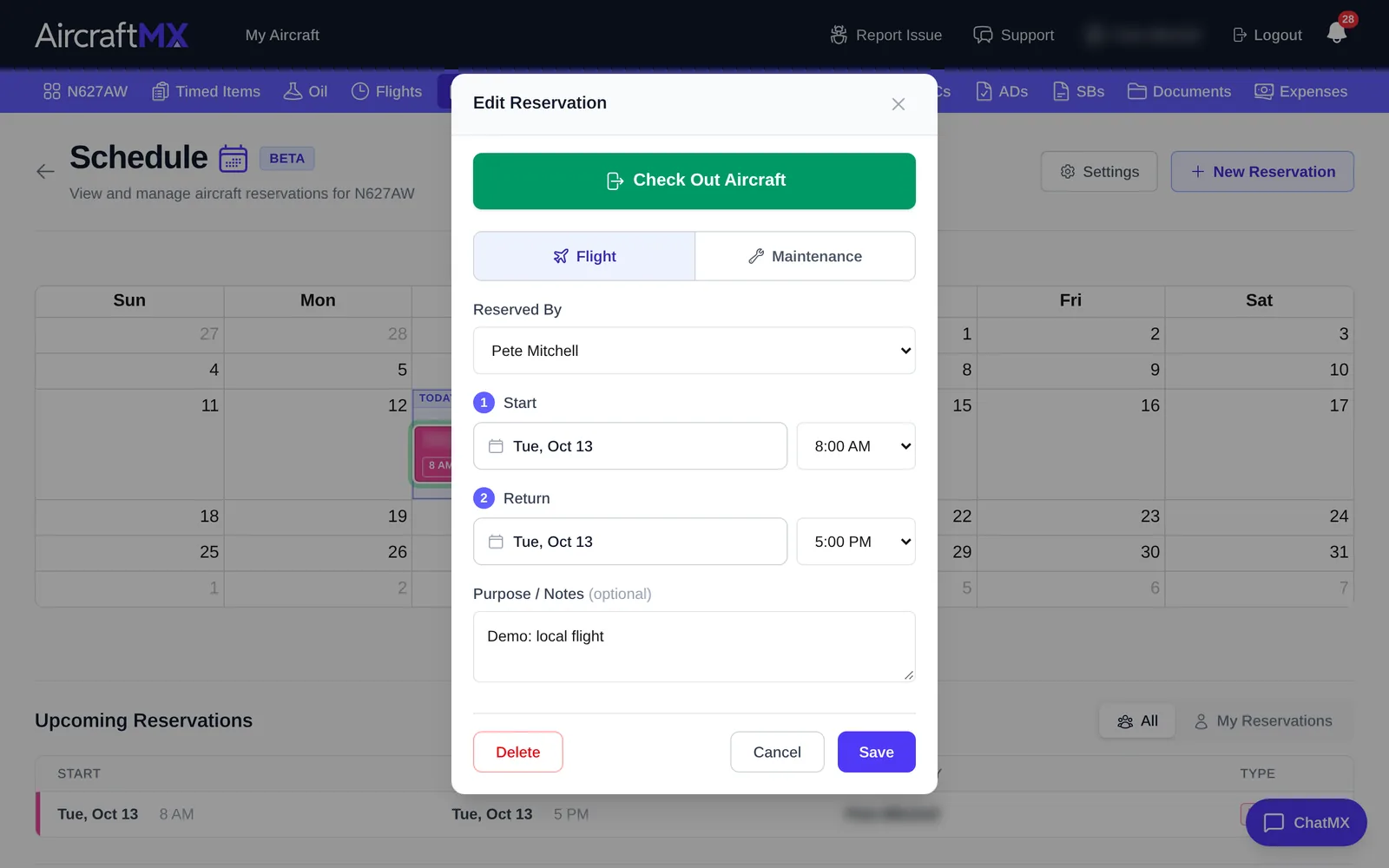
- Click Schedule and click your reservation to open Edit Reservation.
- Click Check Out Aircraft.
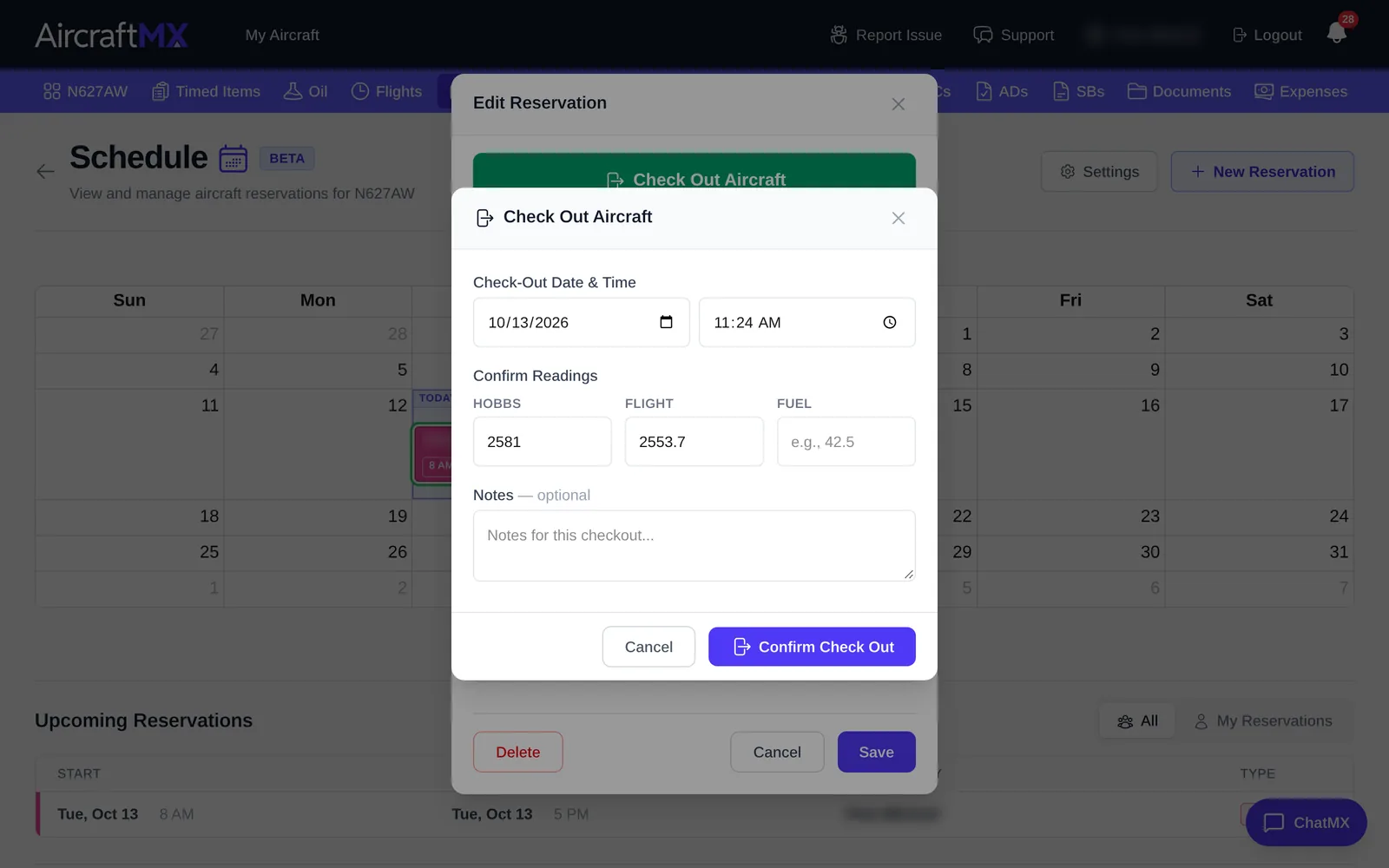
- In Check Out Aircraft, confirm the date and time, enter the current Hobbs, Flight time, and Fuel, and add any notes.
- Click Confirm Check Out.
Check in
When you're back, open the reservation and click Check In Aircraft.
Check-in is titled Check In Aircraft. The fields are Check-In Date & Time and Current Readings (one box per meter, plus Fuel). The button is Confirm Check In. Check-out is Check Out Aircraft, Check-Out Date & Time, Confirm Readings, and Confirm Check Out. Check-in does not update the aircraft's meters or create a flight log. It submits the check-in time, fuel, meter readings, and notes.
On a phone
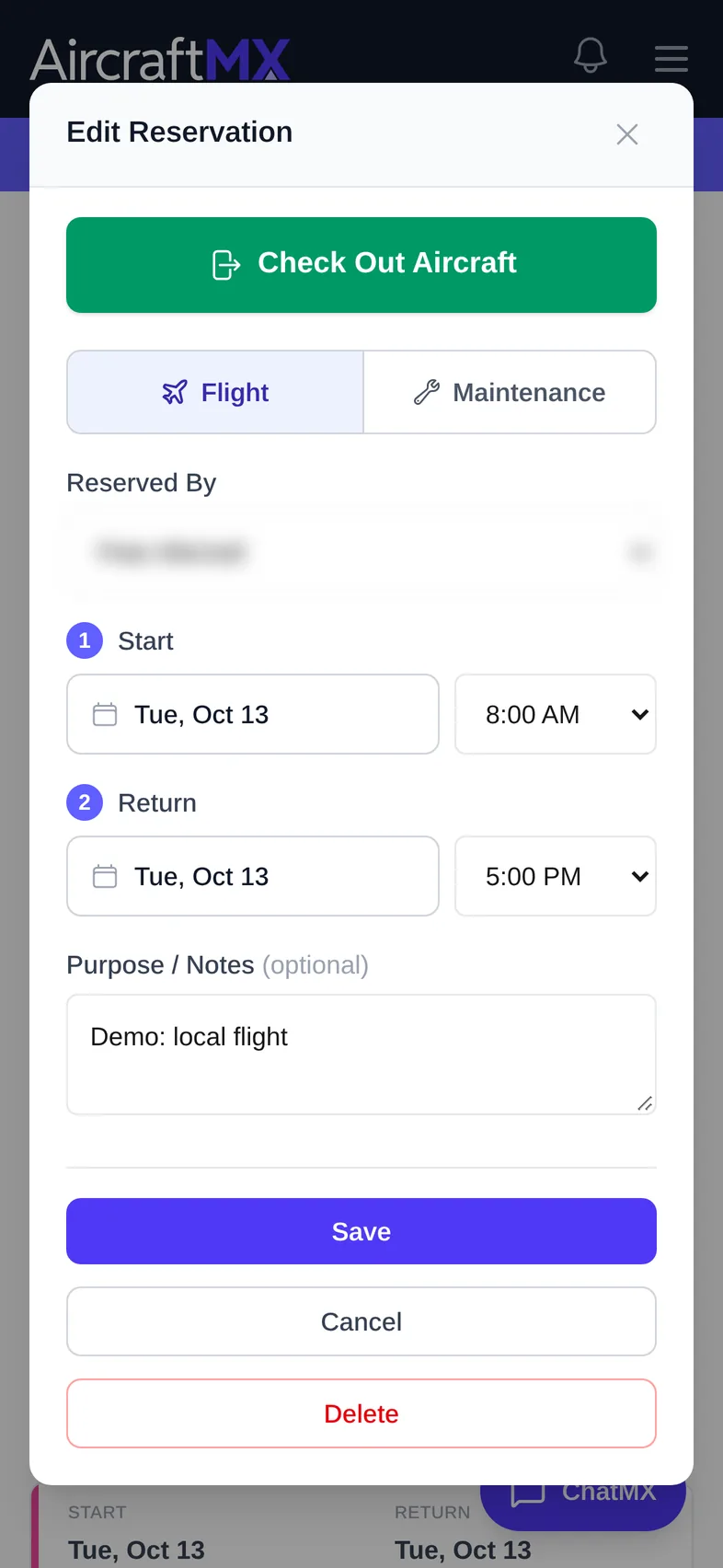
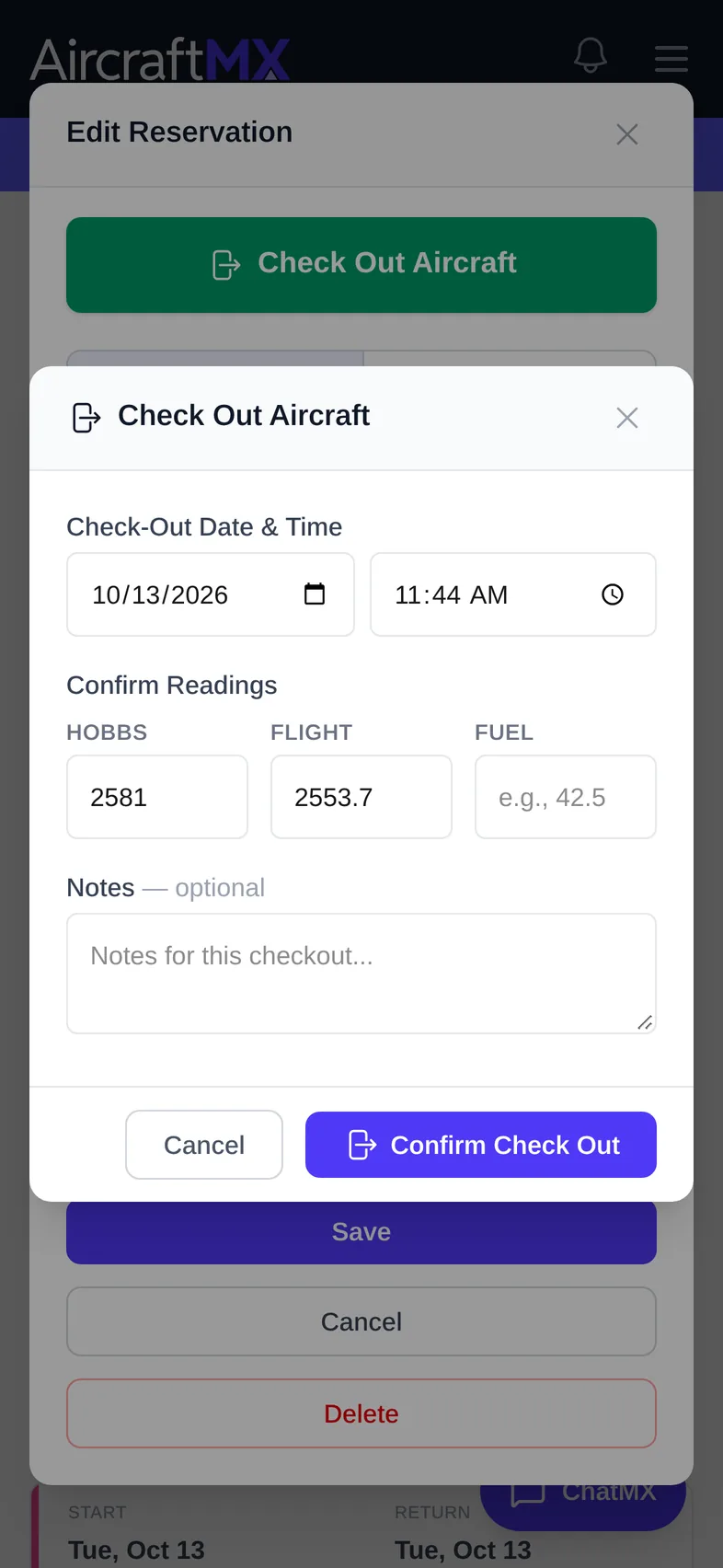
On a phone, the Check Out dialog fills the screen; scroll down to reach Confirm Check Out.
Still stuck?
Contact us, or use Report Issue in the top bar of the app.