Scheduling
Reserve the aircraft (scheduling)
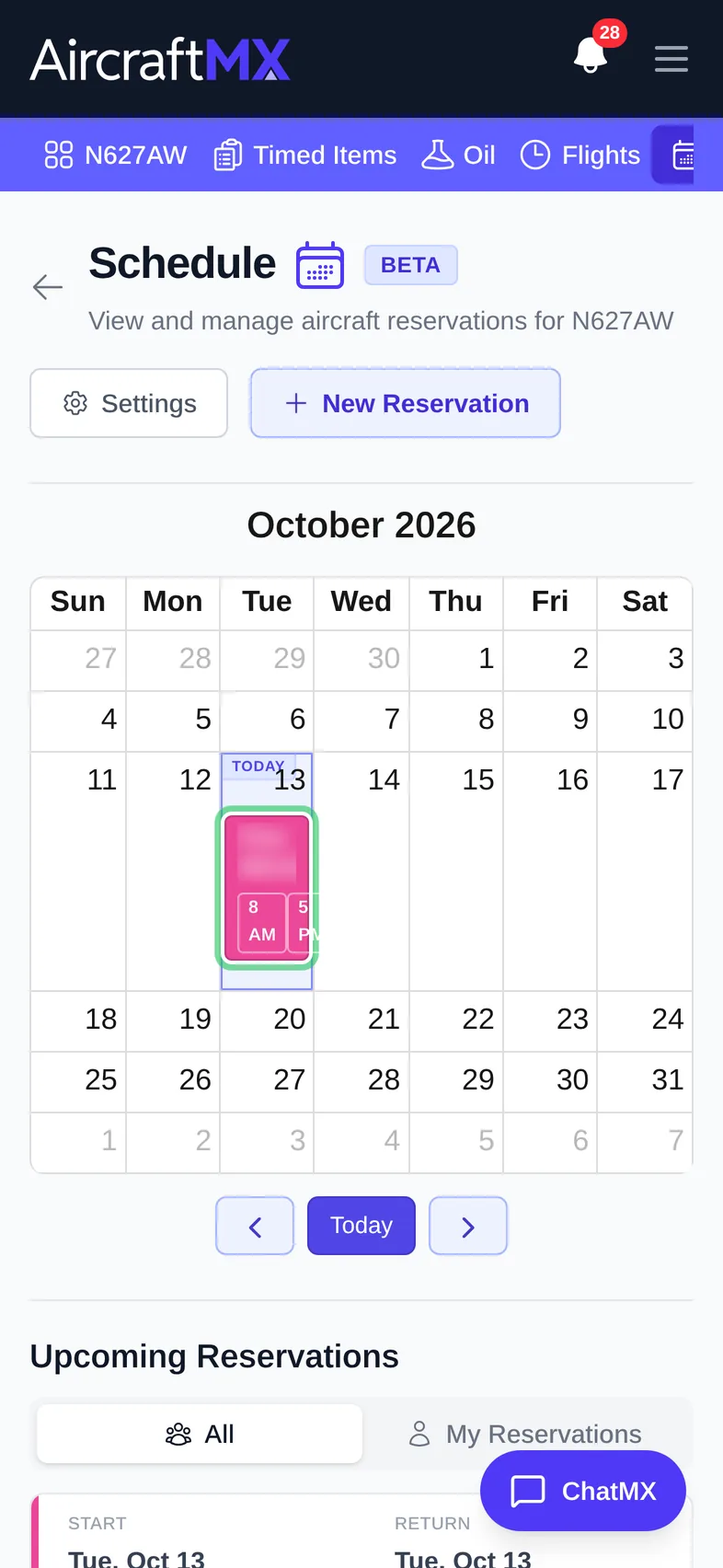
The schedule lets everyone who shares an aircraft see when it's booked for flying or maintenance. Scheduling is in Beta.
If you don't see Schedule, turn it on in Settings > Feature Visibility. See Show or hide features.
See the calendar
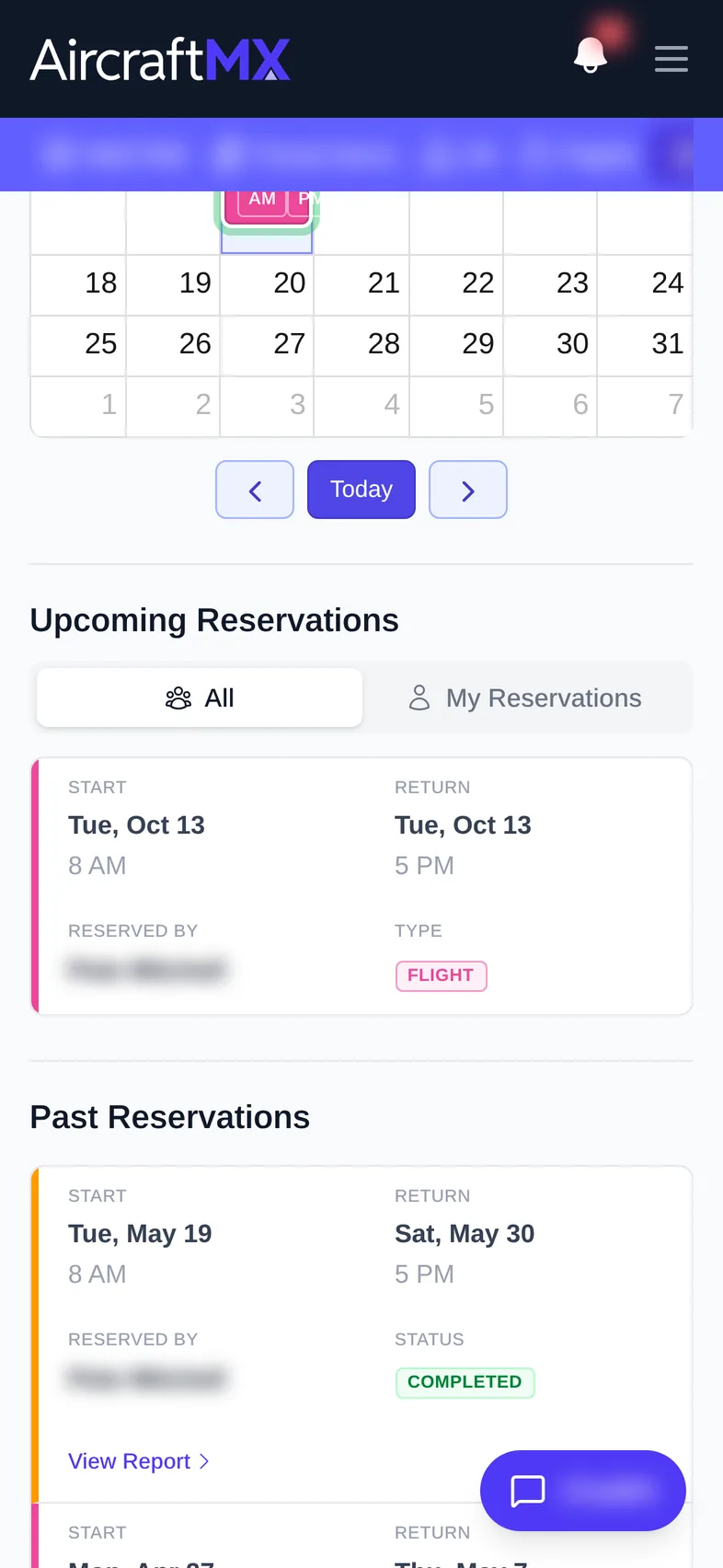
Click Schedule in the navigation bar. The calendar shows every reservation, with Upcoming Reservations and Past Reservations below. Use All or My Reservations to filter.
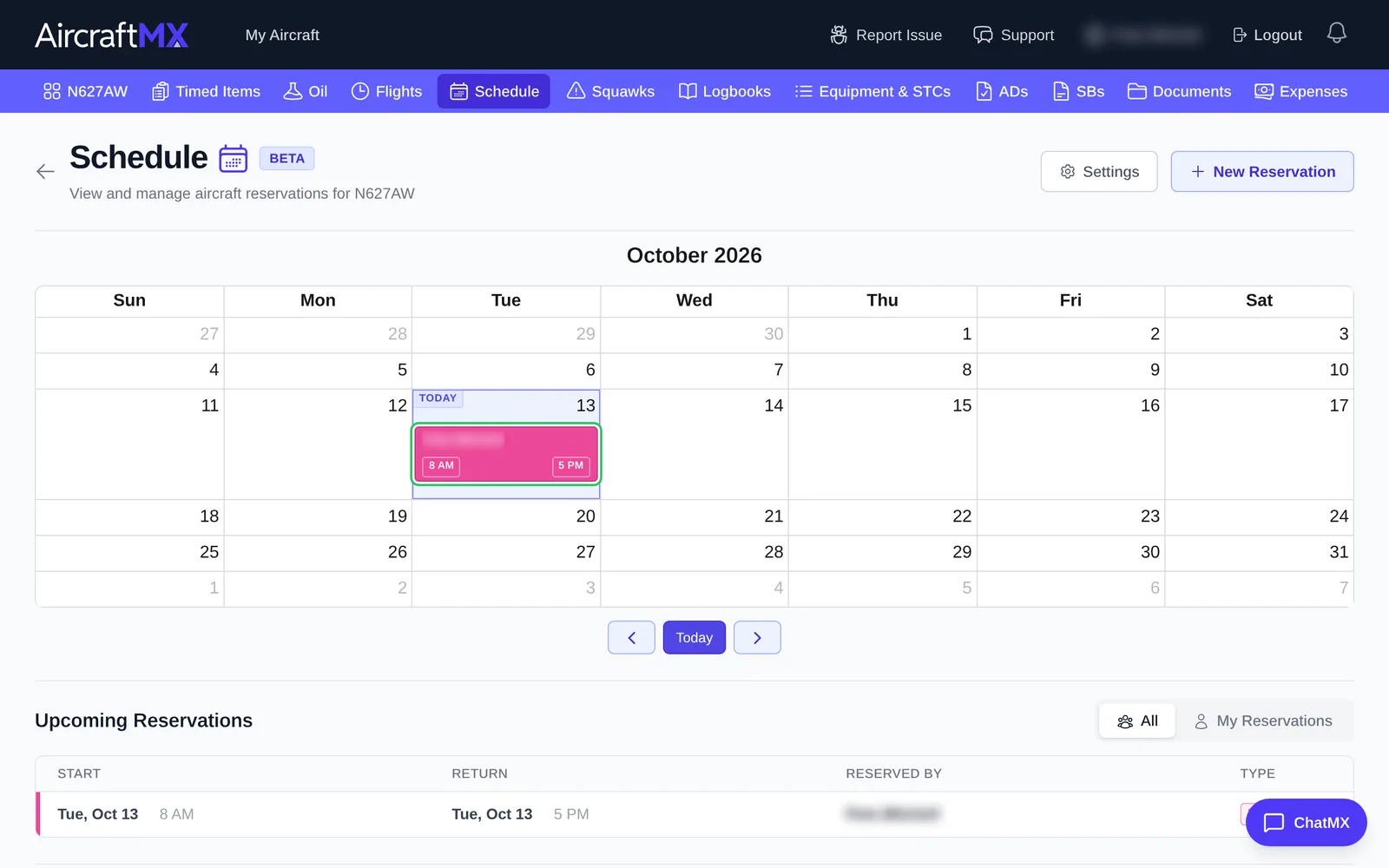
Make a reservation
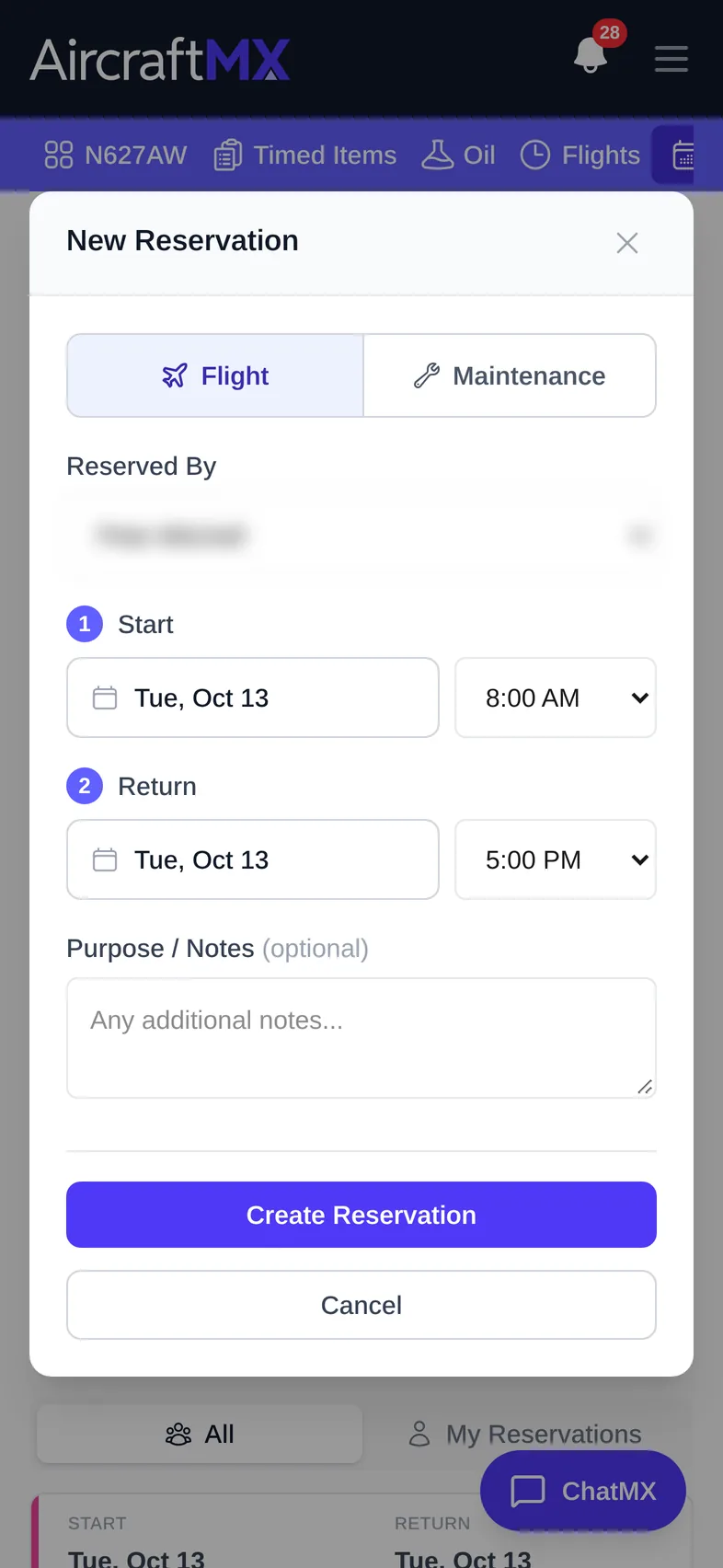
- Click New Reservation.
- Choose the type: Flight or Maintenance.
- Check Reserved By (you, by default).
- Set the Start and Return dates and times.
- Add Purpose / Notes if you like.
- Save.
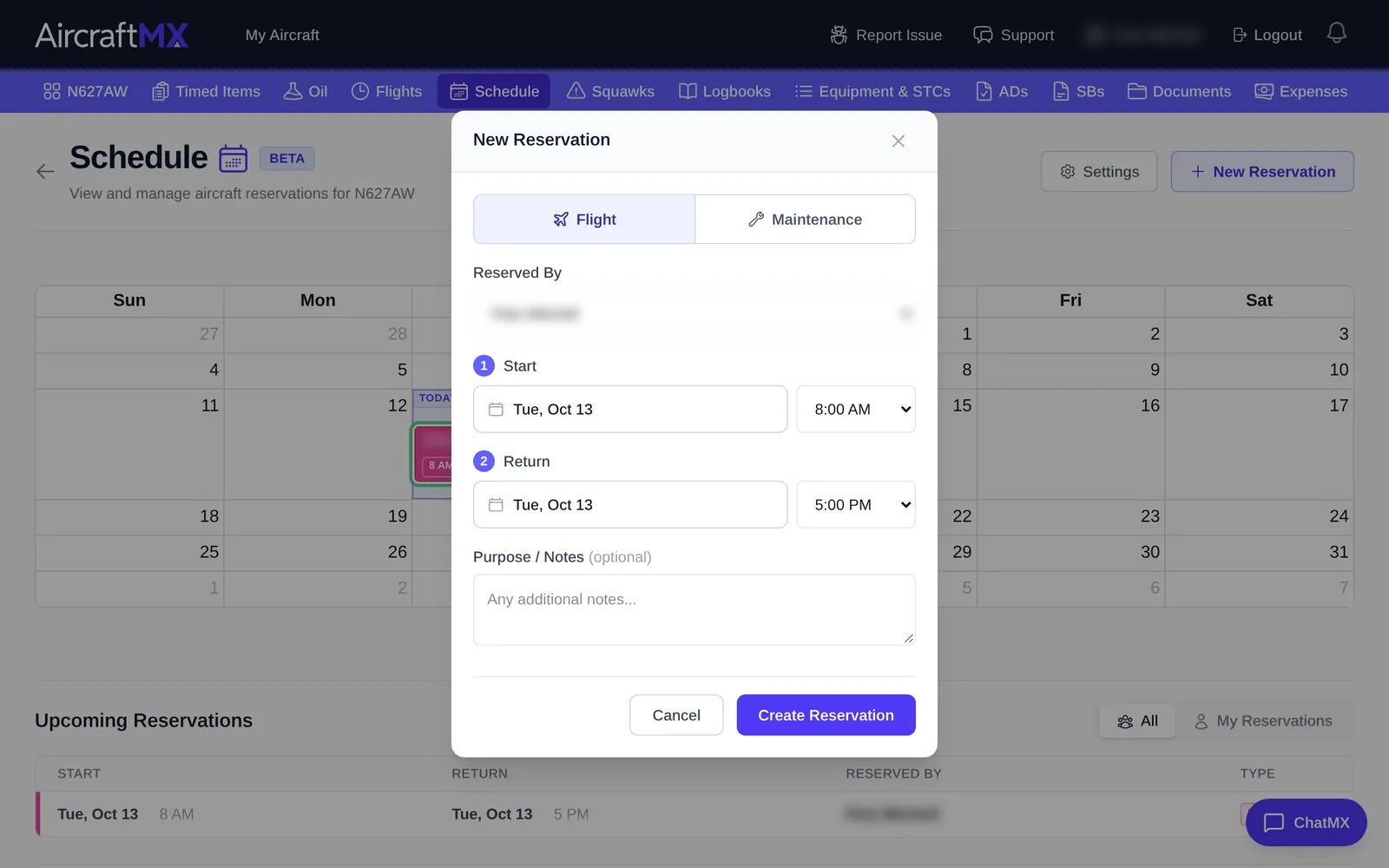
If the times overlap another reservation, you'll see a Scheduling Conflict warning before it's saved.
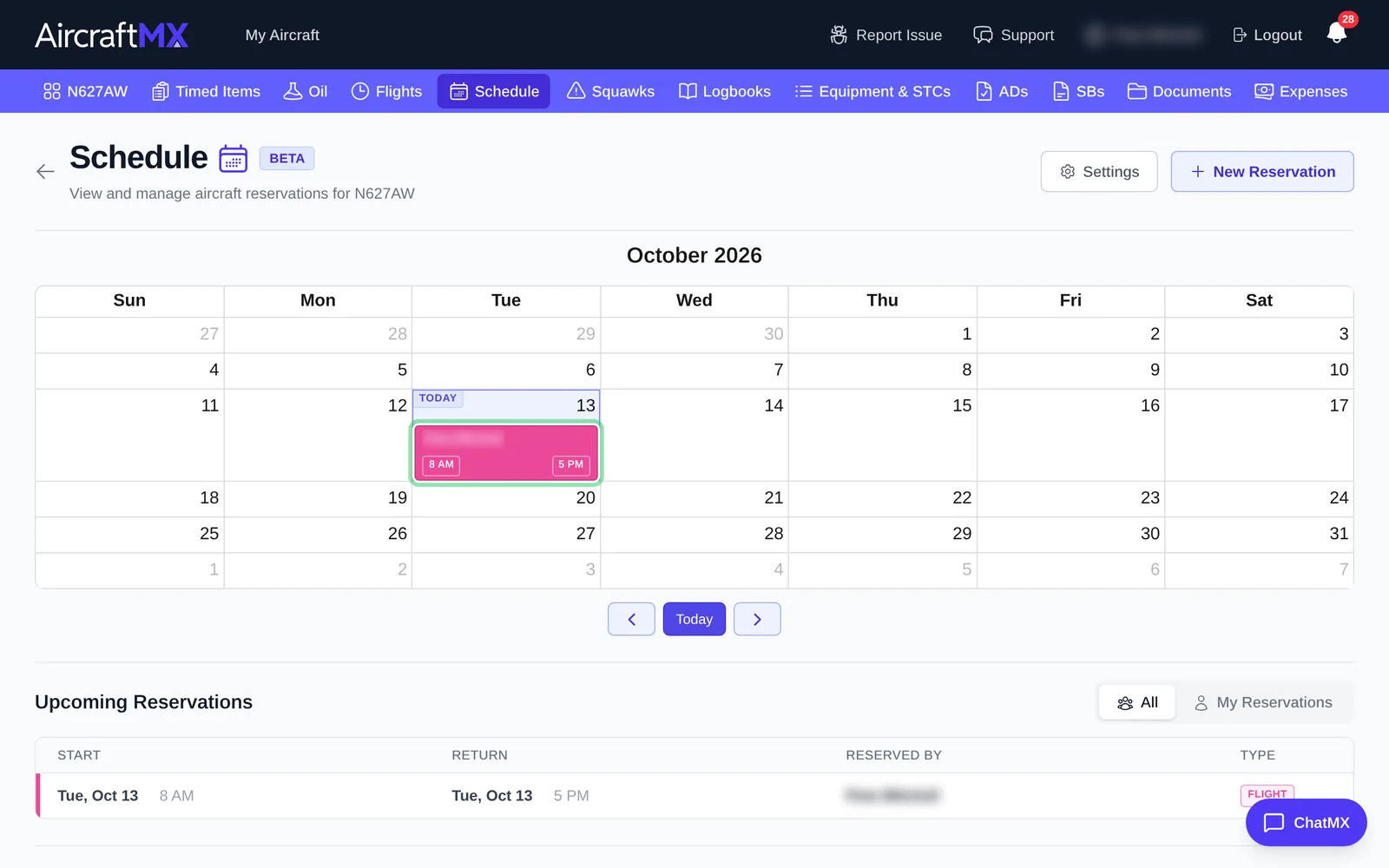
The reservation now appears on the calendar and in the upcoming list.
Edit or cancel a reservation
Click the reservation to open Edit Reservation. Change the details and save, or cancel it. If you edit someone else's reservation, you're asked to confirm ("This reservation belongs to…").
Past reservations
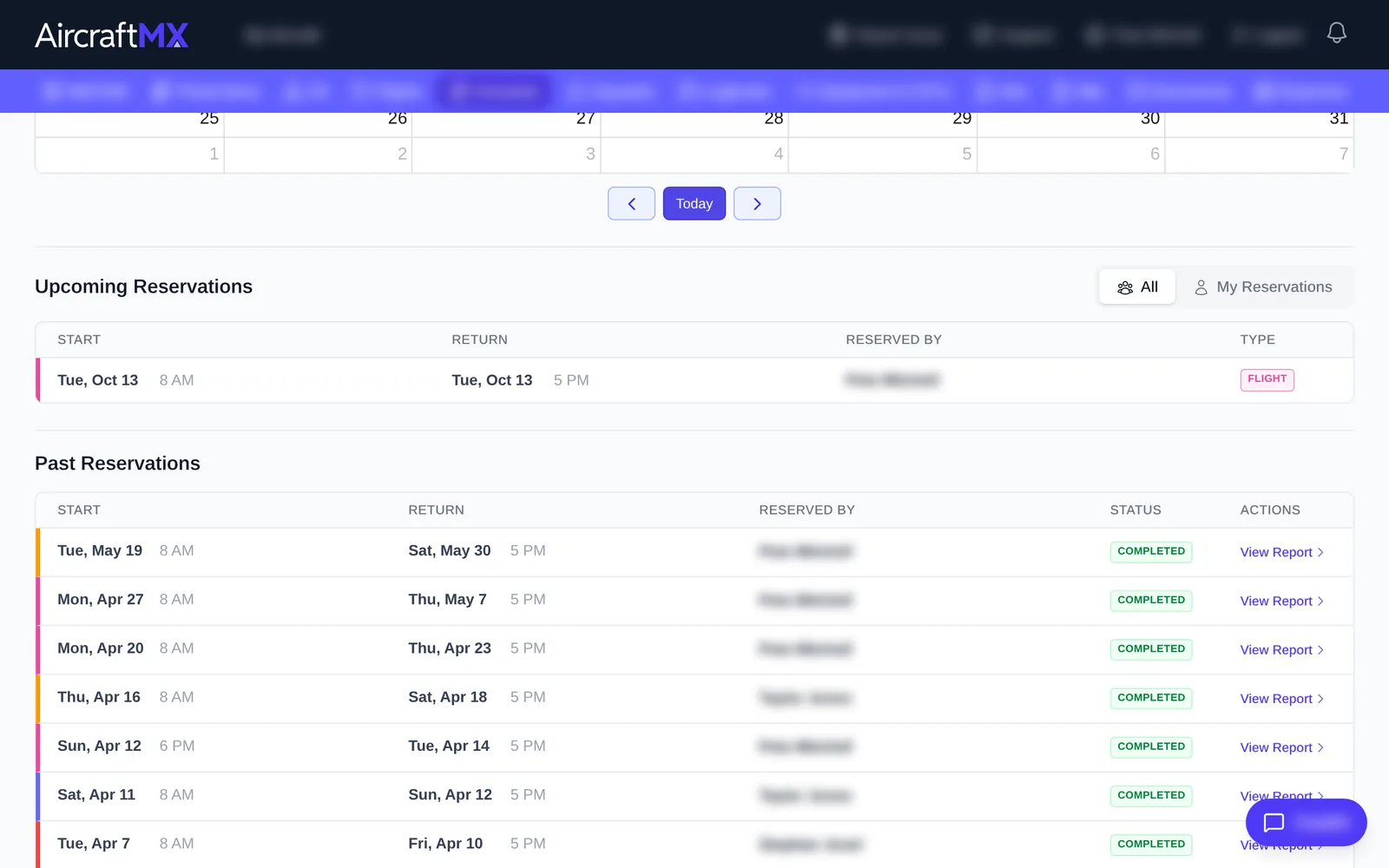
Past Reservations lists earlier bookings. Click View Report to see the Reservation Summary: the flights, expenses, squawks, oil, VOR checks, and database updates logged during it.
On a phone
On a phone, the calendar shows fewer days at once; swipe or use the arrows to move between weeks. New Reservation opens as a full-screen form.
Still stuck?
Contact us, or use Report Issue in the top bar of the app.