Timed Items
Create and edit timed items
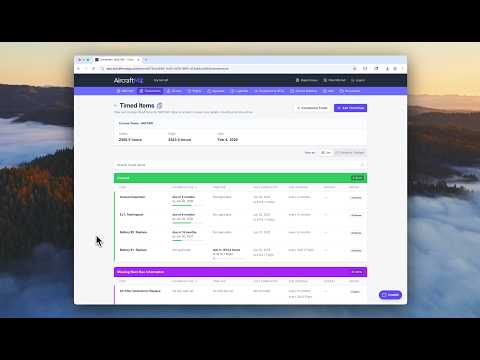
Timed items track every time-based maintenance requirement on your aircraft: inspections, recurring services, and component replacements. If you set up your aircraft with a template, the list is already filled in with common items for your make, model, and serial number.
You're not locked into the template. Part 91 operators in particular have latitude in setting intervals, so you can adjust any item to match how you maintain your aircraft.
Open your timed items
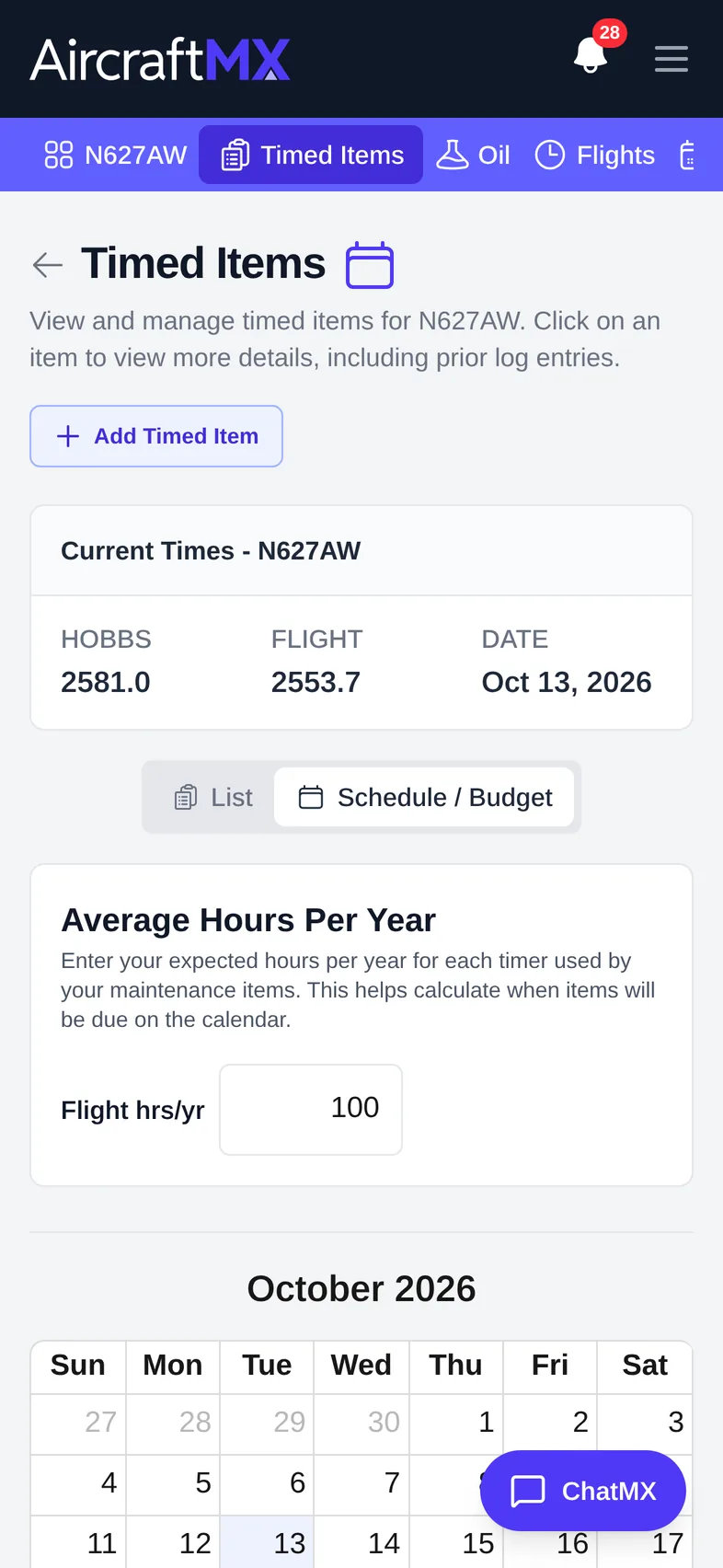
From your aircraft dashboard, click Timed Items. Each item shows its status, when it was last completed, and when it's next due.
Edit a timed item
- Click the item to open it.
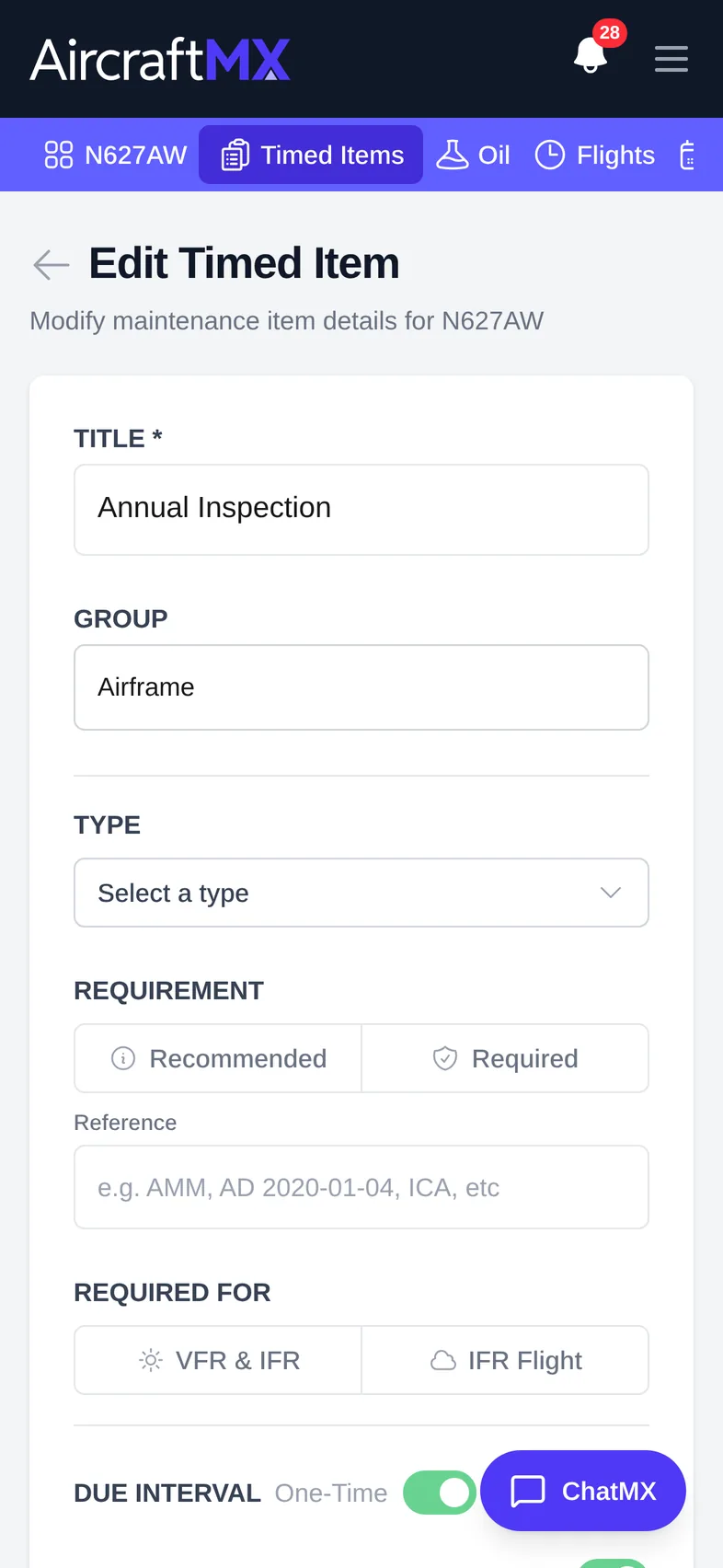
- Click Edit Item.
Settings you can change
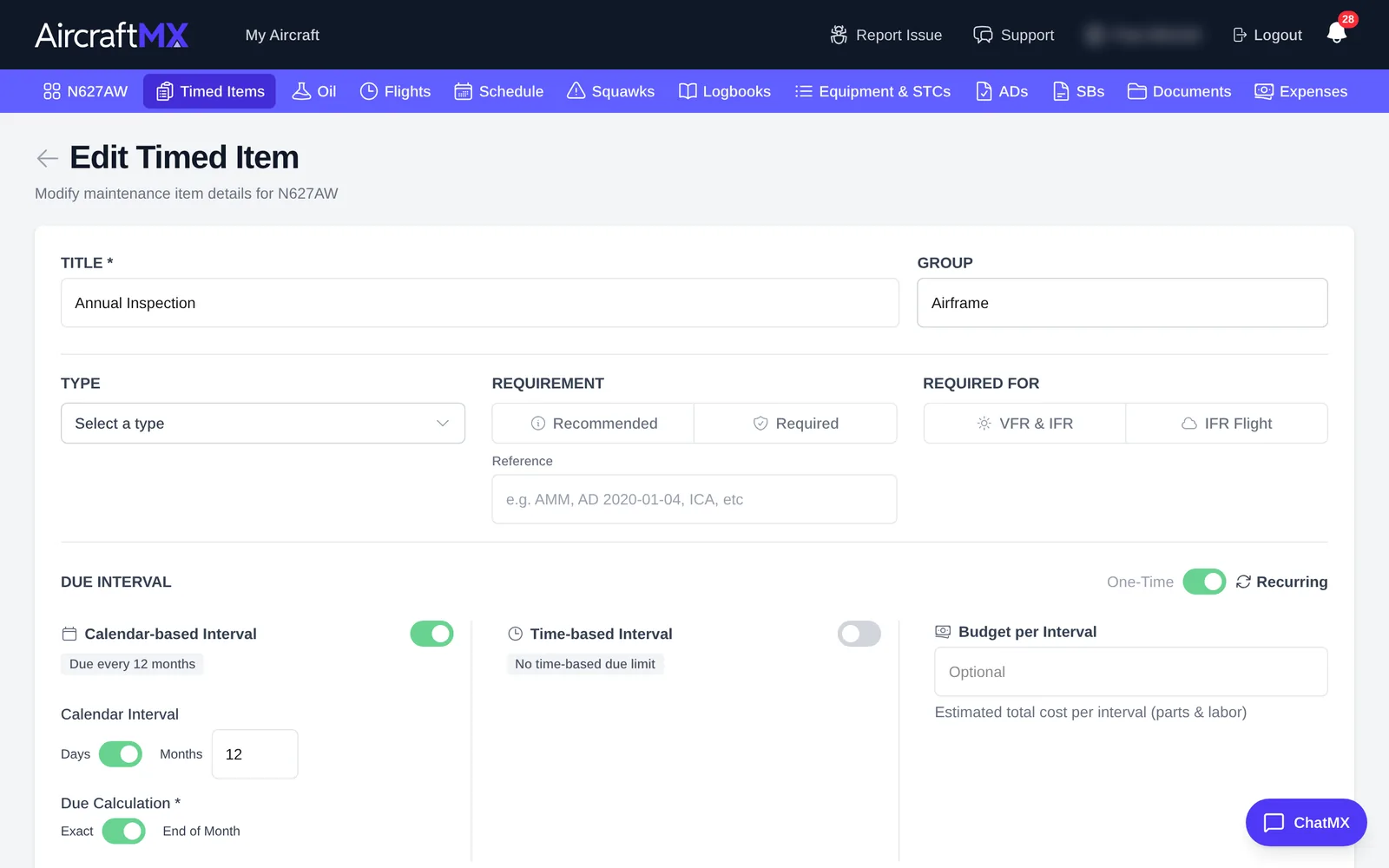
- Title and group: rename the item or move it to another group.
- Calendar interval: a time-based requirement, for example every 7 years. Choose an exact calendar cycle or an end-of-month cycle (useful for annuals).
- Hours interval: an hours-based requirement, and which timer it uses (usually flight time or tach).
- Recurring or one-time: most items recur; mark single-occurrence items as one-time.
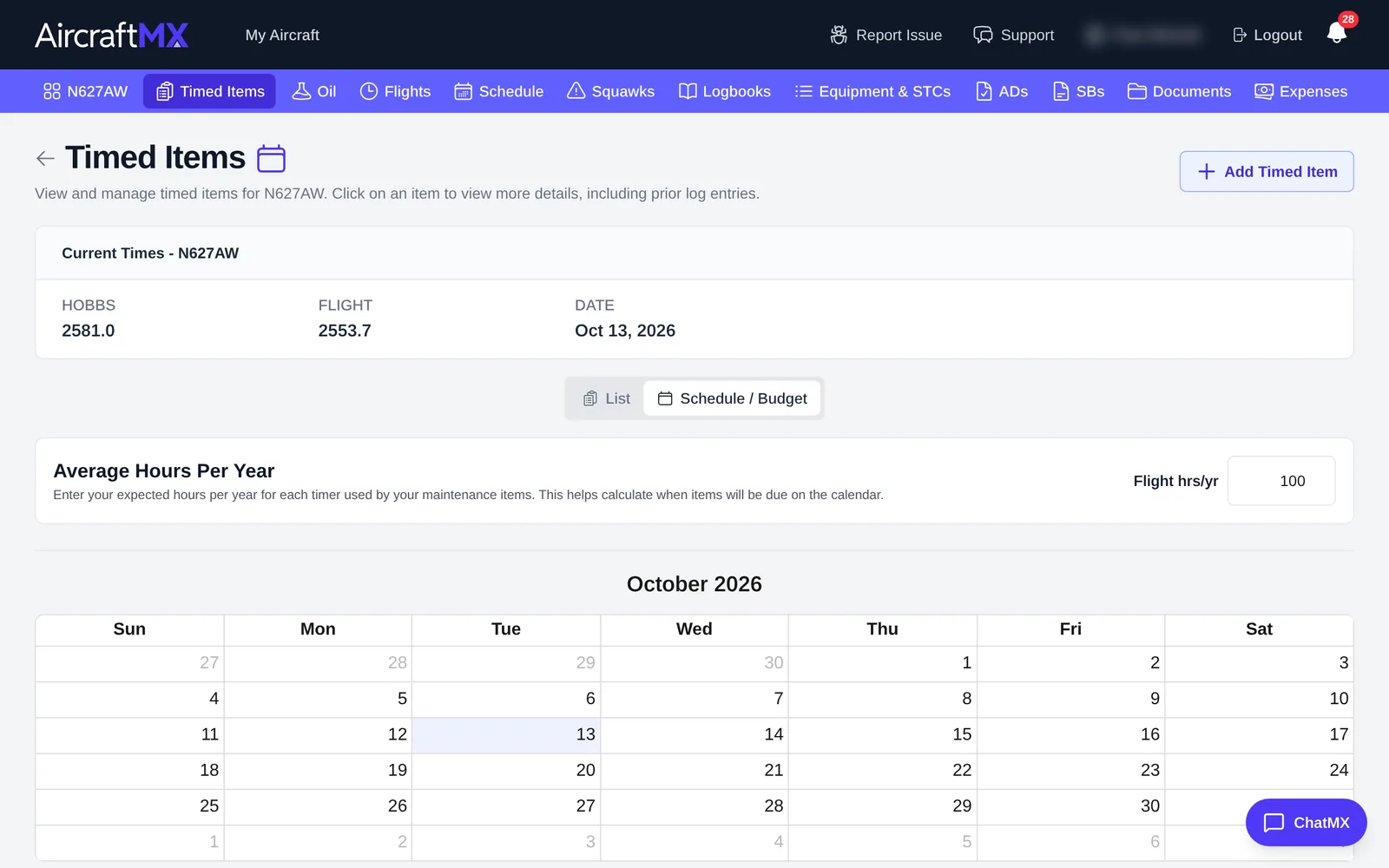
- Estimated budget: the expected cost. AircraftMX uses it, with your average annual hours, to forecast maintenance spending.
- Last completed: the date and time the item was last done. Linking logbook entries can also update this automatically.
- Due-soon alert: when the item starts showing as DUE SOON. The defaults are 60 days before the calendar due date and 15 of the item's timer units before the time due (hours, if that timer is in hours). You can change both under Due Soon Alert Settings. The item shows as due soon when it is inside either window.
- Related items: link equipment, ADs, or service bulletins to keep records in sync.
Update when an item was last completed
You can update it two ways:
- Manually: enter the completion date and time in the edit view.
- From a logbook entry: link the entry to the item when you review it. This updates last-completed and next-due if the entry is newer than what's already recorded.
Once last-completed is set, AircraftMX calculates the next due date and time from your intervals.
Create a new timed item
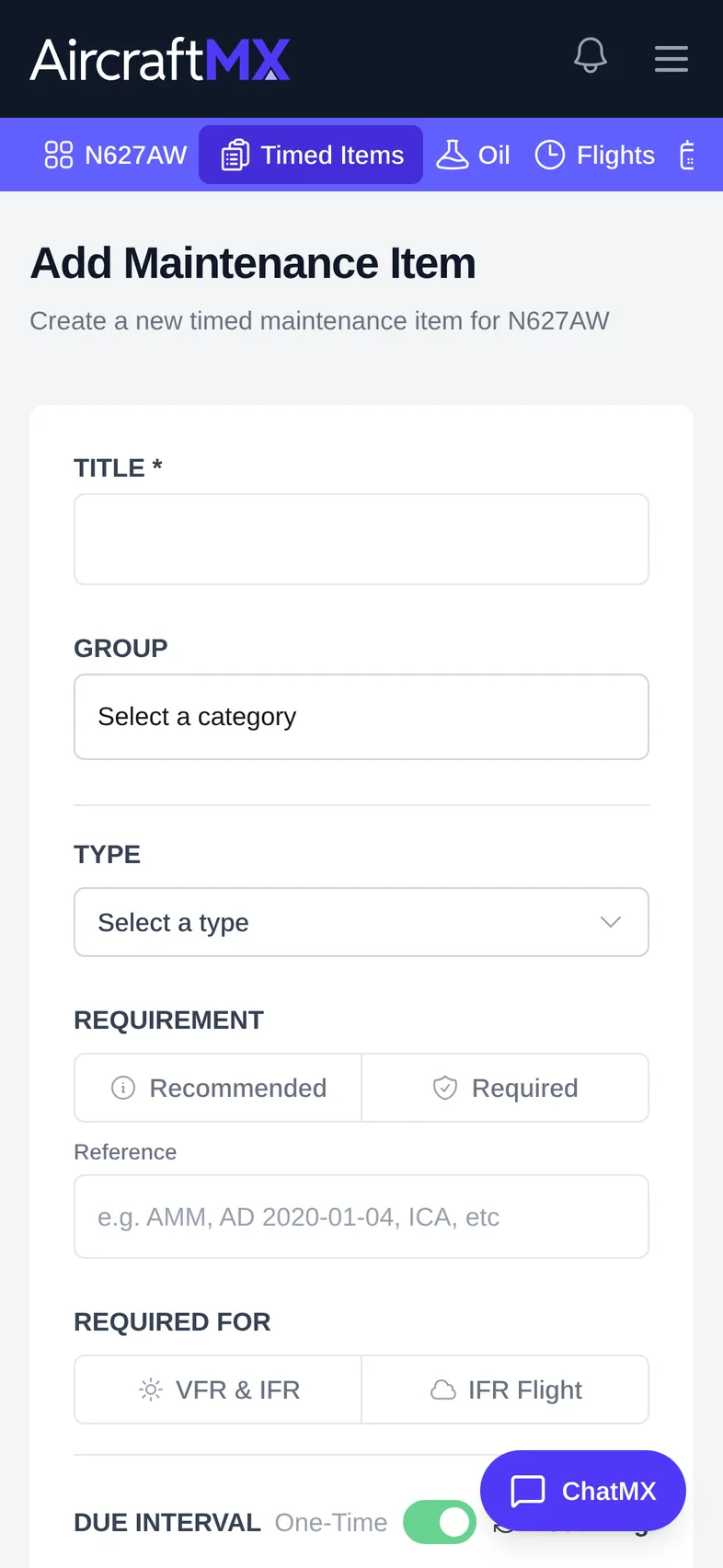
- Click Add Timed Item in the Timed Items list.
- Fill in the title, group, intervals, and any related equipment, ADs, or SBs.
- Save.
Track an item on condition
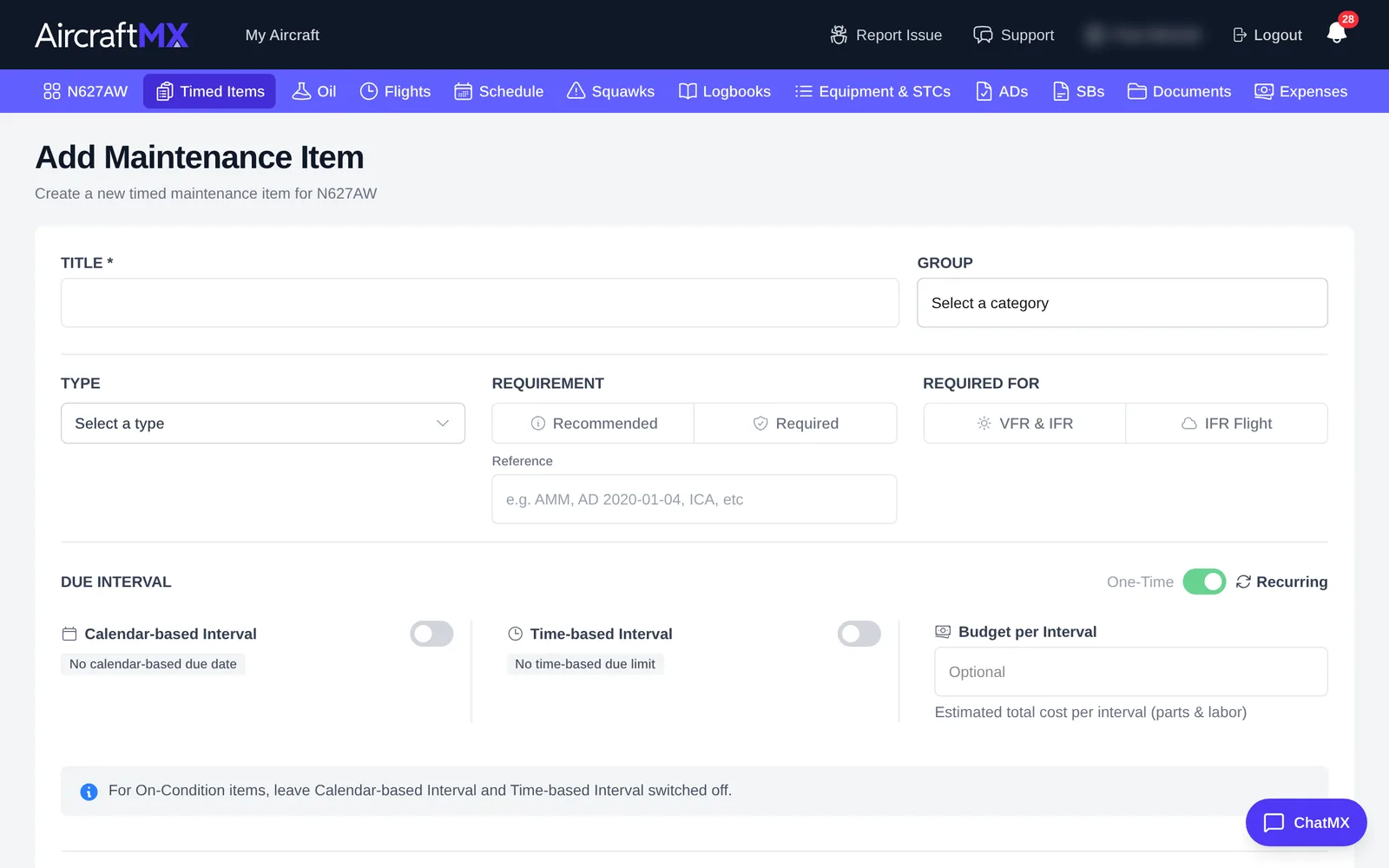
On condition means the item stays on the aircraft with no due date, so you can still link logbook entries to it.
- Open Timed Items and click the item.
- Click Edit Item.
- Under Due Interval, turn off Calendar-based Interval and Time-based Interval.
The item then shows ON CONDITION. A new item starts this way until you turn an interval on.
Budget forecasting
AircraftMX's budget predictor uses your timed items' cost estimates and your average annual hours to forecast maintenance spending by month and year.
On a phone
On a phone, the timed-items list is a single column; some table columns are cut off at the right edge, so open the item to see every detail.
Still stuck?
Contact us, or use Report Issue in the app. To send files, attach them from Report Issue.