Timed Items
Use the Compliance Finder to update timed items from logbook entries
The Compliance Finder reads your transcribed logbook entries and finds ones that look like they complied with a timed item, such as an annual inspection or an oil change. You confirm each match, and AircraftMX updates the item's Last Completed and Next Due.
Open the Compliance Finder
Do not look for a Compliance Finder button or a magic-wand icon next to the Timed Items title. That control is not on the Timed Items page. The page title there is Timed Items, with an Add Timed Item button.
A page titled Timed Items Compliance Finder exists, and that page's own title has a sparkles icon, but nothing in the app links to it. There is no click-path until a control exists.
The finder lists your timed items with their status (Overdue, Due Soon, On Condition, Missing Info, or Current). Under each one are the logbook entries that may match it, newest first.
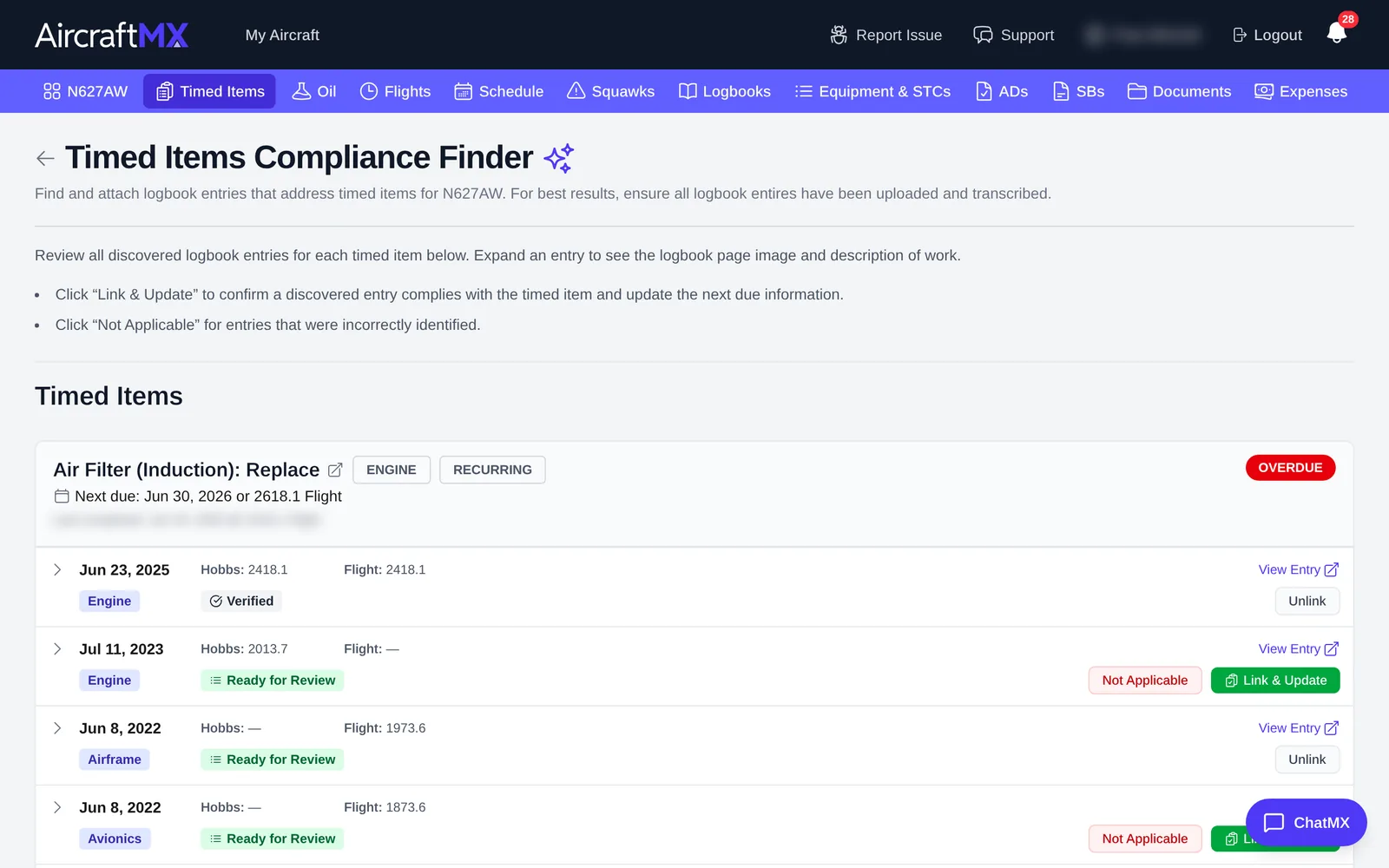
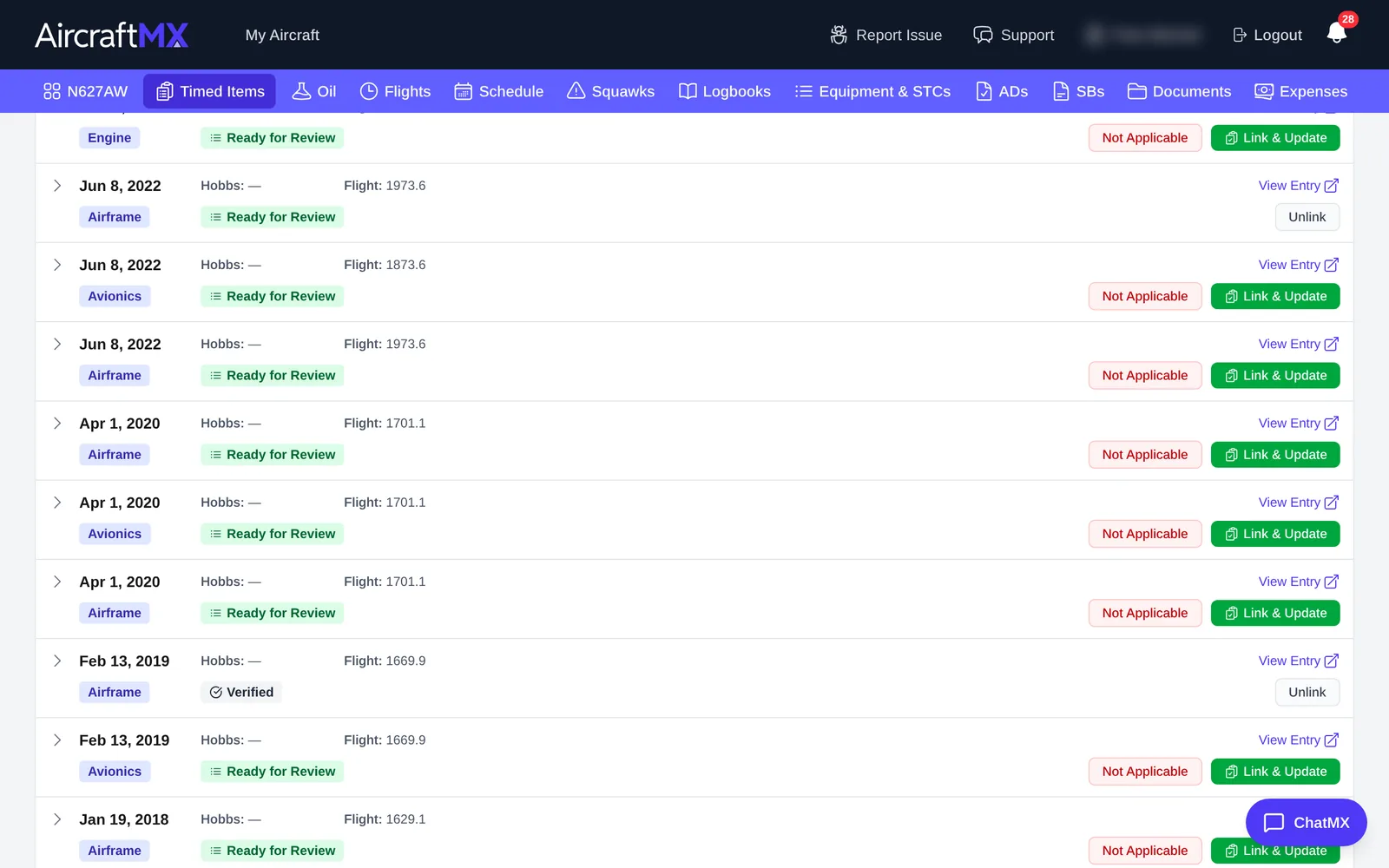
Confirm a match
- Click View Entry to read the logbook entry and check it really is that inspection or task.
- Click Link & Update.
- In Confirm Compliance With:, check the date and meter times (and, for an oil change, the quarts added). Then confirm.
The timed item's Last Completed and Next Due update, and the entry is linked to it.
Click Refresh Data if you've just uploaded new entries and they aren't showing yet.
Tip: run the Compliance Finder after uploading a batch of logbook pages. See Upload logbook entries from a PDF.
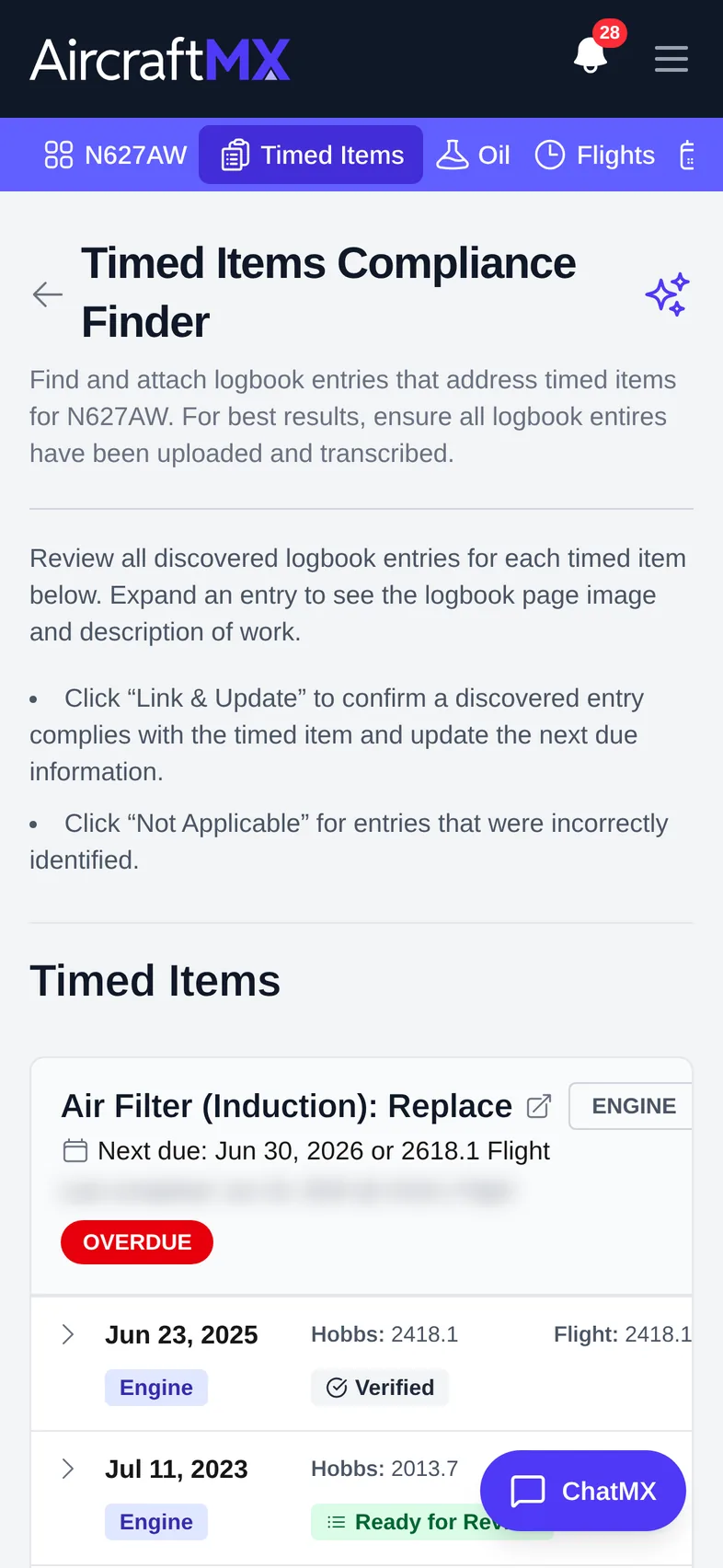
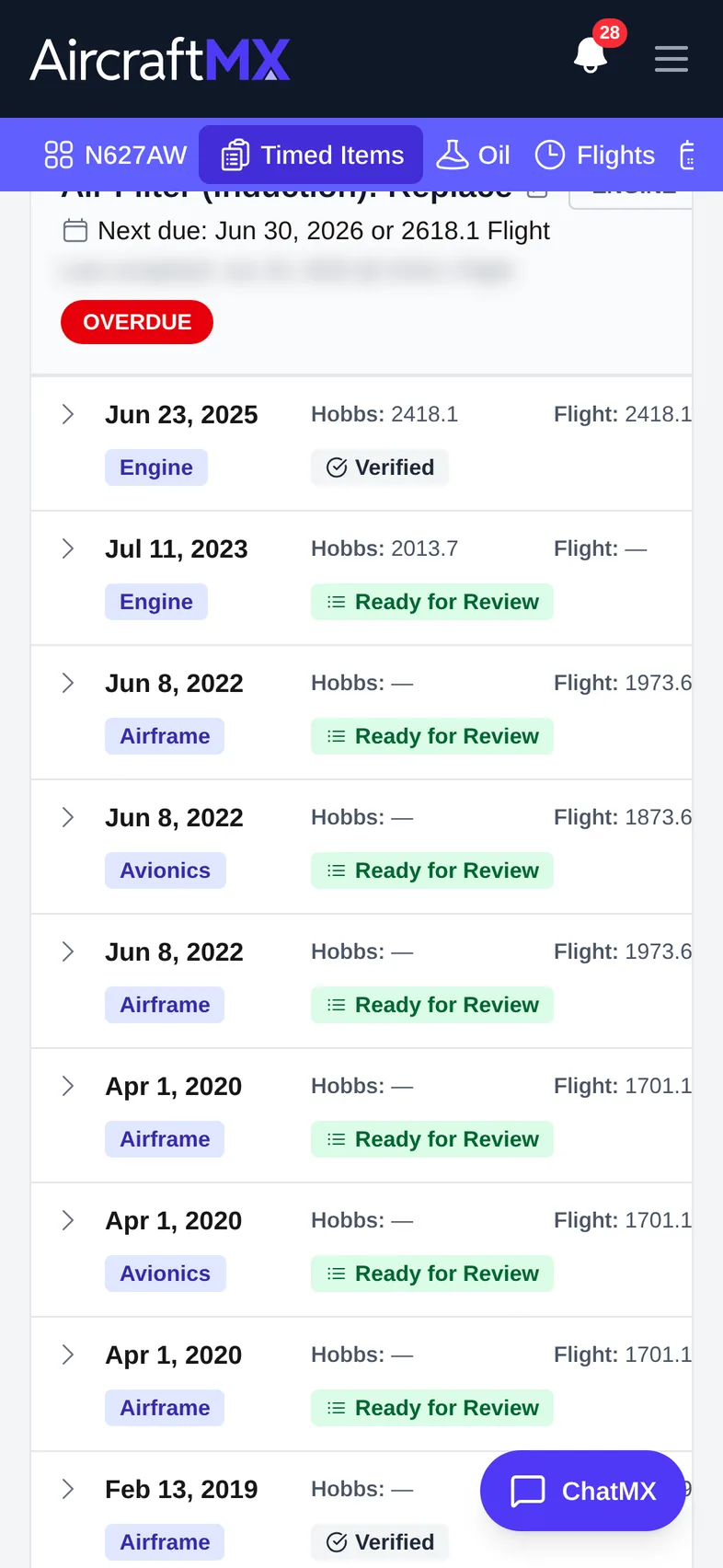
On a phone
On a phone, each timed item and its candidate entries are shown as a stacked card. The Link & Update buttons sit below each entry.
Still stuck?
Contact us, or use Report Issue in the top bar of the app.