Aircraft
Add, archive, and close logbooks
Each aircraft has one or more logbooks, such as Airframe, Engine, Propeller, and Avionics. Every logbook entry you upload or type belongs to one of them.
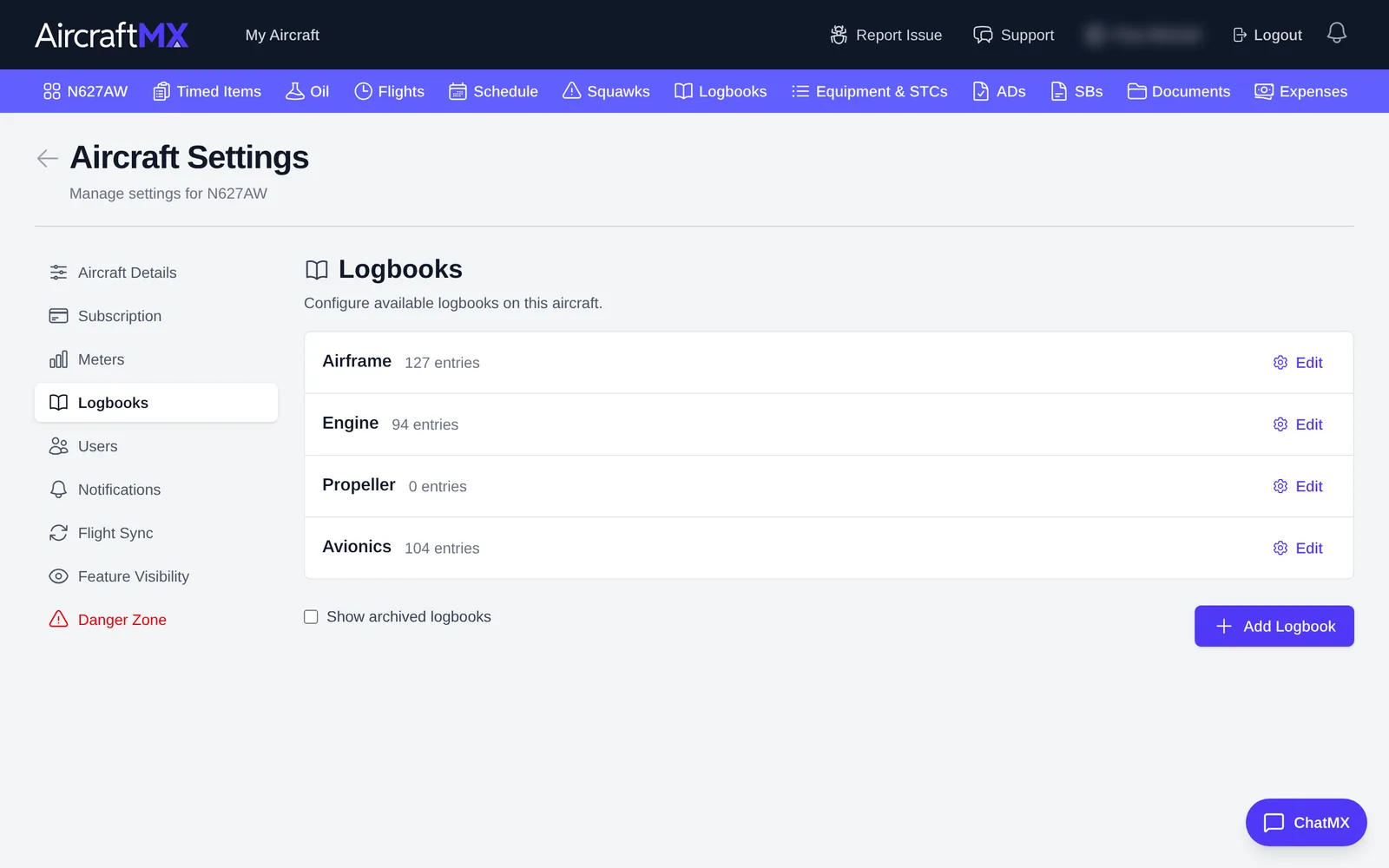
Open the logbook manager
- On the aircraft dashboard, click Settings.
- In the section list on the left, click Logbooks.
You'll see each logbook with its type and entry count.
Add a logbook
- Click Add Logbook.
- Enter a name and choose the type. For a twin, you might add "Engine 1" and "Engine 2".
- Save.
Edit, archive, close, or delete a logbook
Each logbook row shows Edit only. Close Logbook and Delete are inside Edit.
- Edit: rename the logbook or change its type.
- Delete is offered only when the logbook has no entries. The confirm says this can only be done if it has no entries, and a failed delete says it may contain entries.
- Close Logbook opens Archive this logbook? It says the logbook will be closed, no new entries can be added, and all existing entries will be preserved. The confirm button is Archive Logbook. A closed logbook is badged Archive and can be reopened. Show closed logbooks with Show archived logbooks.
On a phone
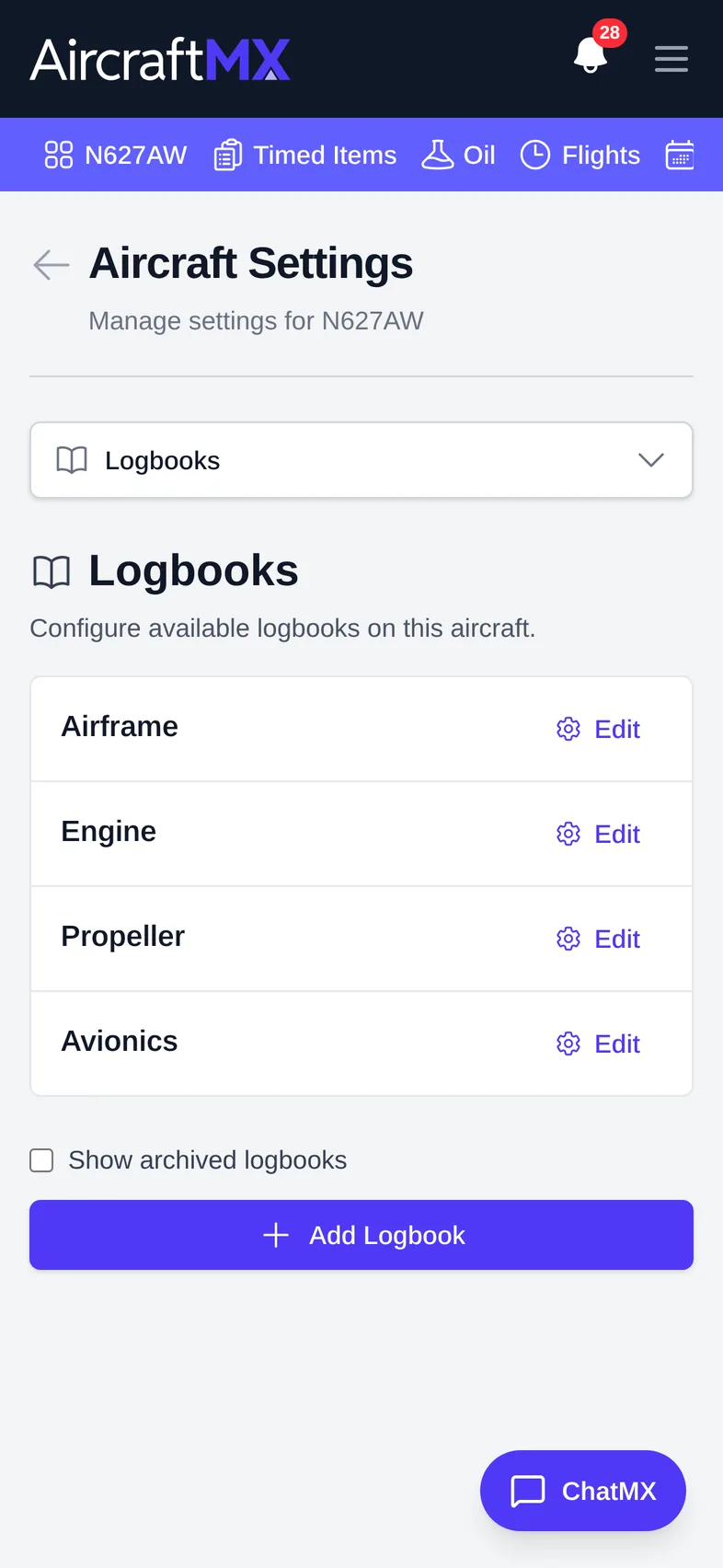
On a phone, the settings section list becomes a drop-down at the top of the page. Choose Logbooks from it.
Still stuck?
Contact us, or use Report Issue in the top bar of the app.