Aircraft
Set up meters and update aircraft times
Meters are the time counters AircraftMX uses to calculate when time-based items are due. Most aircraft use Hobbs and Flight, but you can add others such as Tach.
Configure meters
- On the aircraft dashboard, click Settings.
- Choose Meters in the left menu.
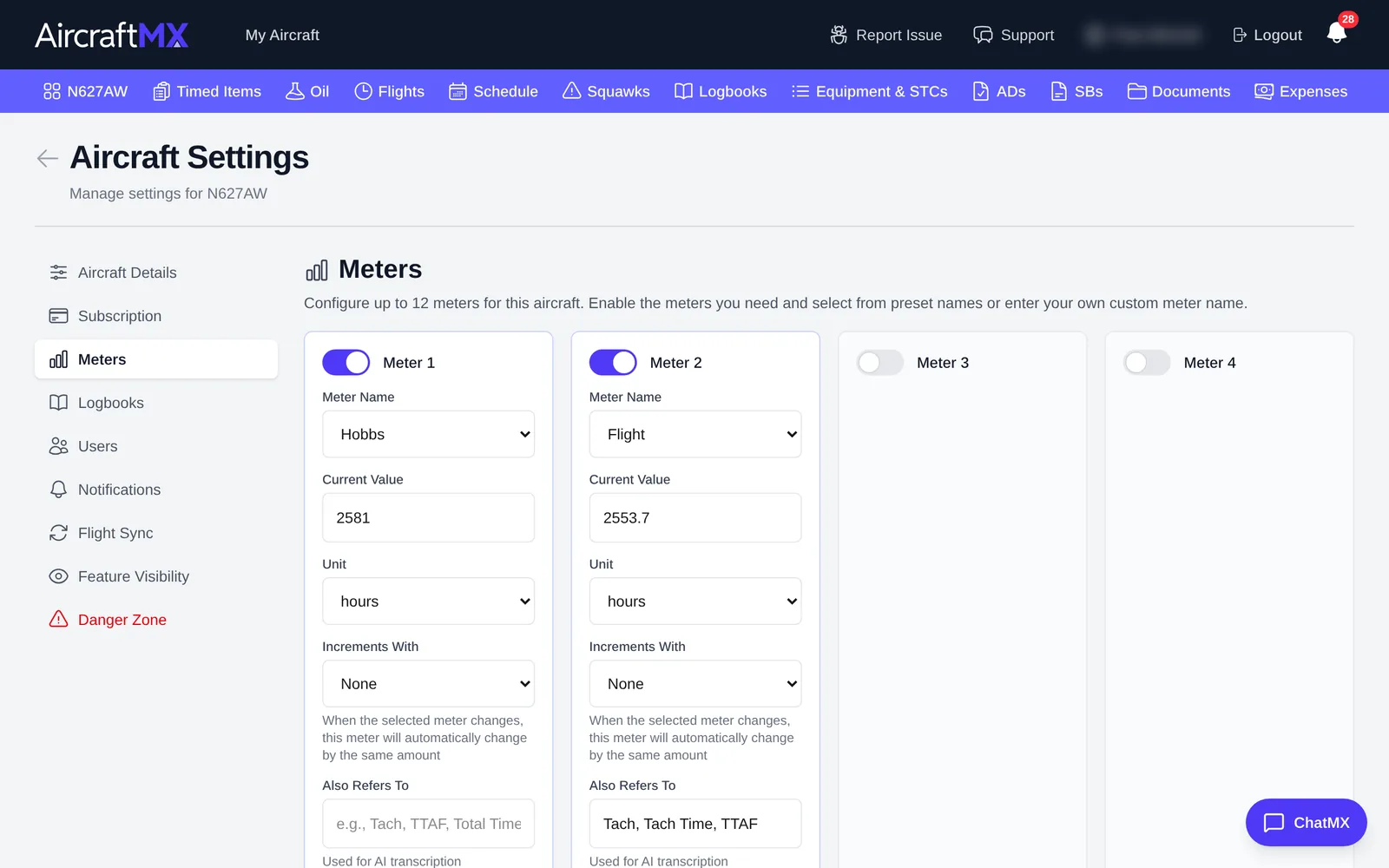
You can configure up to 12 meters. For each meter:
- Turn the meter on with its switch (for example Meter 3).
- Meter Name: pick a preset name or enter a custom one.
- Current Value: the meter's current reading.
- Unit: for example hours.
- Increments With: when the selected meter changes, this meter changes by the same amount. Choose None to update it on its own.
- Also Refers To: other names for this meter in your logbooks (for example "Tach, Tach Time, TTAF"). AircraftMX uses these when it transcribes logbook entries.
The button at the bottom of Meters is Save Meter Configuration. While it saves, the label is Saving....
The number of meters you can use depends on your plan. If you see Need more meters? Upgrade your subscription, your plan has reached its limit.
Update current times
To update the current readings without opening Settings:
- On the aircraft dashboard, click Update Times (next to the totals).
- Enter the new values for each meter.
- Click Save.
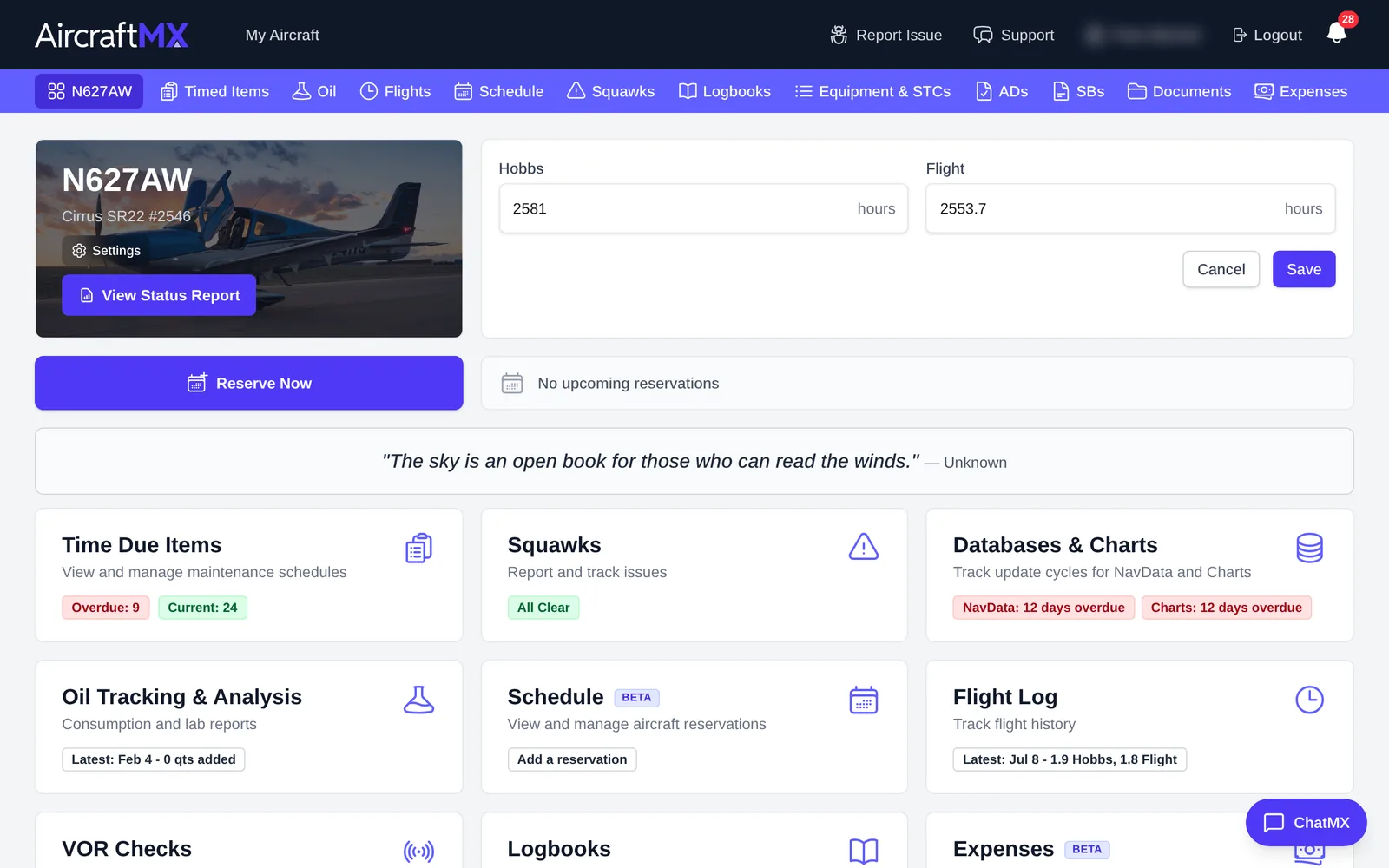
The line under the totals ("Last updated … days ago") shows when the times were last changed. Logging flights, including flights imported automatically, also updates the meters. See Log a flight.
Tips
- Keep times current: timed items that are due by hours are calculated from these values.
- Add your logbook's wording under Also Refers To so transcription matches the right meter.
On a phone
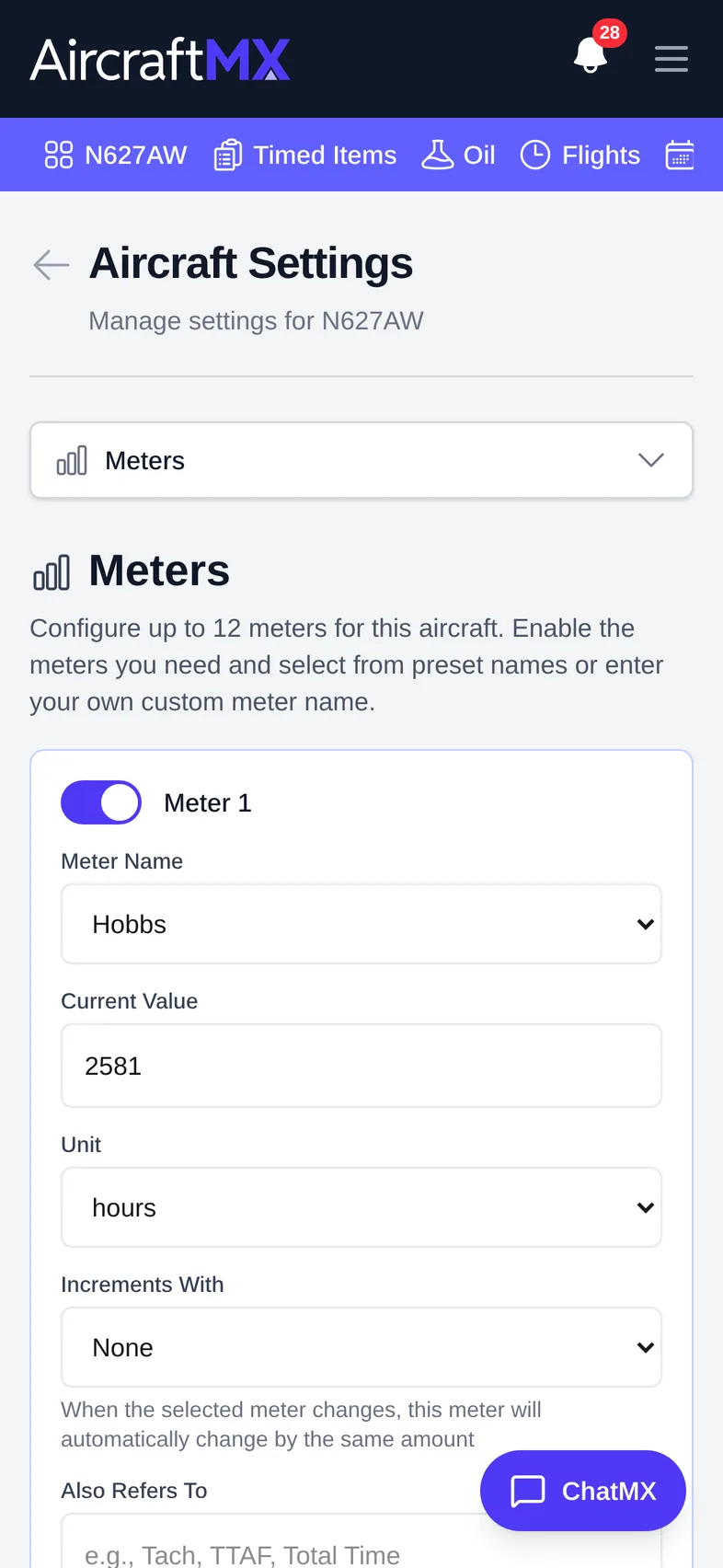
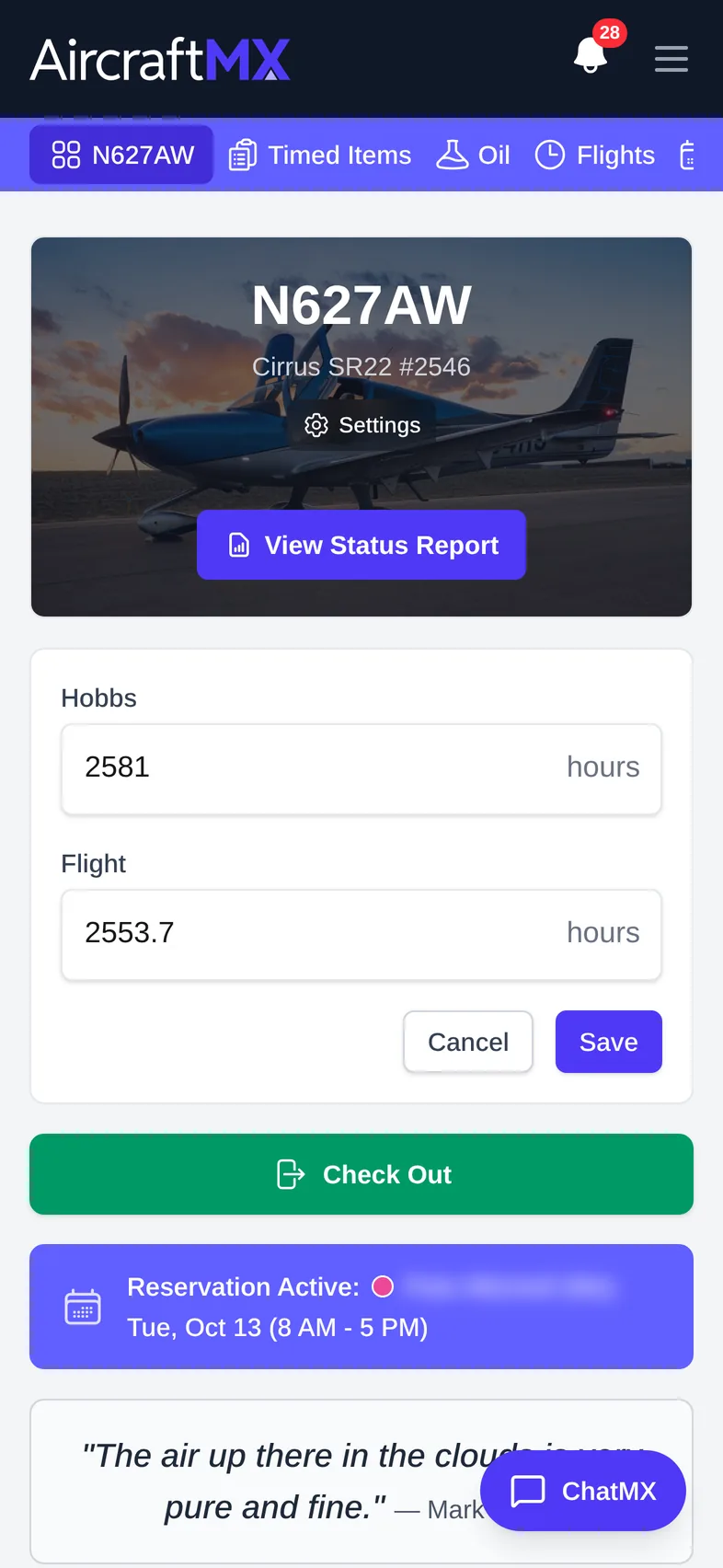
On a phone, choose Meters from the section drop-down at the top of Aircraft Settings. Update Times is on the aircraft card at the top of the dashboard.
Still stuck?
Contact us, or use Report Issue in the top bar of the app.