Flight Logs
Automatically import flights (FlightData.com, AirSync, ADS-B)
AircraftMX can import flights automatically from several sources. Set them up in the aircraft's settings:
- On the aircraft dashboard, click Settings.
- Click Flight Sync.
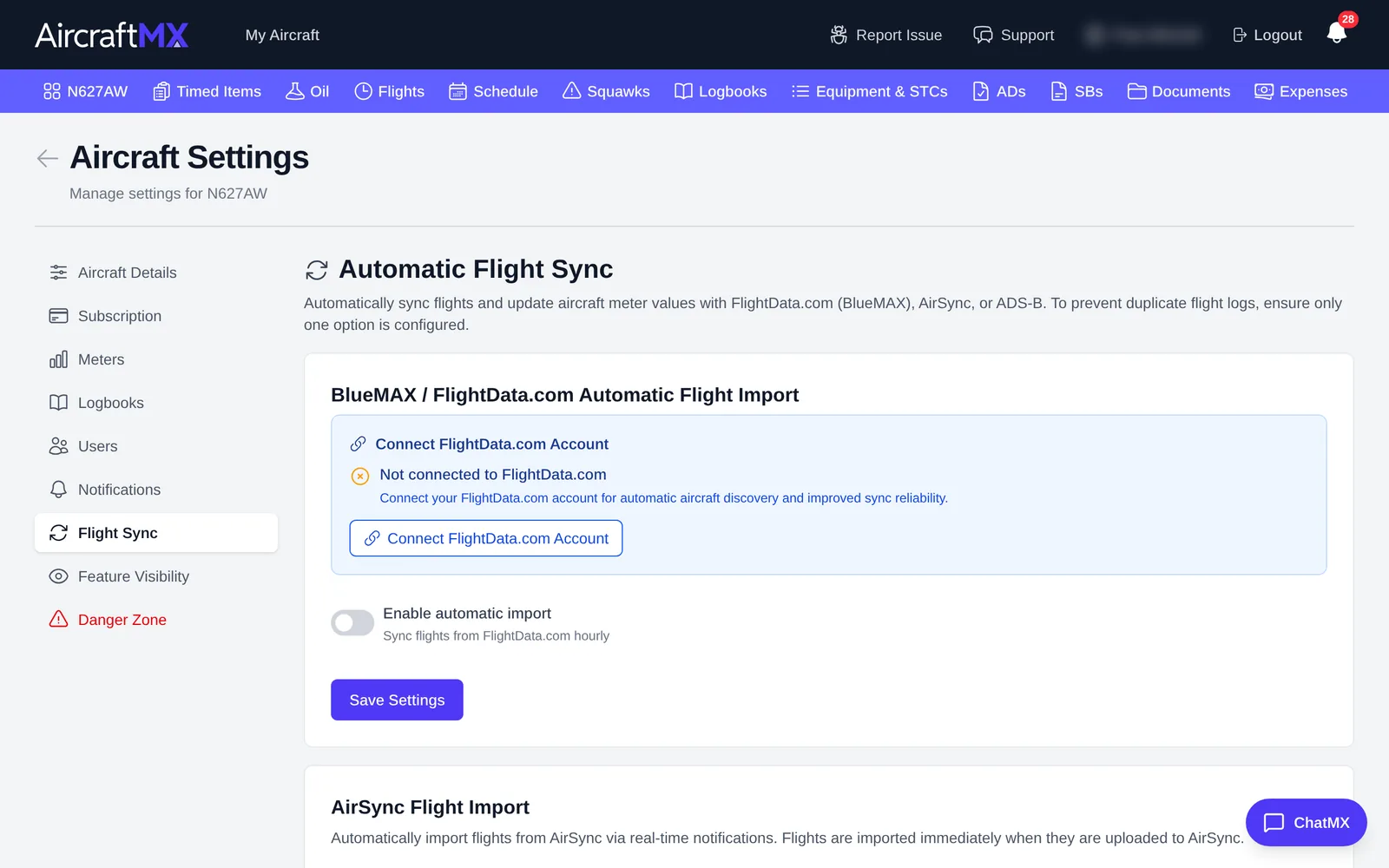
BlueMAX / FlightData.com
Flights uploaded to FlightData.com (from BlueMAX and other devices) are imported every hour.
- Under BlueMAX / FlightData.com Automatic Flight Import, click Connect FlightData.com Account and sign in to FlightData.com.
- Link your aircraft, map its meters, and turn on Enable automatic import.
- Click Save Settings. Use Sync Now to import straight away.
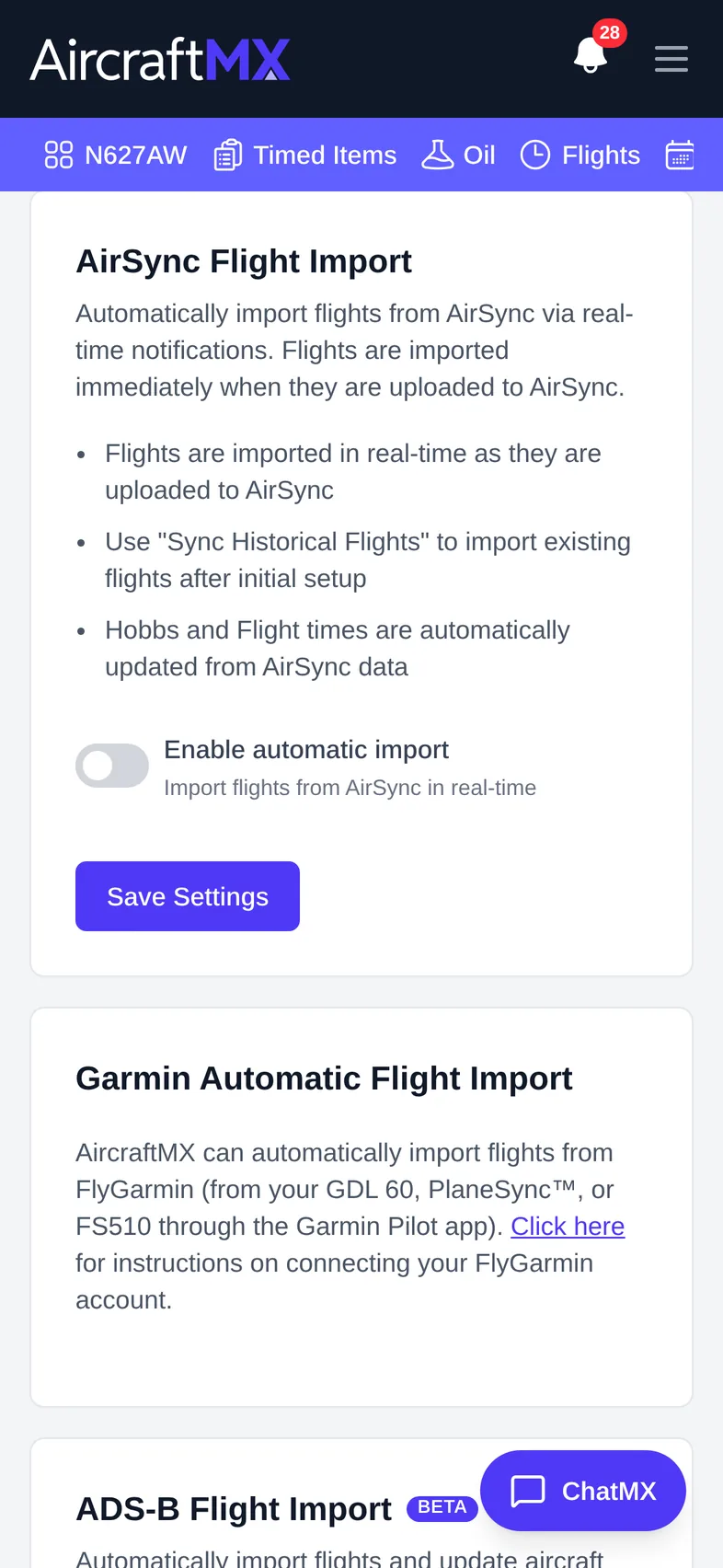
AirSync
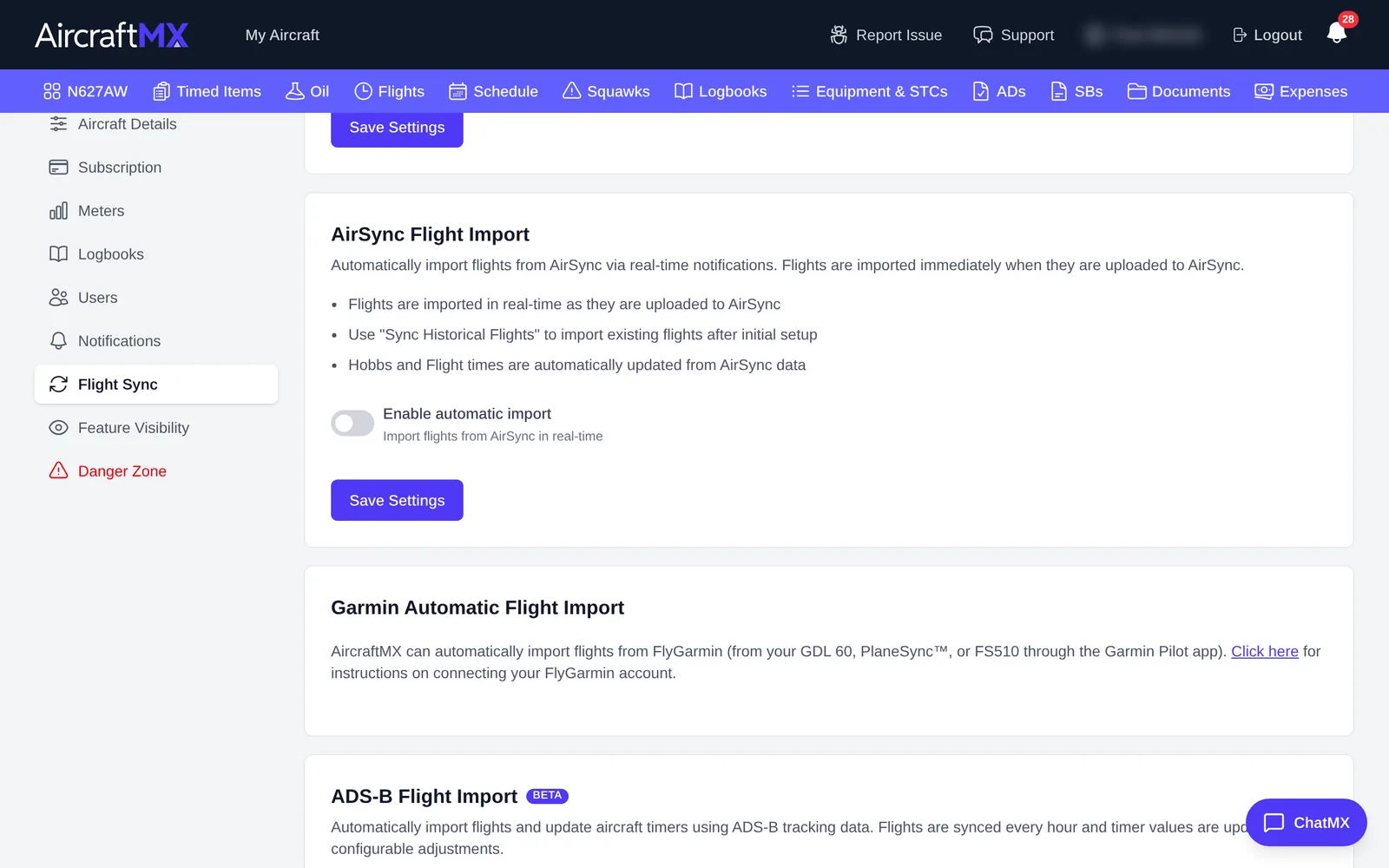
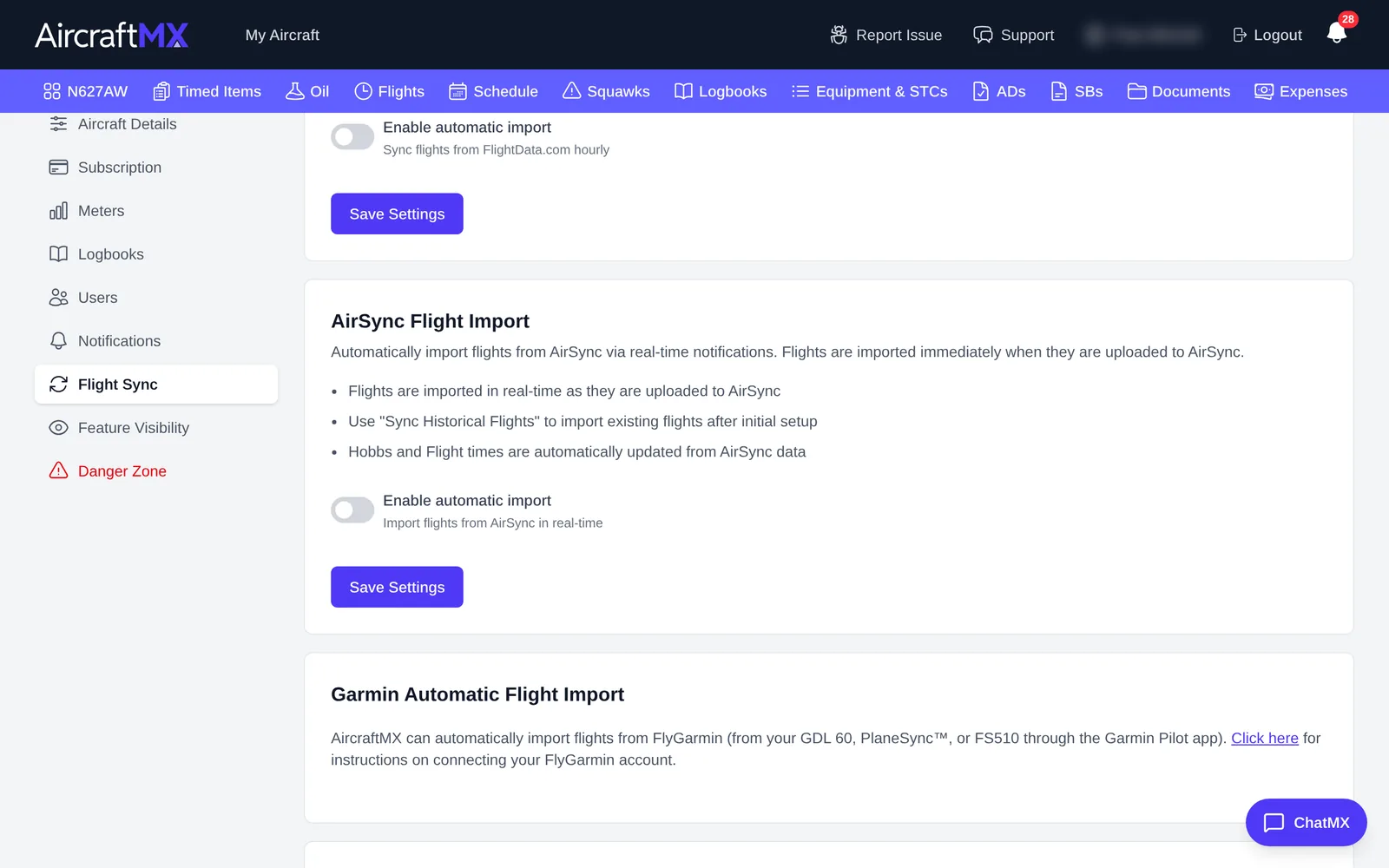
AirSync sends flights to AircraftMX as soon as they're uploaded.
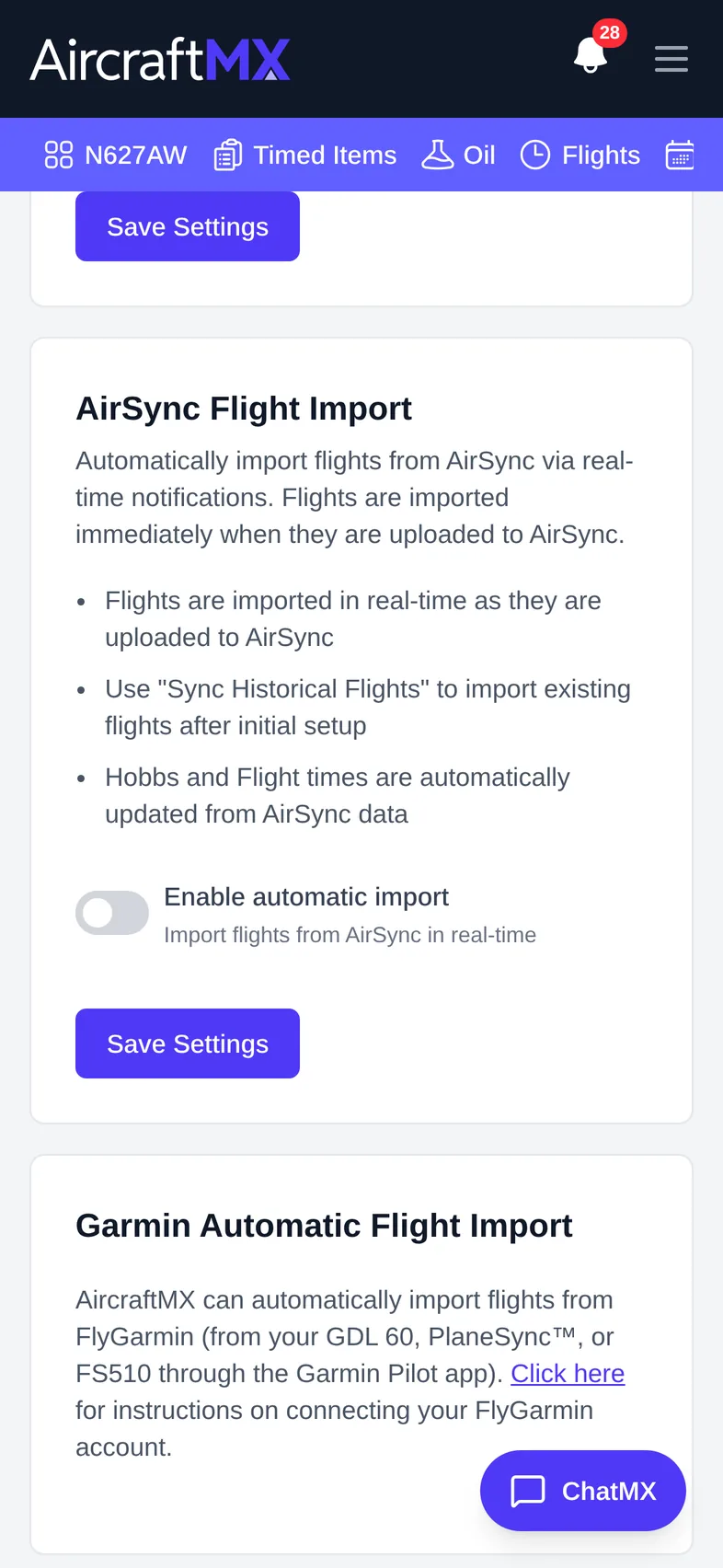
- Under AirSync Flight Import, enter your AirSync Aircraft ID.
- Turn on Enable automatic import and click Save Settings.
- To bring in older flights, click Sync Historical Flights.
ADS-B (Beta)
AircraftMX can build your flight log from public ADS-B data for your tail number, imported every hour.
- Under ADS-B Flight Import, turn on automatic import.
- Click Add Meter Mapping to choose which meters are increased by each imported flight.
- Click Save Settings.
Imported flights show a badge in the flight log (From FlightData, AirSync, or ADS-B).
Garmin? See Connect Garmin (FlyGarmin).
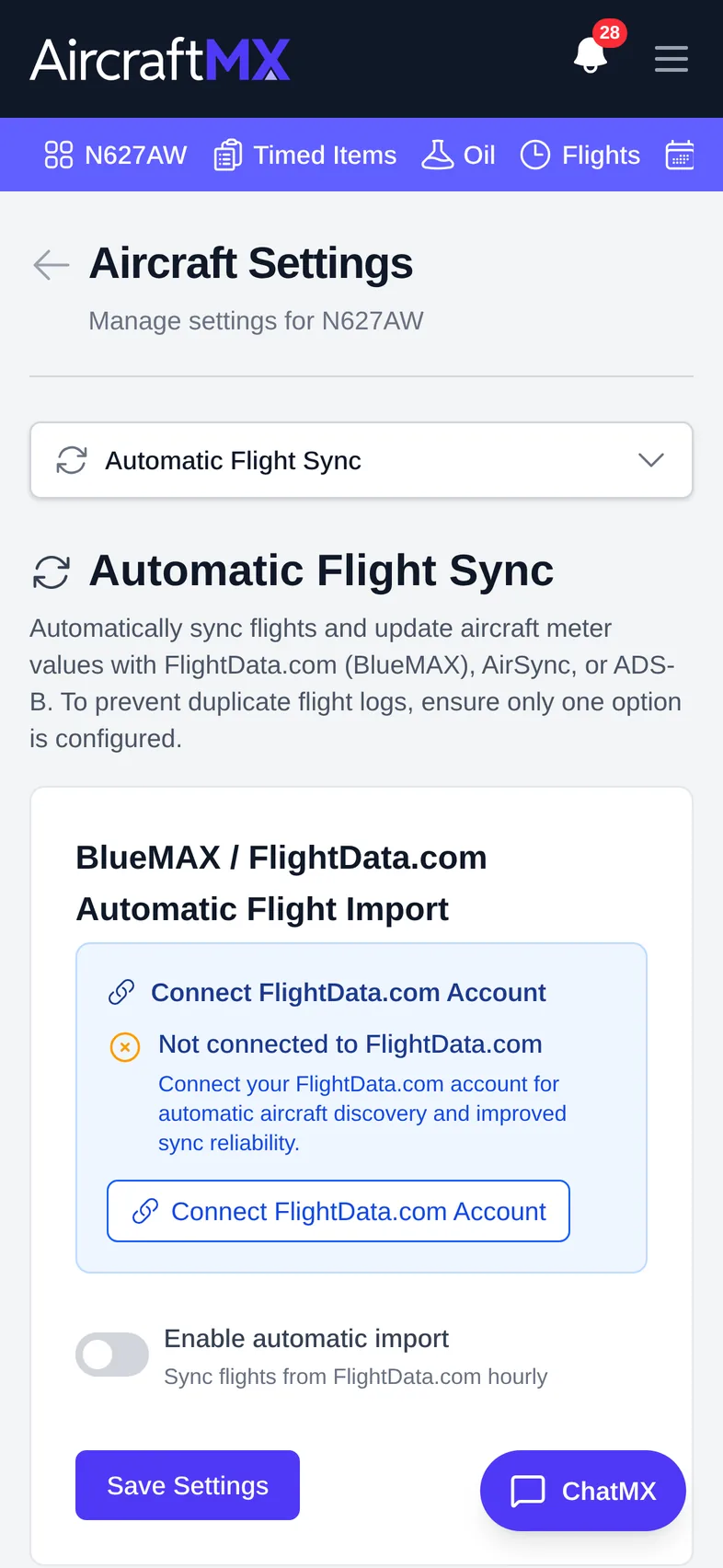
On a phone
On a phone, the settings sections are in a drop-down at the top of the page instead of a list on the left. Choose Flight Sync from it.
Still stuck?
Contact us, or use Report Issue in the top bar of the app.