Flight Logs
Upload flight data files
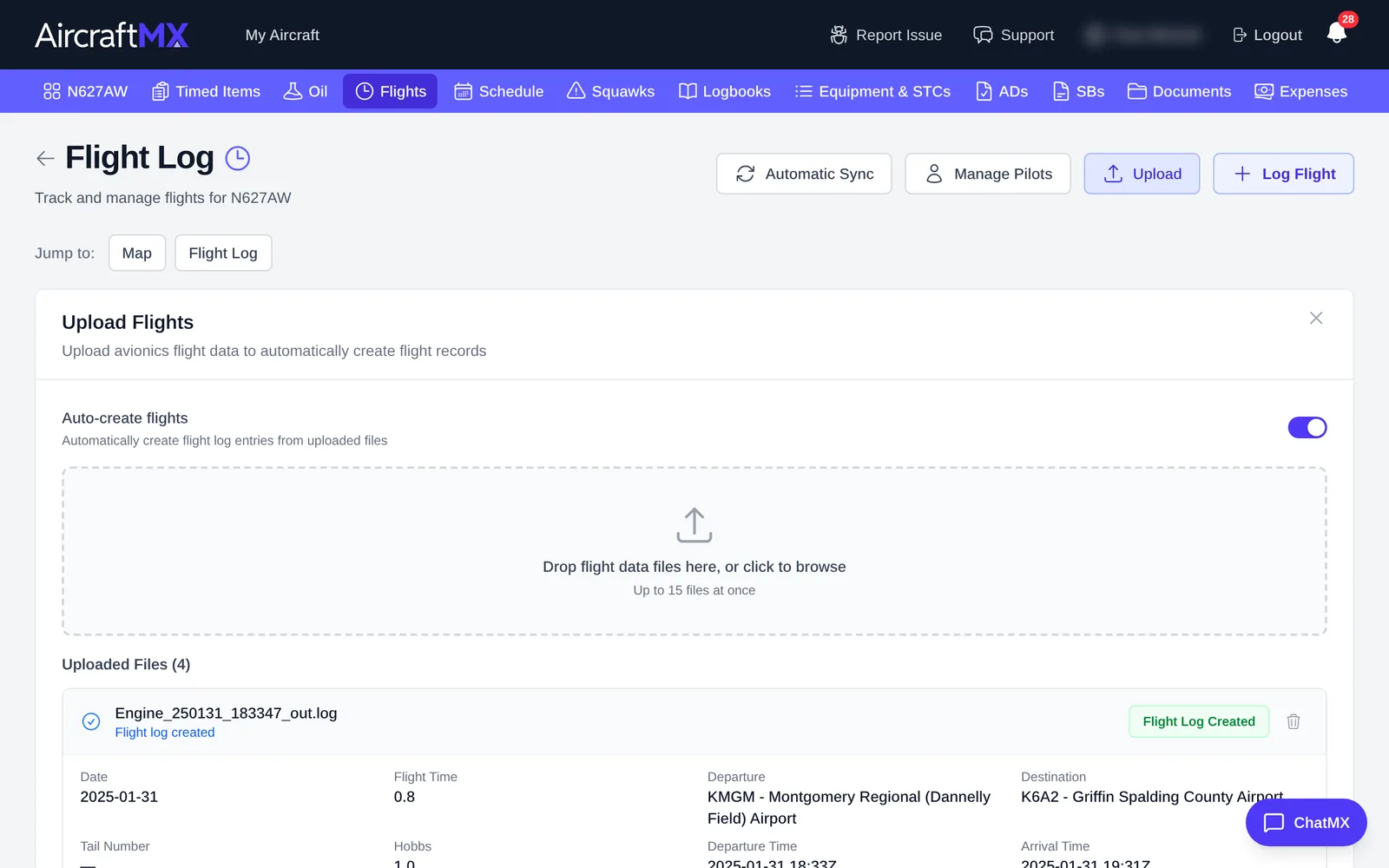
If your avionics or engine monitor records data files, upload them and AircraftMX creates flight log entries from them.
- Click Flights.
- Click Upload. The Upload Flights panel opens.
- Drag files onto the drop area, or click it to choose files. The picker accepts
.csv,.log, and.txtfiles, up to 15 files at once. - With Auto-create flights on, a flight is created for each file automatically. Turn it off to review each file first, then click Create Flight Log for the ones you want.
Uploaded files are listed under the drop area with the flight details found in each one.
Want this to happen automatically? See Automatically import flights.
On a phone
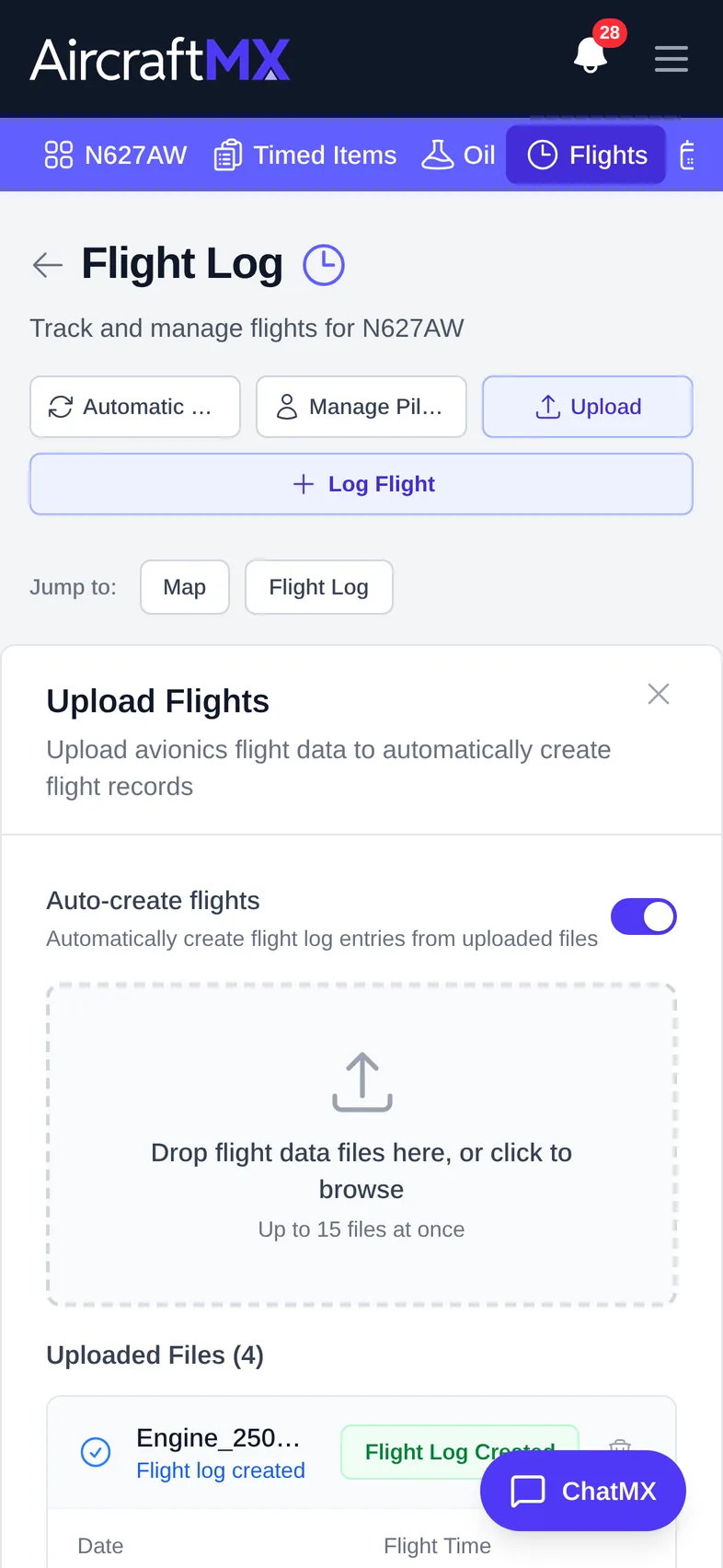
The layout is the same on a phone; sections stack in a single column.
Still stuck?
Contact us, or use Report Issue in the top bar of the app.