Flight Logs
Connect Garmin (FlyGarmin)
If your aircraft has Garmin avionics that upload to FlyGarmin, you can have those flights sent to AircraftMX.
Start the connection from FlyGarmin
The connection is started from Garmin's side:
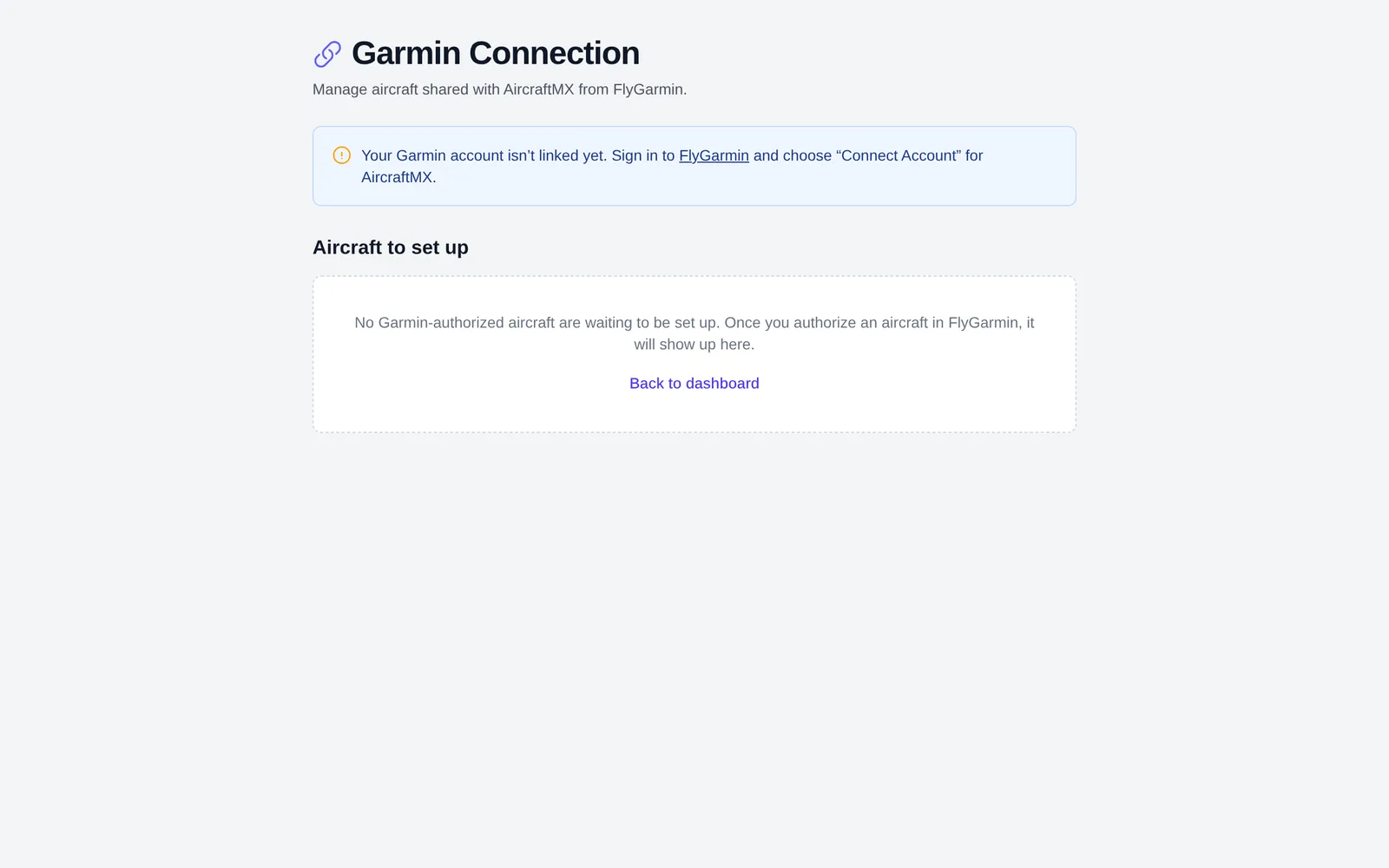
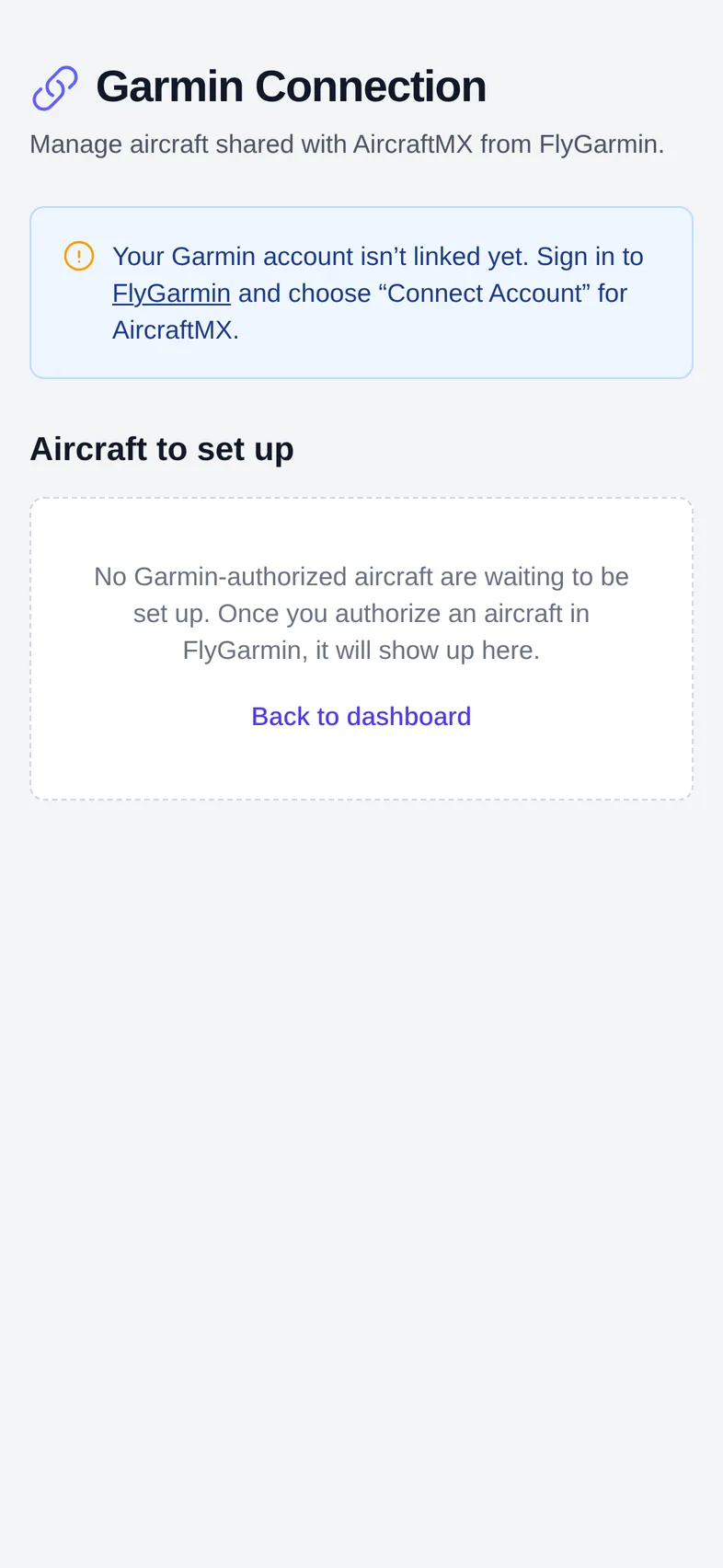
- If Garmin is not linked, the Garmin Connection page says: sign in to FlyGarmin and choose Connect Account for AircraftMX.
- Sign in to AircraftMX when asked, and approve the connection.
- After the account is linked, authorize the aircraft from FlyGarmin's data-sharing page. Aircraft settings also point to the Garmin setup page for connecting the account.
Choose which aircraft to sync
After connecting, the Garmin Connection page in AircraftMX lists the aircraft Garmin shares. For each one, choose the matching AircraftMX aircraft.
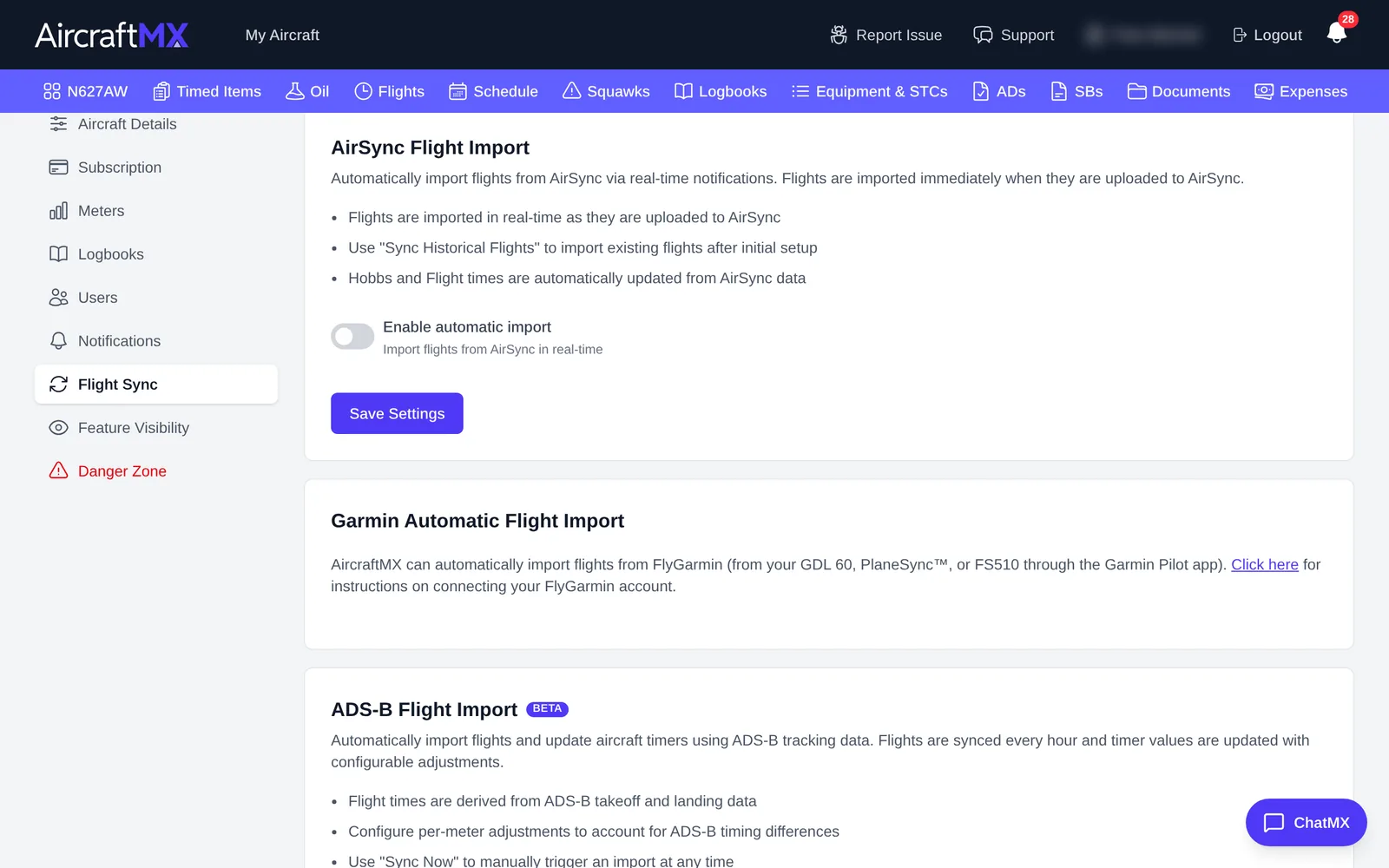
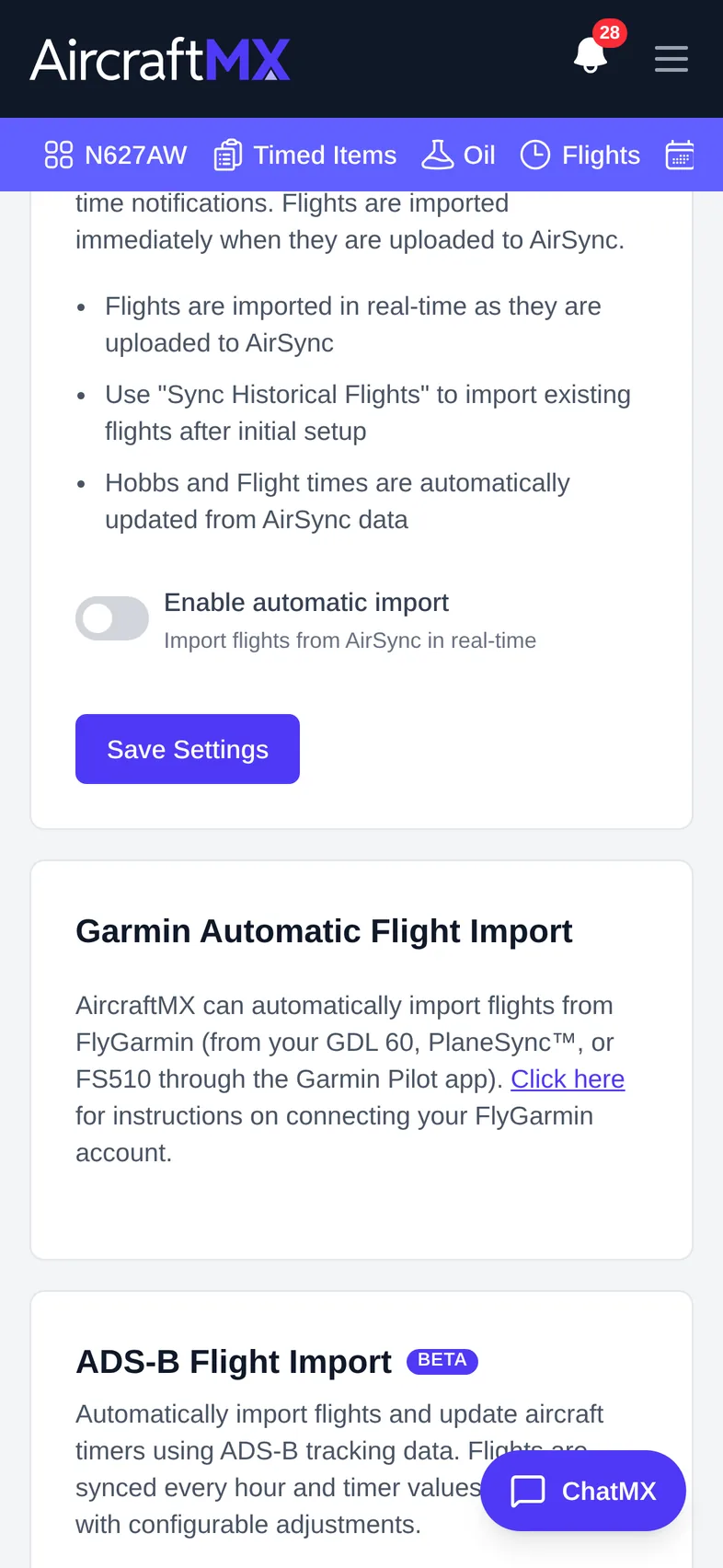
You can also turn Garmin sync on or off for each aircraft in its settings: click Settings, then Flight Sync, and use Sync this aircraft from Garmin under Garmin Automatic Flight Import.
If a banner asks you to claim a Garmin aircraft, follow it to link the aircraft.
On Garmin Connection, click Disconnect Garmin. The confirm dialog says this pauses imports for all of your aircraft in AircraftMX, and that fully revoking access also means removing the connection at fly.garmin.com. Per aircraft, Sync this aircraft from Garmin can be turned off to pause that aircraft only. Sync Now runs a sync and reports how many flights were imported, deleted, skipped, and in error. Garmin does not import historical flights here. Sync Historical Flights is on AirSync, not Garmin.
On a phone
On a phone, the settings sections are in a drop-down at the top of the page instead of a list on the left. Choose Flight Sync from it.
Still stuck?
Contact us, or use Report Issue in the top bar of the app.