Getting started
Add a new aircraft
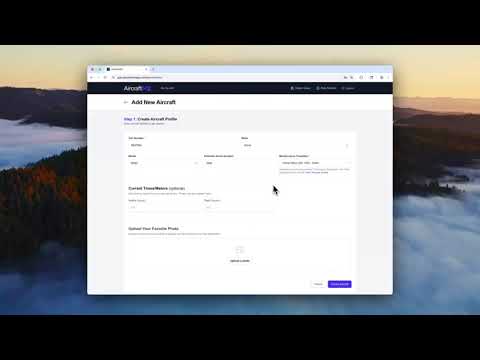
Note: the video shows an older version of the subscription step. Today, if the plan includes a free trial, you tap Start Free Trial. No credit card is collected on that step.
This guide walks you through adding an aircraft to AircraftMX: entering the tail number, choosing a maintenance template, and starting your free trial.
Before you begin
Have these ready:
- Tail number (required). AircraftMX looks it up in the FAA registry and can fill in the make, model, and serial number for you.
- Current times (optional), such as Hobbs and tach. You can add them later.
- A photo of your aircraft (optional).
Step 1: Start adding an aircraft
Log in to AircraftMX. On My Aircraft, under Ready to add another aircraft?, tap Add New Aircraft.
Step 2: Enter your tail number
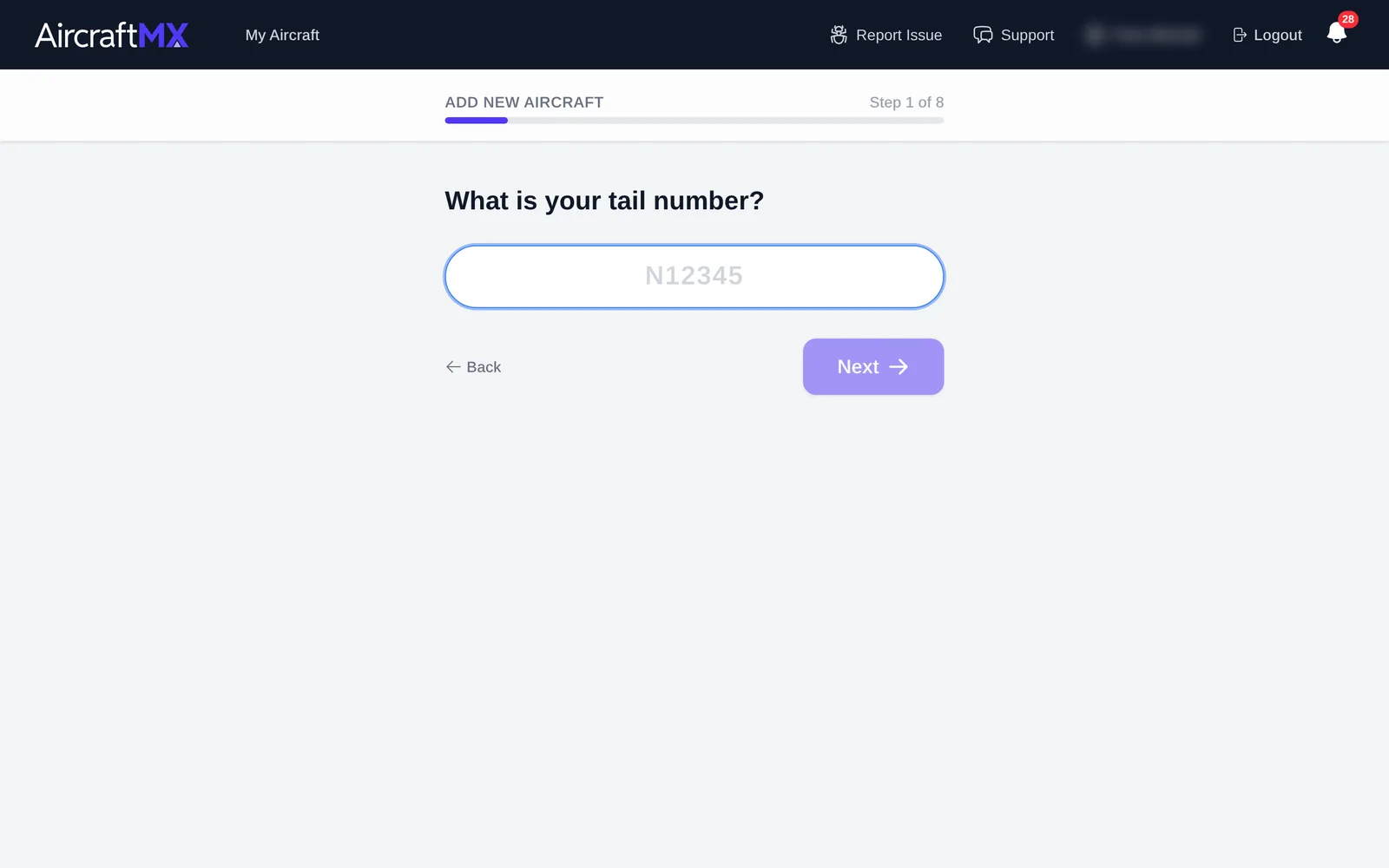
Enter the tail number. AircraftMX checks the FAA registry. If it finds a match, the make, model, and serial number are filled in for you and you can skip ahead.
Step 3: Select the make and model
If they weren't filled in automatically, choose the aircraft make (for example, Cirrus), then the model (for example, SR22).
Step 4: Enter the serial number (optional)
Enter the serial number, or skip this step and add it later.
Step 5: Choose a starter template
Templates pre-populate timed items, equipment, and timers for the make and model. Tap a template to choose it. Its description is shown under the name.
Step 6: Enter current aircraft times
Enter the current value for each timer in the template (for example, Hobbs or tach). If you don't have them handy, skip this step and update them later.
Step 7: Add a photo (optional)
Add your favorite photo of the aircraft. It appears on your dashboard. You can also add one later.
You can add a JPEG, PNG, GIF, or WEBP. iPhone HEIC photos are converted to JPEG in the browser when the phone can read them. The app allows originals up to 25 MB and resizes the photo before it uploads. The server accepts .jpg, .jpeg, .png, .gif, and .webp, does not enforce a size limit, and resizes the image to 1000 pixels wide.
Step 8: Choose your subscription and start your free trial
$149/yr per aircraft, 30-day free trial, no credit card required. Tap Start Free Trial.
When the trial ends, the aircraft dashboard stays open and shows Free Trial expired on {date} with Subscribe Now. Feature pages show Subscription Required and Choose a Plan. The feature cards on the dashboard show Upgrade to Access. You are not left in a read-only copy of logbooks, timed items, or the other features. Settings stays available so you can subscribe. No credit card is required to start the trial.
You'll go straight to your new aircraft's dashboard.
Garmin customers: if you're claiming an aircraft through Garmin, there's no subscription step. See Garmin customers.
iOS app (coming soon): If a plan can't be started in the app, you'll see "This plan requires a web browser to subscribe." Your aircraft is still created. Finish subscribing at aircraftmxapp.com in a web browser.
What's next
Your dashboard is pre-populated from the template:
- Timed Items: your maintenance items for your make and model. See Create and edit timed items.
- Equipment list: pre-populated equipment. Add details such as make, model, part number, and serial number for each item.
- Logbooks: upload your history. See Upload logbook entries from a PDF.
On a phone
On a phone the wizard shows one step per screen, with the same steps as on the web.

Still stuck?
Contact us, or use Report Issue in the app. To send files, attach them from Report Issue.